

This feature is part of our Early Access program (as of 19.19.0 release), and may be disabled on your instance. It is not available for self-hosted instances. Your system administrator can enable this feature for your entire organization. How to enable Early Access features

Who can use Pia Diagram Insights
Anyone with permission to view a diagram can use Pia Diagram Insights.
Analyzing a diagram with Pia (Process Intelligence Assistant)
-
While viewing any diagram, locate the Pia option in the upper-right toolbar.
-
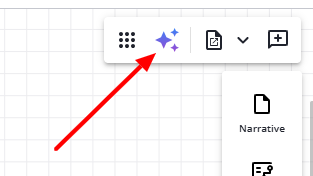
Click the Pia icon to open the Pia chat interface.
-
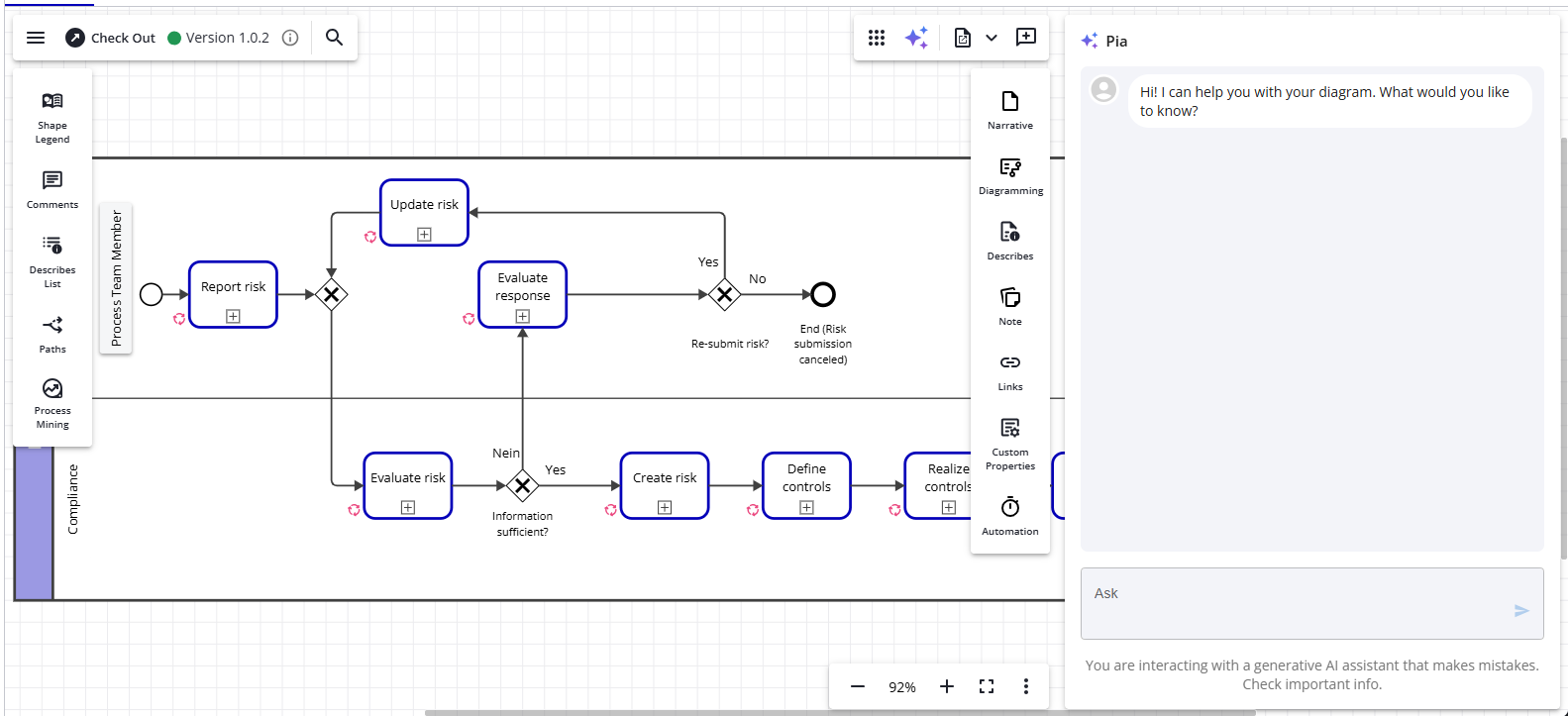
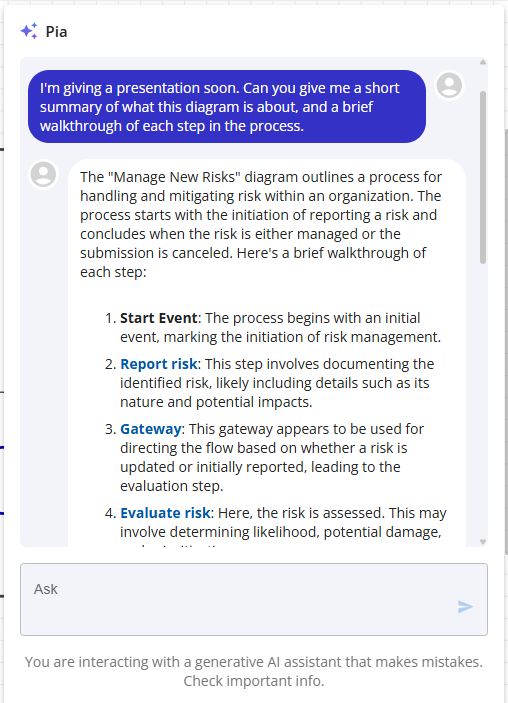
Ask Pia anything about the diagram currently displayed.
-
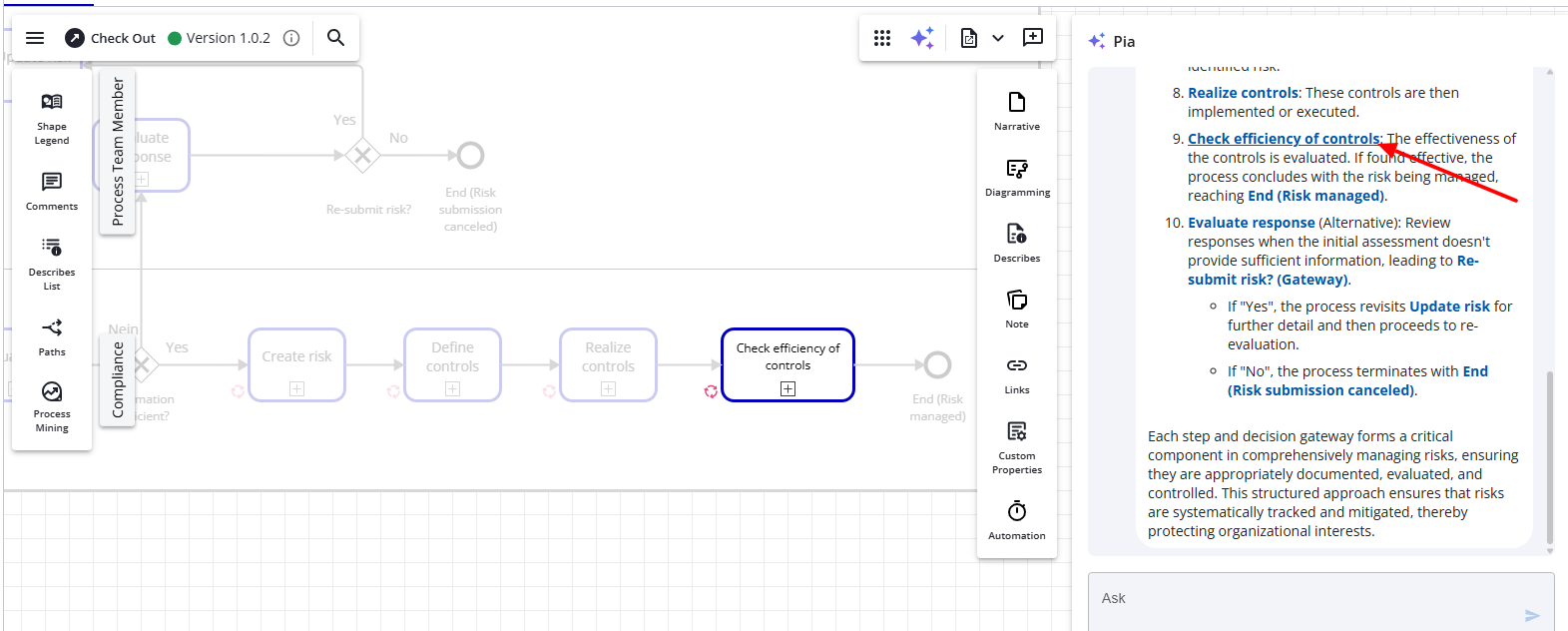
In Pia’s responses, some referenced shape names may appear as blue links. Clicking one of these links will automatically focus the corresponding shape in the diagram.
-
If you select one or more shapes before asking your question, Pia will tailor its analysis to the selected elements.
-
If the diagram is checked out, Pia will incorporate your ongoing changes and update its analysis dynamically as you work.
Translating all shape text in a diagram with Pia
-
While viewing a diagram that you have checked out, open the Languages Grid.
Note: The Pia “Translate All” feature is only available when the diagram is checked out, since it updates shape text directly.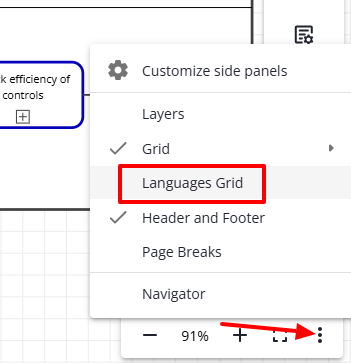
-
In the upper-right corner of the Languages Grid, click the Pia – Translate All button.
-
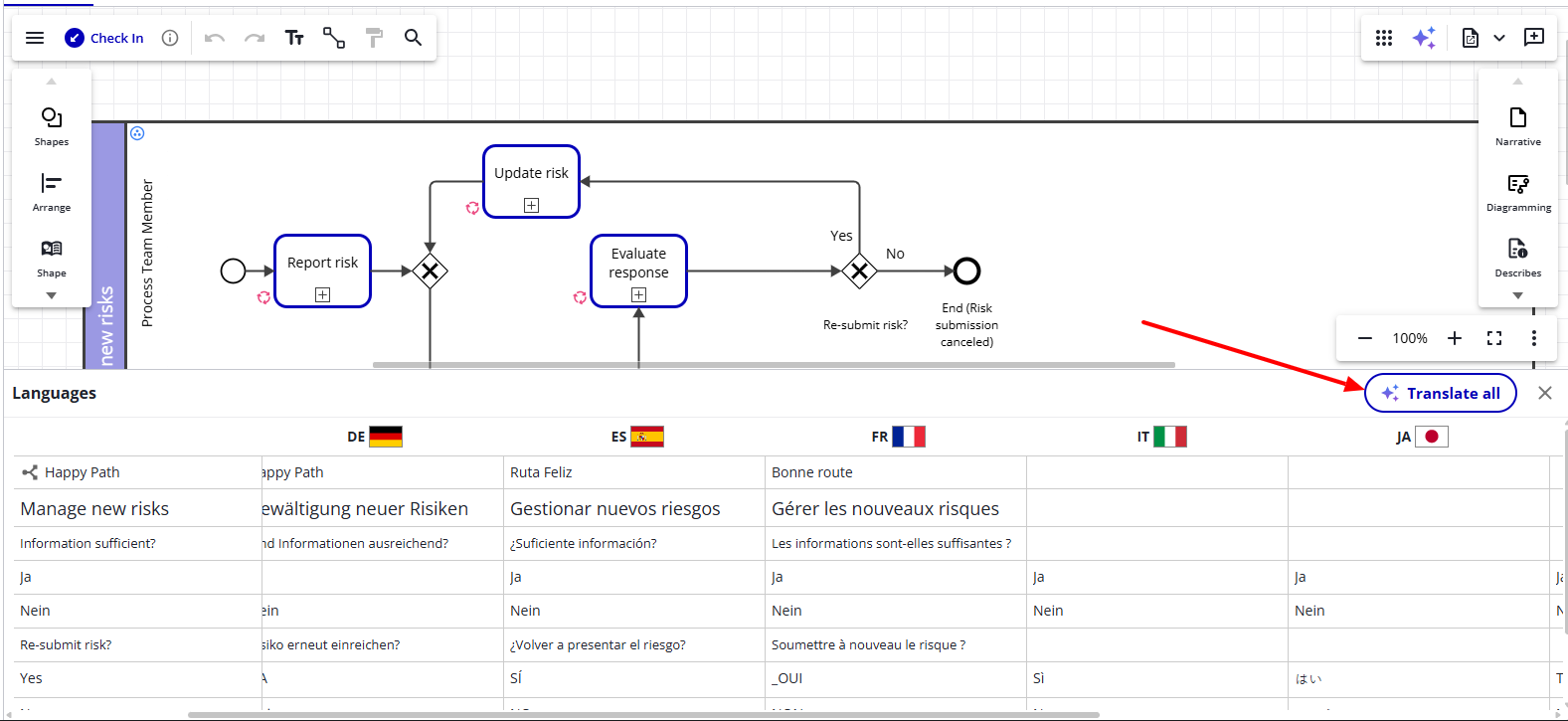
A dialog will appear allowing you to select which languages to translate.
-
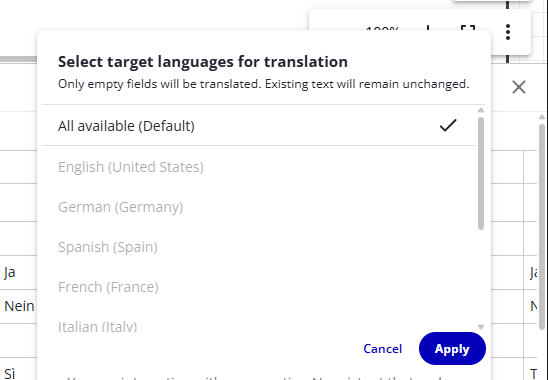
By default, Pia selects all languages currently available for the diagram. To translate only specific languages, uncheck the default option and select the languages you need, then click Apply.
-
Pia will populate missing translations for your selected languages. After translation completes, review all updated text to ensure accuracy before checking in the diagram.
Things that Pia Diagram Insights can do
-
Pia references the BPMN 2.0 specification to assess your diagram for BPMN guideline compliance, modeling errors, and best-practice alignment.
-
Pia can identify potential issues or business risks within the flow of your process.
-
If you’re reviewing a process you did not author or are not familiar with, Pia can walk you through each activity and incorporate notes and contextual information.
-
Need a diagram translated for yourself or a stakeholder? Ask Pia to translate the entire process or only specific parts.
-
When reviewing large diagrams, text search may not help if you don’t know exact activity names. By describing what you're looking for, Pia can guide you to the relevant area of the process.
-
Pia can create documentation for your diagrams—anything from a concise summary to a detailed walkthrough of every activity.
Things that Pia Diagram Insights cannot do yet
-
Pia currently has access only to basic diagram information such as shapes, lanes, gateways, connections, and notes.
It does not access relationship data or repository object model details. -
Pia cannot make changes to your diagram. The chat interface is a read-only analysis tool.
Cloud Only
Pia is currently only available in the iGrafx cloud.
Data Privacy
-
Pia conversations are visible only to the user who initiates them.
-
Customer data is not used for training or fine-tuning the model.
-
Pia uses a Large Language Model (LLM) hosted on Azure within your existing cloud services environment.
Your data does not leave the Azure environment.
Disclaimer
Pia is a generative AI assistant and may produce inaccurate or incomplete information.