

 UX Improvements
External File Cycles
New voting UI on external file previews lets users know they have to participate in a cycle. Users can see what cycle is in-progress and gives them the opportunity to vote and comment without having to navigate away from the file. Cycles are no longer interactions to search for but are now conveniently presented.
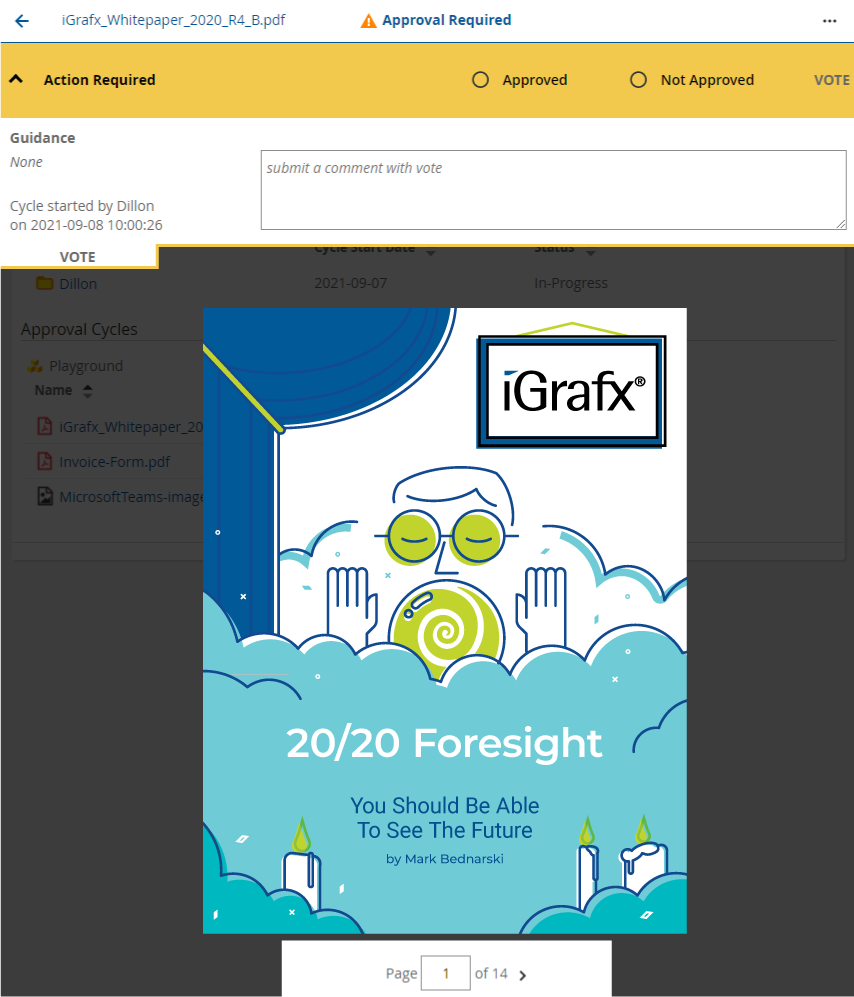
Instructions for voting improvements...
This voting interface is currently only available via the My To-do List feature. To access it you must do the following:
-
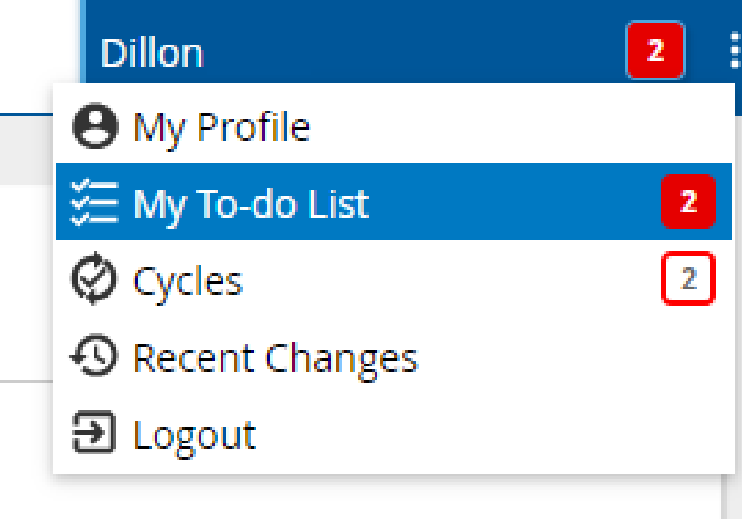
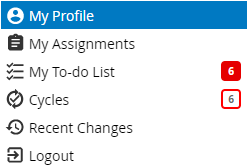
When notified of your inclusion in an Approval cycle for an external file, go to the profile menu
-
Click My To-do List to see the cycle information

-
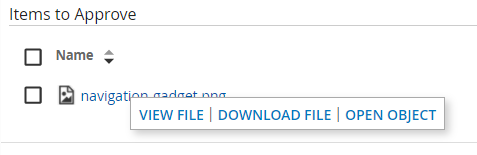
Click the item to see your options, then click VIEW ITEM
-
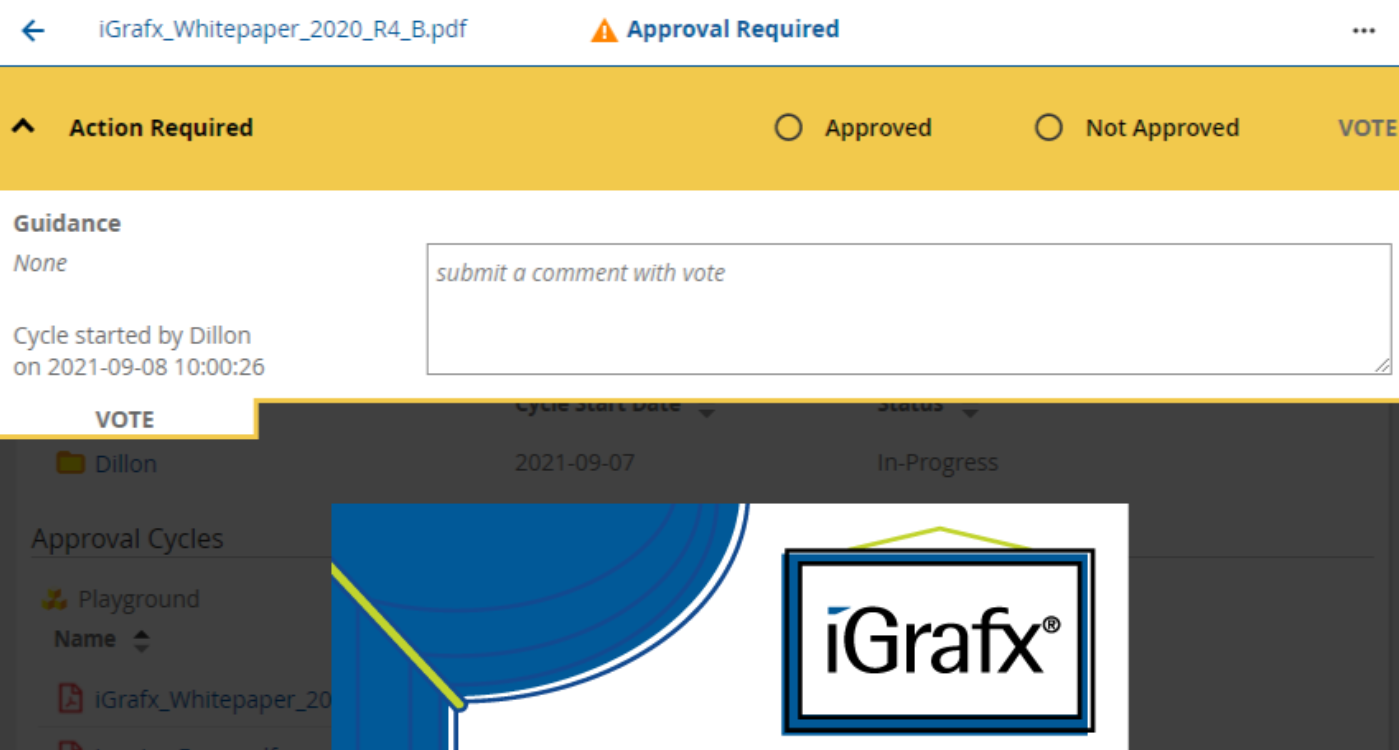
This will take you to the new voting interface where you can conveniently inspect the external file, add any comments and submit your vote.
 New and Improved Guides
New to the Info Center is a series of guides that familiarize users with the life cycles of content and how they are managed. The guides detail different types of cycles, how to create groups of participants, and how to start, stop and schedule individual and multiple cycles.
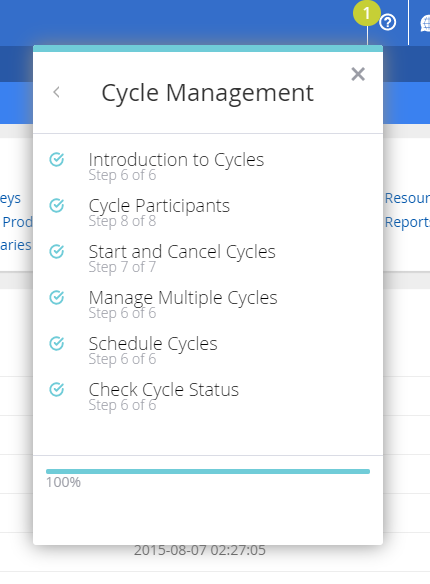
This release also includes fixes to guides that would close unexpectedly as well as improvements to their visual design. The adjusted guides include Welcome to iGrafx, Repository Tour, Creating Objects, Creating a New Diagram, and QuickMap.
 History
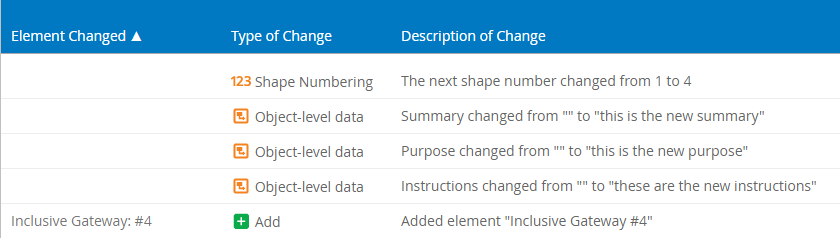
Object history now includes the details of custom property changes. Diagram history data is optimized for approval and review workflows. When voting you can now enter the compare view, adjust filters, and quickly see what has changed between the proposed and previous approved version. Version comparisons now default to the full compare mode with changes outlined in the grid.
Instructions for History improvements...
To view these changes to History:
-
Navigate to a checked-in diagram
-
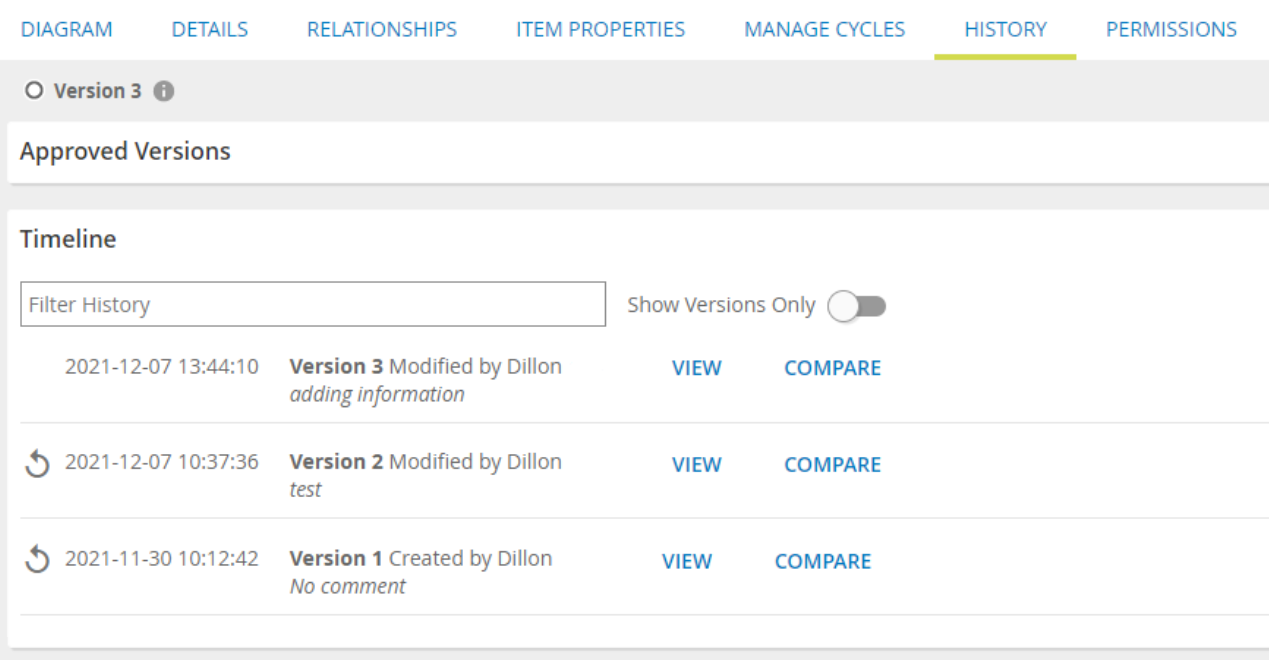
Access the History tab (if you are in the diagramming area, first expand the flyout menu)
-
Review the Timeline for the version you want to explore, then click COMPARE
-
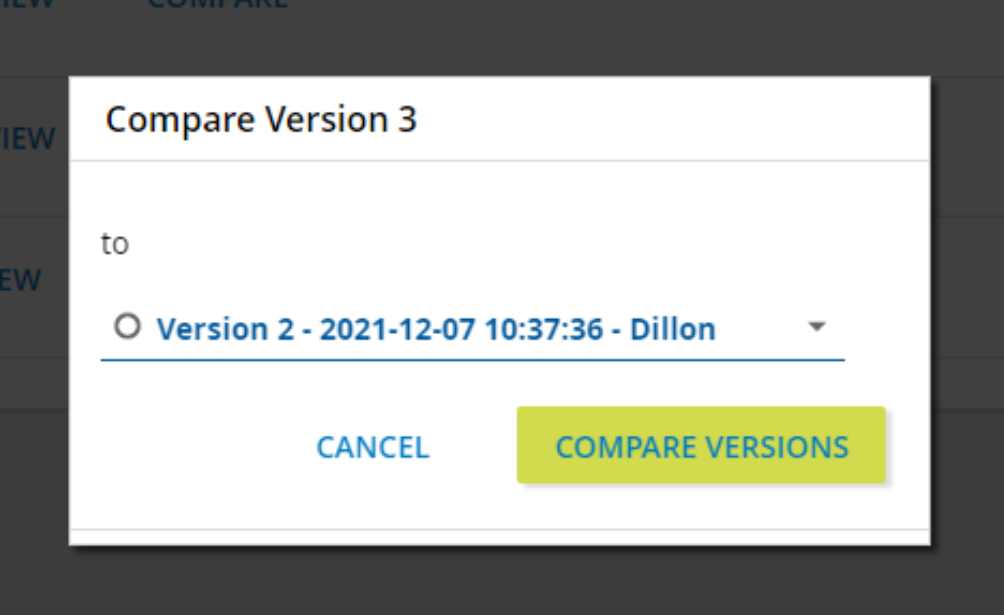
Double-check the version you would like to compare in the Compare dialog, then click COMPARE VERSIONS
-
Now you can see the Object-level data, Summary, Purpose, Instructions and Custom Properties, included in the version coparison.
 Additional UI Languages
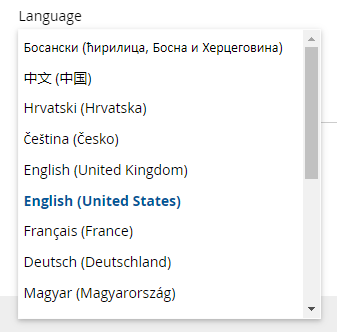
The user interface now includes Croatian, Czech, Hungarian, Lithuanian, Romanian, Portuguese, Swedish, and Turkish as language options.
Instructions for changing display language...
To adjust your display language:
-
Navigate to My Profile
-
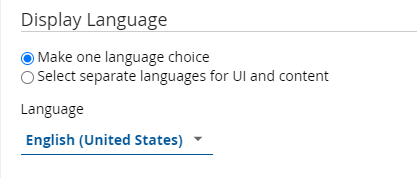
In the Settings tab, under Display Language, you will find a drop-down menu with your currently selected language
-
This menu now includes 8 more languages to choose from.
 Other Enhancements
Templates
When creating a new diagram, the list of templates now clearly defines template folders and their contents to make selecting the right file easier. Also, users now have the ability to disable built-in templates.
Instructions for designating a template folder...
Template folders can be selected doing the following:
-
Expand the Repository Configuration menu and click Advanced
-
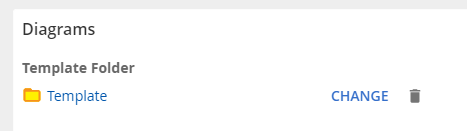
Look for Template Folder under Diagrams
-
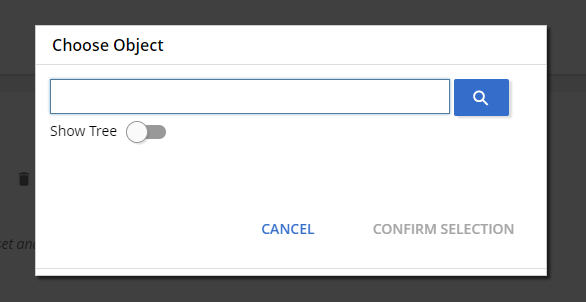
Click CHANGE to access the repository search dialog
-
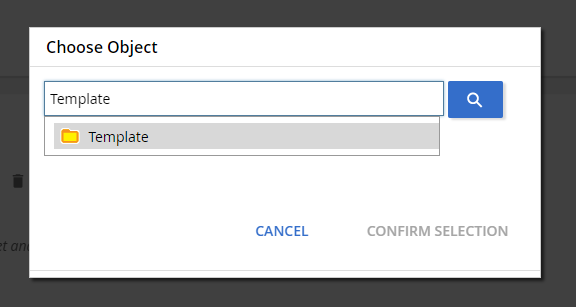
Type in a folder name or browse the tree
-
When you are finished, click CONFIRM SELECTION
Instructions for new Template selection behavior...
Template folders can be selected doing the following:
-
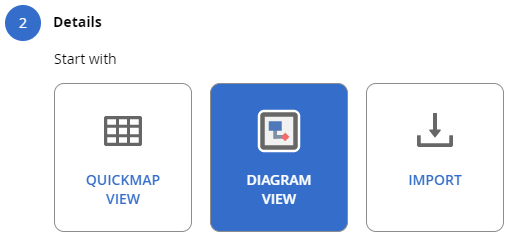
In the Model area, click NEW DIAGRAM

-
Select DIAGRAM VIEW
-
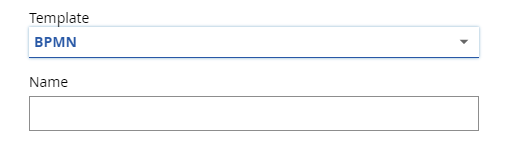
Expand the Template menu
-
The new folder structure better illustrates parent-child folders and files

Web diagram
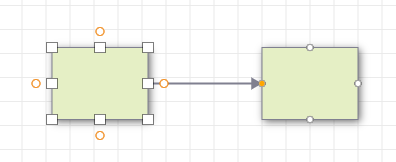
Connection points appear while editing lines giving users a clearer visual experience when editing diagrams to make things even and centered.
Search Filters
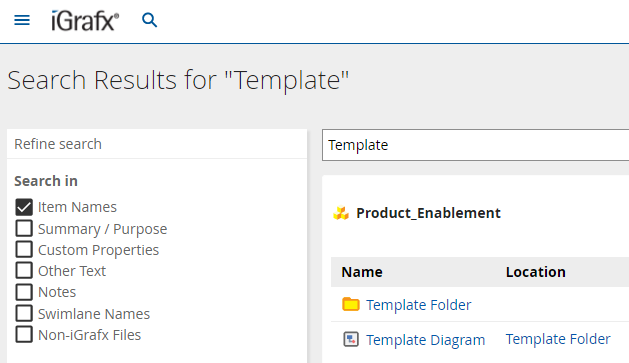
Rather than adjusting filter options and getting more results than you wanted, the search now filters by item name only by default. Users can then add additional filters for a more advanced search.
Journey Map Library
A set of shapes common to journey mapping have been added to shape libraries.
Browser Support
Internet Explorer is no longer supported