

This feature is part of our Early Access program (as of 19.19.0 release), and may be disabled on your instance. Your system administrator can enable this feature for your entire organization. How to enable Early Access features. This feature requires a PRC license to test/use. Talk to your account executive if you want to learn more.

Purpose
Why is a Control Assessment needed in Risk Management?
-
Verify effectiveness
It evaluates whether the existing controls (e.g., processes, policies, technical measures) actually reduce or prevent the identified risks as intended. -
Identify weaknesses
Through analysis, gaps, inefficient measures, or missing controls that could lead to increased risk are detected. -
Ensure compliance
Many regulatory requirements (e.g., ISO 27001, SOX, GDPR, DORA) demand proof that controls are regularly reviewed and documented. -
Optimization and cost efficiency
It shows whether resources are used effectively or if controls are oversized.
Permissions (Item Role)
Item Roles can be configured in the Admin → Security Roles → Item Roles Tab. By default View Control Assessments is off for all users. During the upgrade to version 19.19.0, any Item Role with Add Risk Data enabled was modified to include the Add Control Assessment permission as well. The table below shows what can be viewed on the control object according to the permission settings (Y indicates permission granted; N indicates permission not granted).
|
View |
Modify |
View Control Assessments |
Add Control Assessments |
Outcome |
|---|---|---|---|---|
|
N |
N |
N |
N |
|
|
Y |
N |
N |
N |
|
|
Y |
Y |
N |
N |
|
|
Y |
N |
Y |
N |
|
|
Y |
N |
N |
Y |
|
|
Y |
Y |
Y |
N |
|
|
Y |
Y |
N |
Y |
|
|
Y |
N |
Y |
Y |
|
|
Y |
Y |
Y |
Y |
|
Adding new control assessments
-
On any control or control instance object → click the assessment tab
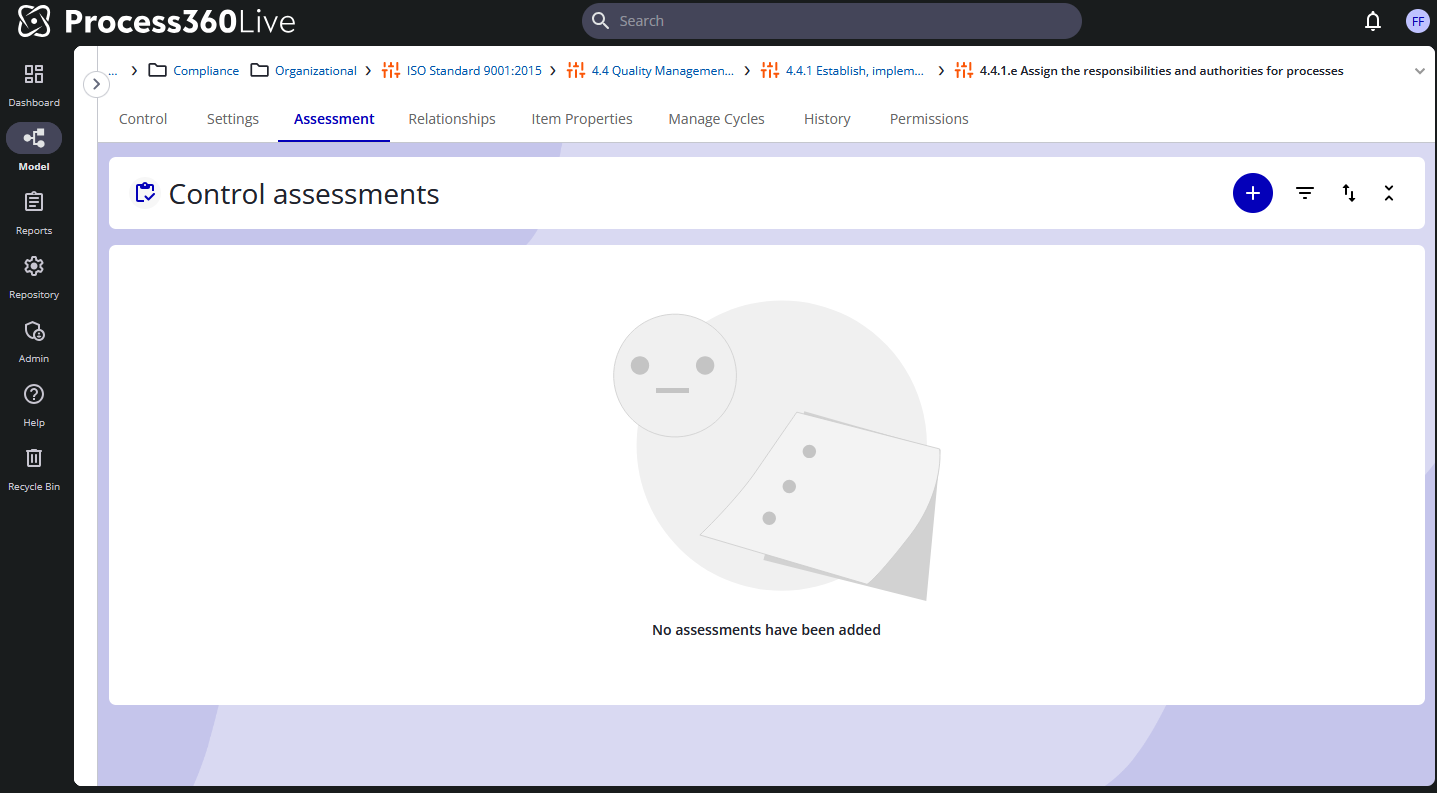
-
Click the + icon to add a new assessment to fill out
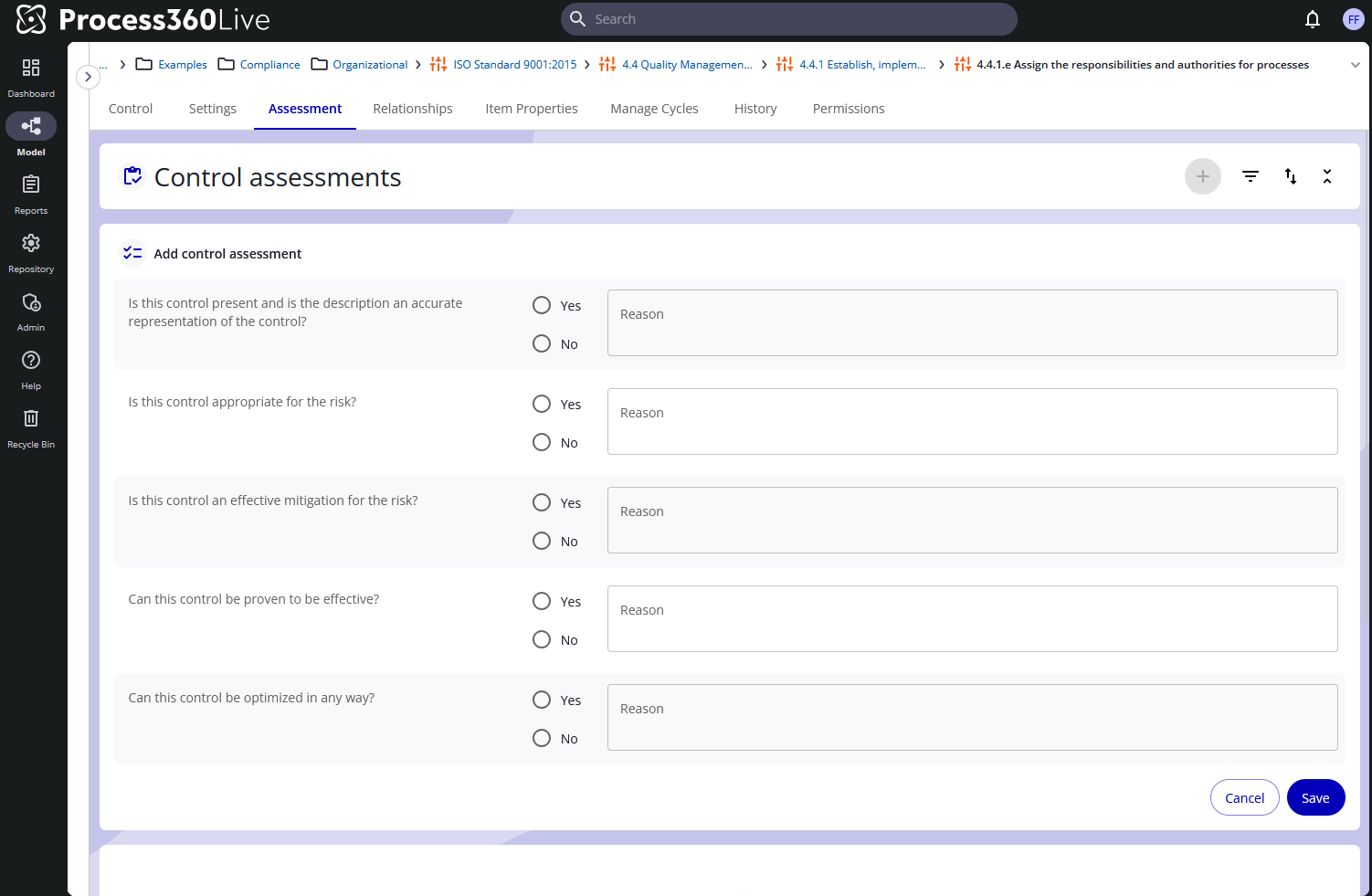
-
The five questions that have a yes / no radio buttons are required to be filled out in order to save the assessment
-
The text areas are optional
-
-
Click the save button on the bottom right to save or cancel to discard the assessment
Viewing control assessments
Any control assessments you have rights to see will show up on the control assessments page. By default the assessments are collapsed. Clicking the expand all icon at the top next to the + icon will open all of them for you.
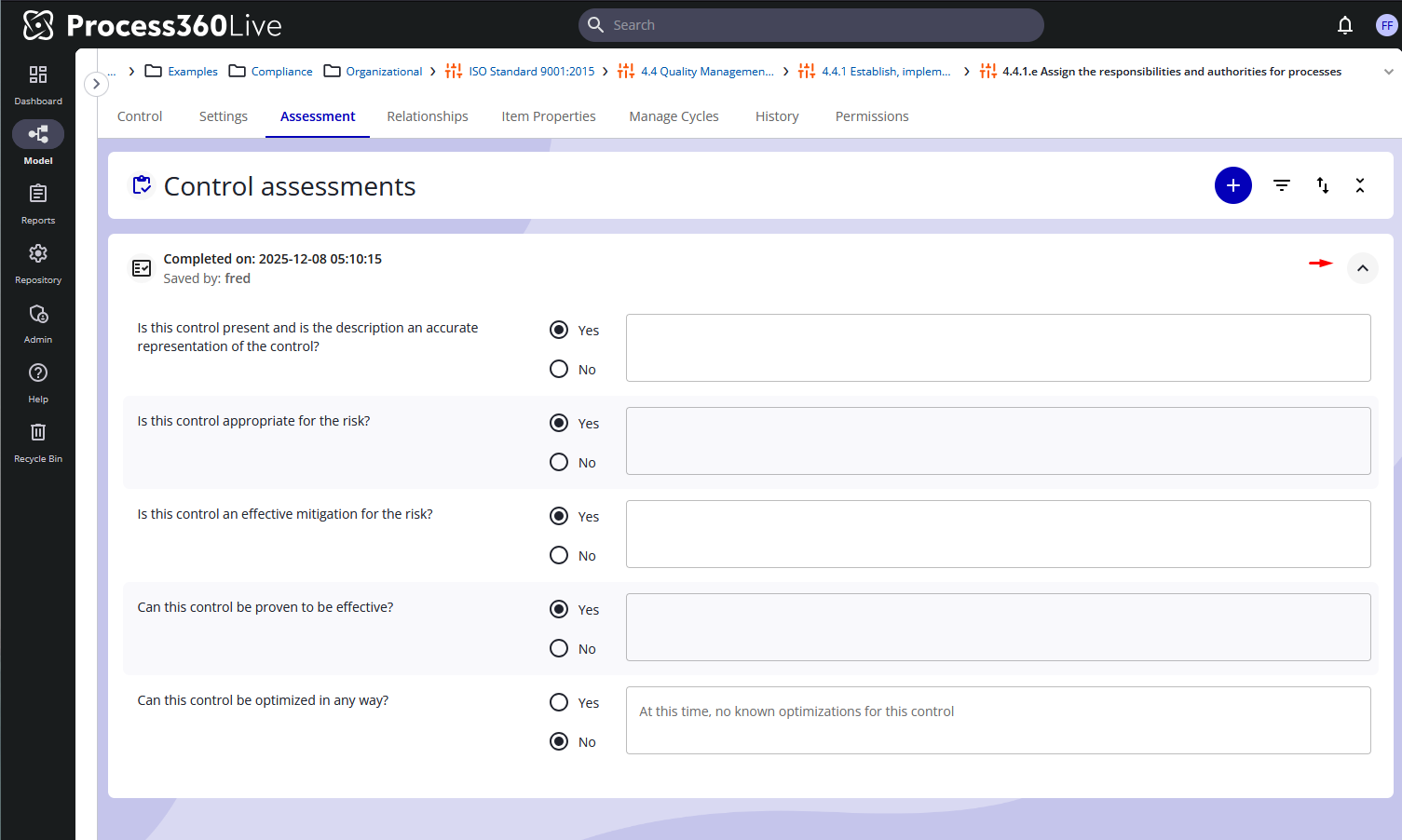
The date and user who completed the assessment will show up in the top left of the assessment. If the user is connected to a resource the resource will replace the users display name. If the user doesn’t have a resource or a display name it will fallback to the username.
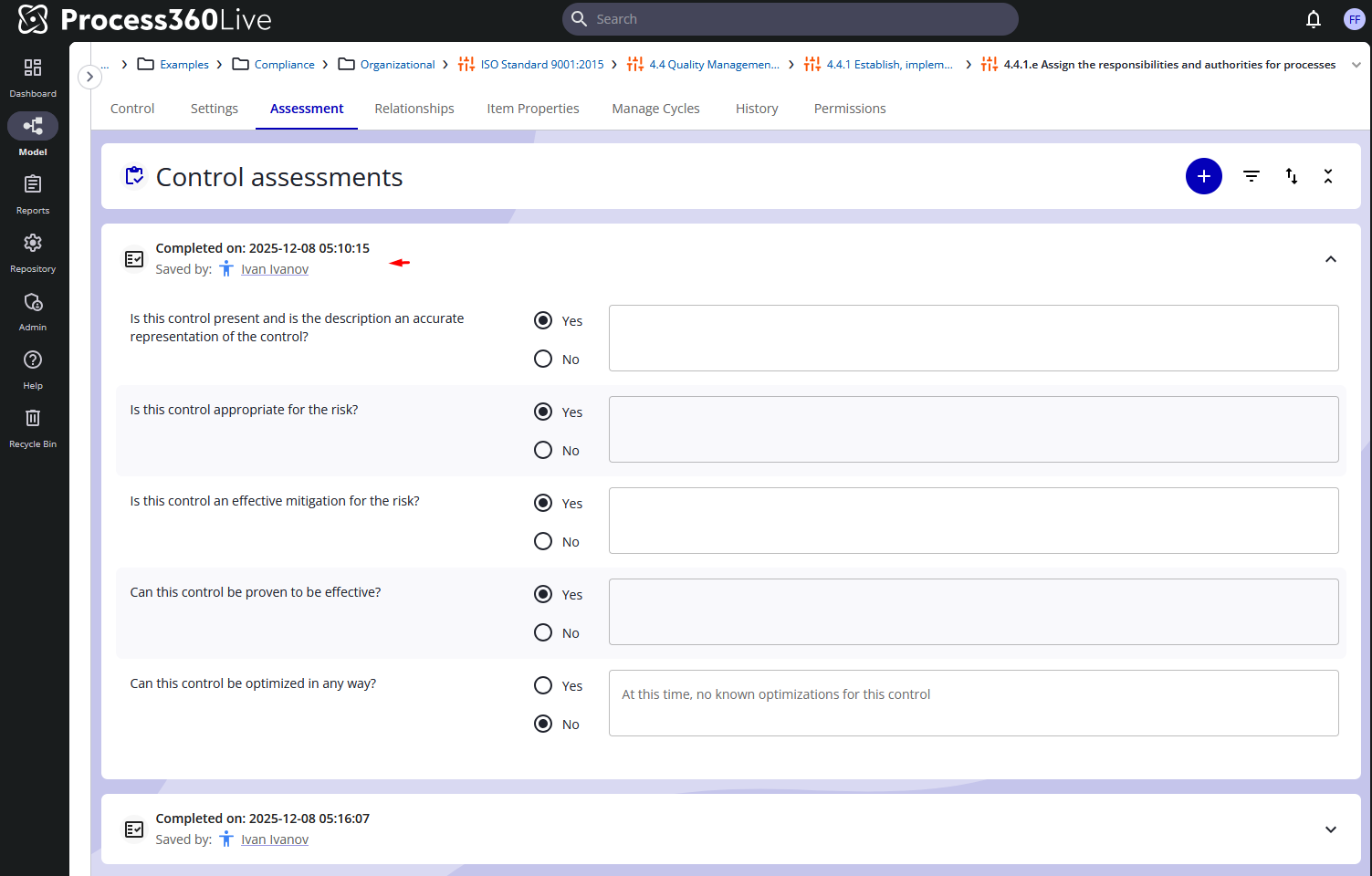
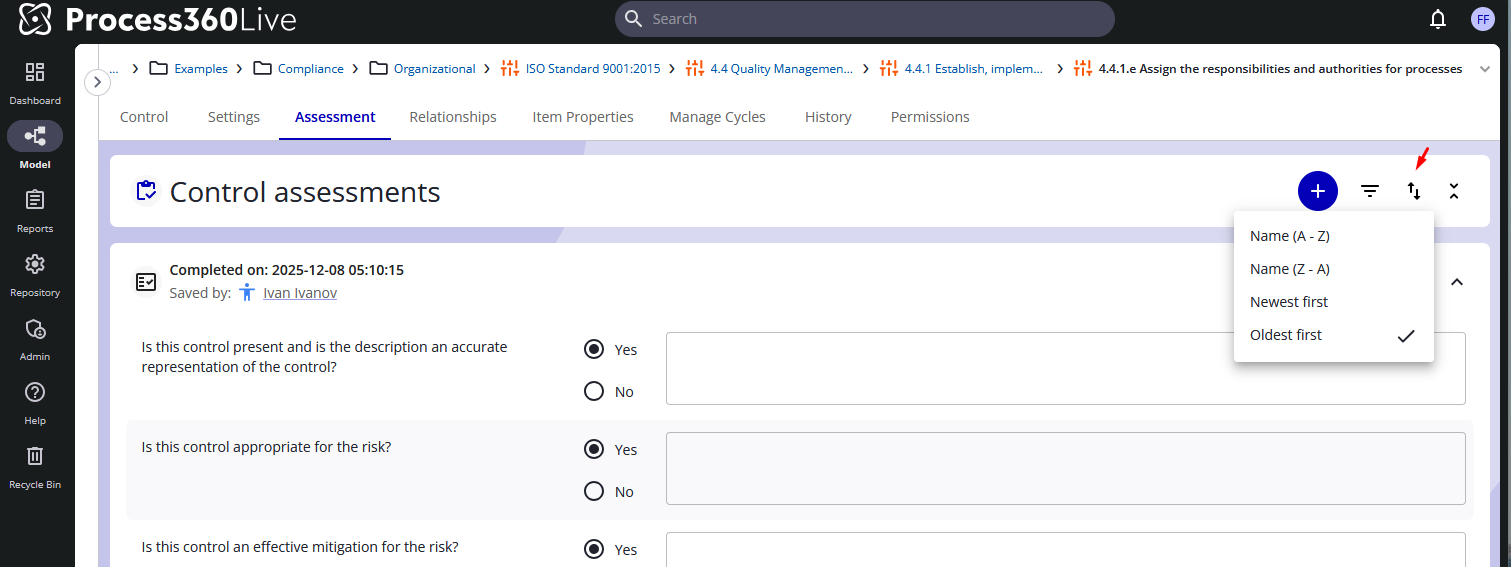
The order of the assessments can be changed using the sort by icon. The options are A-> Z (username), Z → A (username), newest first (date) and oldest first (date).
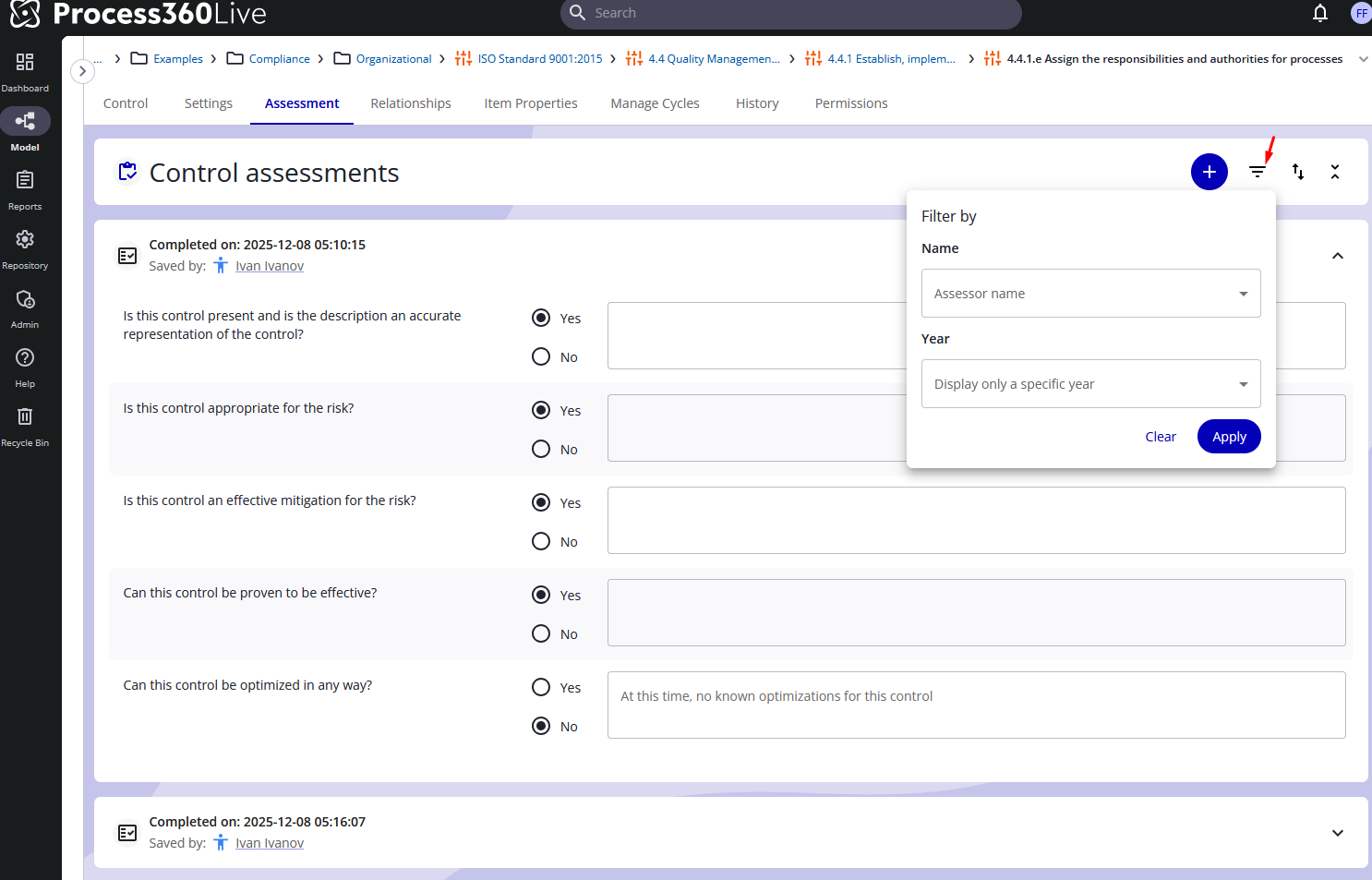
The assessments can also be filtered by name and or year. The options for these are based on the assessments that are visible to the user.
Editing and deleting control assessments
Since assessments are maintained as part of a historical record, they are currently not editable or removable via the UI or the API.
Future improvements
-
Reporting on control assessments