BPMN reference
This reference lists every BPMNBPMN An ISO/OMG standard graphical notation for modeling business processes. Process360 Live uses BPMN 2.0 for design and simulation artifacts. diagram object offered by the built-in web diagram shape libraries — what each shape means and when to use it — followed by naming conventions and modeling best practices. The shapes follow the Business Process Model and Notation (BPMNBPMN An ISO/OMG standard graphical notation for modeling business processes. Process360 Live uses BPMN 2.0 for design and simulation artifacts.) 2.0 standard (OMG specification); shapes marked as iGrafx extensions go beyond the standard. For the object types of the repository itself, see the Enterprise object catalog.
The built-in BPMN libraries
New BPMNBPMN An ISO/OMG standard graphical notation for modeling business processes. Process360 Live uses BPMN 2.0 for design and simulation artifacts. diagrams start with two libraries in the Shapes panel; the others are filtered subsets you can turn on per diagram with Manage — see Shape libraries.
| Library | Contents |
|---|---|
| BPMNBPMN An ISO/OMG standard graphical notation for modeling business processes. Process360 Live uses BPMN 2.0 for design and simulation artifacts. Core | A focused starter set: Pool, Call ActivityActivity A named step in a process (e.g. "Approve Invoice"). Each event in an event log records one activity occurrence for one case., Generic Task, Exclusive and Parallel Gateways, Generic, Message Receive, Message Send, and Timer Events, and the Data Object. |
| BPMNBPMN An ISO/OMG standard graphical notation for modeling business processes. Process360 Live uses BPMN 2.0 for design and simulation artifacts. All | Every shape in this reference. |
| BPMNBPMN An ISO/OMG standard graphical notation for modeling business processes. Process360 Live uses BPMN 2.0 for design and simulation artifacts. Containers | Pools, sub-processes, and the Group Artifact. |
| BPMNBPMN An ISO/OMG standard graphical notation for modeling business processes. Process360 Live uses BPMN 2.0 for design and simulation artifacts. Tasks: All / Standard / Extended | The task types, split into the standard BPMNBPMN An ISO/OMG standard graphical notation for modeling business processes. Process360 Live uses BPMN 2.0 for design and simulation artifacts. set and the iGrafx extended set. |
| BPMNBPMN An ISO/OMG standard graphical notation for modeling business processes. Process360 Live uses BPMN 2.0 for design and simulation artifacts. Gateways | The six gateways. |
| BPMNBPMN An ISO/OMG standard graphical notation for modeling business processes. Process360 Live uses BPMN 2.0 for design and simulation artifacts. Events: All / Top-Level / Boundary | The events; the Top-Level and Boundary subsets filter to events that can start a process or attach to an activityActivity A named step in a process (e.g. "Approve Invoice"). Each event in an event log records one activity occurrence for one case. border. |
| BPMNBPMN An ISO/OMG standard graphical notation for modeling business processes. Process360 Live uses BPMN 2.0 for design and simulation artifacts. Data Objects | The data object, input, output, collection, and store shapes. |
| BPMNBPMN An ISO/OMG standard graphical notation for modeling business processes. Process360 Live uses BPMN 2.0 for design and simulation artifacts. Artifacts & Graphics | Group and message artifacts. |
Concepts
Concept | Description |
|---|---|
Process | A flow of Activities that perform work. In BPMN, a Process is depicted with a set of Flow Objects (Activities, Events, Gateways), which are connected by Sequence Flow. |
Participant | A business entity (e.g., a company, company division, or a customer) or a business role (e.g., a buyer or a seller) that controls or is responsible for a business process as part of a Collaboration between the Participants (Pools) in a Process. |
Activity | This is work that an organization performs. Activities include Tasks and Sub-Processes (defined below). There is not an "Activity" shape, there is a "Task" shape. |
Containers and swimlanes
Shape | Description |
|---|---|
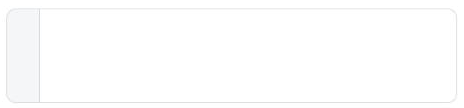
Pool
| Pools are graphical representations of Participants. They partition a Process from other Pools/Participants. A Pool is not required to contain a Process. The Pool should be named for the Participant it represents or the Process it contains. |
Vertical Pool
| The same as a Pool, rotated: lanes run side by side and flow runs top to bottom. Use it when your convention lays processes out vertically. |
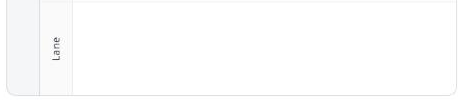
Lane
| Lanes represent resources such as internal roles (e.g., Manager, Associate), or organizations (e.g., shipping, finance). Lanes subdivide a Pool. |
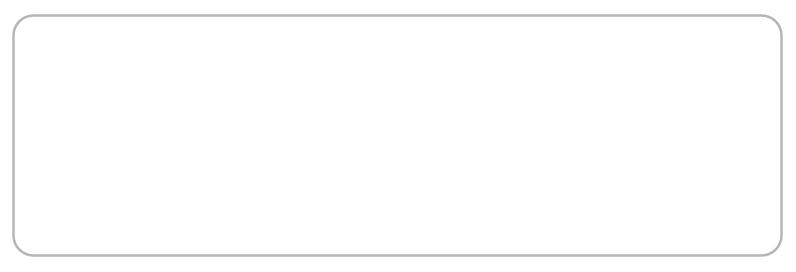
Embedded Sub-Process
| Denotes a Sub-Process where the Sub-Process tasks are shown directly inside the activity; the equivalent of an expanded sub-process. |
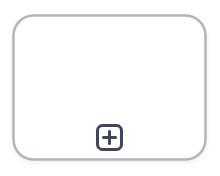
Collapsed Sub-Process
| Denotes a process that is represented as a single activity, that has more detail that is not visible in the diagram. Clicking the plus sign opens the additional detail (opens a separate diagram, vs. expanding in the same diagram). |
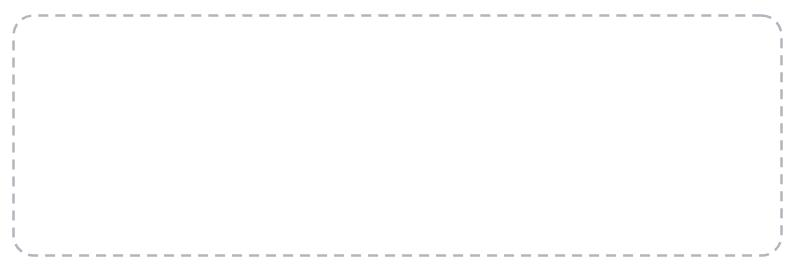
Event Sub-Process
| A sub-process that is not part of the normal flow: it runs when its start event triggers — for example to handle an error or an escalation raised inside its parent. Drawn with a dashed outline, expanded on the diagram. |
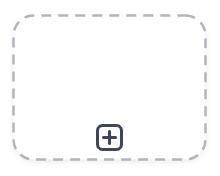
Collapsed Event Sub-Process
| The same event sub-process, shown collapsed as a single activity with its detail hidden. |
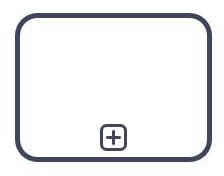
Call Activity Collapsed Sub-Process
| An activity that represents a call to a globally-reusable Process. The shape may link to another diagram within the repository using the Diagramming Properties dialog. |

Connections
Connection | Description |
|---|---|
Sequence Flow
| Shows the order that Activities are performed by the Process.
|
Message Flow
| Shows communication between Participants (Pools, e.g. from the Process to a customer) and are recommended, though optional. Message flows cannot connect objects that are within the same Pool. |
Association
| Connects text artifacts to other diagram objects. If Association flow (with an arrowhead), connects Artifacts together with Activities. Associations are drawn as dotted lines. |


Tasks
Shape | Description |
|---|---|
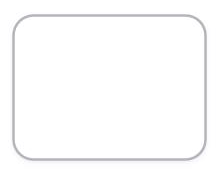
Generic Task
| Denotes where work is performed by the process. |
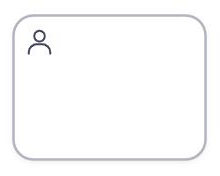
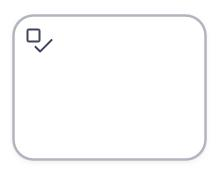
User Task
| Task type: Denotes a task performed by a human with the aid of software. |
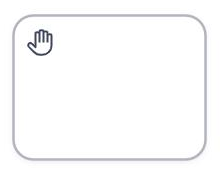
Manual Task
| Denotes a task performed by a human without the aid of software — for example a physical inspection. |
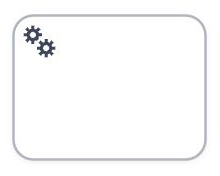
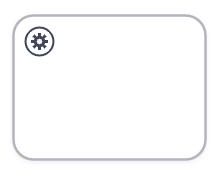
Automated Task
| Denotes a task that is performed without a human. In BPMN terms this is the Service Task. |
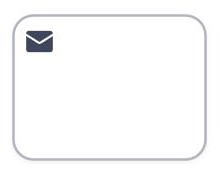
Send Task
| Denotes a task whose work is sending a message to another Participant. The task completes when the message is sent. |
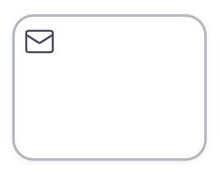
Receive Task
| Denotes a task that waits for a message from another Participant. The task completes when the message arrives. Use it when the wait is a piece of work in its own right; for a simple pause on a message, a Message Receive Event is the lighter choice. |
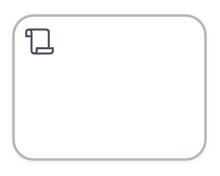
Script Task
| Denotes a task executed by a process engine running a script defined in the model. |
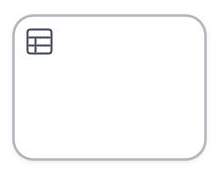
Business Rule Task
| Denotes a task that evaluates business rules — for example in a rules engine — and returns the result to the process. Externalizing decisions into Business Rule Tasks keeps the flow itself simple. |
Extended task types (iGrafx extensions)
These task types go beyond the BPMNBPMN An ISO/OMG standard graphical notation for modeling business processes. Process360 Live uses BPMN 2.0 for design and simulation artifacts. 2.0 standard. Each behaves as a task on the canvas and carries a distinct marker; in BPMNBPMN An ISO/OMG standard graphical notation for modeling business processes. Process360 Live uses BPMN 2.0 for design and simulation artifacts. XML exports they are preserved as the iGrafx extension ixbpmn:extendedTaskType. Use them when your organization's method or automation tooling distinguishes these styles of work — most describe rule execution or service activityActivity A named step in a process (e.g. "Approve Invoice"). Each event in an event log records one activity occurrence for one case. in more detail than the standard set.
Task type | Typical use |
|---|---|
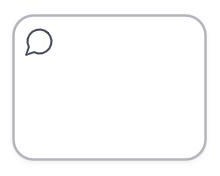
Notification Task
| Work that notifies someone — distinct from a Send Task's process-to-process message. |
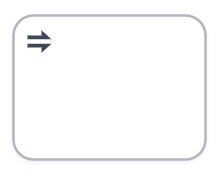
Mapping Task
| Work that transforms or maps data between structures. |
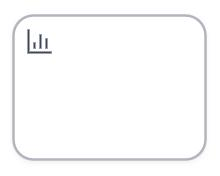
Reporting Task
| Work that produces a report. |
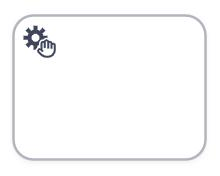
Manual Service Task
| A service carried out by a person. |
Automated Service Task
| A service carried out by a system. |
Rule Task
| Evaluation of a single business rule. |
Ruleset Task
| Evaluation of a set of rules. |
Rule Flow Task
| Execution of a flow of rules. |
Rule Script Task
| Rule logic expressed as a script. |
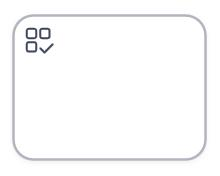
Decision Table Task
| A decision evaluated from a decision table. |
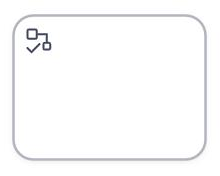
Flow Ruleset Task
| A ruleset applied within a flow. |
Gateways
Shape | Description |
|---|---|
Exclusive Gateway
| Controls where the token (or case) flows next; only 1 path on inputs or outputs is used (an 'OR' condition): Divergence: Represents a decision where the flow can take only one of the paths. The default behavior in the built-in shape library is a Yes/No decision. |
Parallel Gateway
| Controls where the token (or case) flows next; all paths on inputs or outputs is used (an 'AND' condition): Divergence: Used to create parallel process flow. |
Inclusive Gateway
| Controls where the token (or case) flows next; one or more paths are used; commonly a more complex 'decision' or synchronization of parallel paths in the process (an 'AND/OR' condition): Divergence: Used to take one or more paths; may take a single path, or may create parallel process flow. |
Event-Based Gateway
| Controls where the token (or case) flows next; will delay the 'decision' until a downstream Event is triggered. Like an Exclusive Gateway, only 1 path on inputs or outputs is used (an 'OR' condition): Divergence: Represents a decision where the flow can take only one of the paths. The token will flow to the first available (triggered) Event that has a sequence flow line from the Gateway to the Event. |
Complex Gateway
| Controls flow with a condition that the other gateways can't express — for example "continue when 2 of 3 incoming flows have arrived." Describe the rule on the gateway or an associated text artifact. Prefer the simpler gateways whenever they fit; readers can't tell what a Complex Gateway does without its description. |
Parallel Event-Based Gateway
| An Event-Based Gateway that starts a new process instance. The first downstream event to occur starts the instance. The other events stay active, and the instance expects all of them before it can complete. A specialized start pattern; rarely needed. |






Events
The dimension of an event — start, intermediate, or end — is chosen automatically by the diagram based on the lines drawn to or from it, and the outline shows it: start events have a thin outline, intermediate and boundary events a double outline, and end events a thick outline. Non-interrupting start and boundary events are drawn dashed. Catch events react to a trigger; throw events produce one. An event placed on an activityActivity A named step in a process (e.g. "Approve Invoice"). Each event in an event log records one activity occurrence for one case.'s border (a boundary event) interrupts that activityActivity A named step in a process (e.g. "Approve Invoice"). Each event in an event log records one activity occurrence for one case. when it fires — or runs alongside it, if non-interrupting.
Shape | Description |
|---|---|
Generic Event
| By default, this Event is added to the diagram without a specific behavior. In the BPMN terminology, this shape is equivalent to the "None" Event. |
Start Event
| Denotes the beginning of a process. It's good practice to begin and finish a flow with Start and End Events. To be BPMN compliant, if a Start shape is used then an End shape must also be used. |
End Event
| Denotes the end of a process. It is automatically drawn with a thick border. |
Timer Event
| Denotes waiting time in a process flow. Tokens (cases) will collect waiting for the designated time or duration. As a start event it triggers the process on a schedule; on an activity border it acts as a deadline. |
Message Send
| Within a flow, this shape denotes an event that sends a message to another Participant (Pool). At the end of a flow, the shape denotes where the process sends a message to another process. |
Message Receive
| Can start a process when a message is received from another Participant (e.g. via message from another Pool). Within a flow, as an Intermediate Event, the shape denotes where the process waits to receive a message. |
Error Catch Event
| Catches a named error. Place it on an activity's border to handle errors from that activity, or as the start of an Event Sub-Process. Always interrupting: the failed work stops and flow continues from the catch. |
Error Throw Event
| Ends a path by raising an error for a surrounding scope to catch. Use it as the end event of a sub-process to signal failure to the parent. |
Escalation Catch Event
| Catches an escalation — a "needs attention" signal that, unlike an error, doesn't have to abort the work. On an activity border it can be non-interrupting, so the escalated work continues while the escalation path runs. |
Escalate Event
| Raises an escalation, from within a flow or as an end event — for example to alert a manager while the process continues. |
Cancel Catch Event
| On the border of a Transaction sub-process, catches the transaction's cancellation so the flow can react after compensation runs. Only meaningful with transactions. |
Cancel Event
| As the end event inside a Transaction sub-process, cancels the transaction and triggers its compensation. |
Compensation Catch Event
| On an activity's border, marks the compensation handler for that activity — the undo work that runs if the completed activity must be rolled back. Connect it by association to the compensating task. |
Compensate Event
| Triggers compensation of completed activities, from within a flow or as an end event. |
Conditional Event
| Fires when a condition on business data becomes true — for example "stock below reorder point" — rather than on a message or timer. Usable as a start, intermediate, or boundary event. |
Link Event - Outgoing / Link Event - Incoming
| A drawing convenience, not real behavior: an outgoing link jumps to the matching incoming link elsewhere on the same diagram, replacing a long sequence flow line. Use matching names on the pair. |
Signal Send / Signal Receive Event
| Broadcasts (send) or reacts to (receive) a signal. Unlike a message, a signal has no single addressee — anything listening for it can react, even across processes. |
Terminate Event
| This event immediately ends all parallel flows through the process and any sub-process. Because this terminates all processing this event should be used sparingly. Typically, the End Event is used to end a process flow under normal conditions. |
Multiple Catch / Multiple Throw Event
| Bundles several triggers into one event. The catch variant fires when any one of its triggers occurs; the throw variant raises all of its results. |
Parallel Multiple Event
| A catch event that fires only when all of its triggers have occurred. |














Data objects
Shape | Description |
|---|---|
Data Object
| Indicates data that is consumed and/or produced by Activities. May be connected to/from shapes via Association flow lines. |
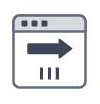
Data Object Collection
| A Data Object representing multiple items of the same kind — for example a list of order lines. Marked with three vertical bars. |
Data Input / Data Input Collection
| Data the process or activity requires from outside before it can run. The collection variant represents multiple items. |
Data Output / Data Output Collection
| Data the process or activity produces for the outside. The collection variant represents multiple items. |
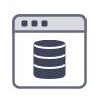
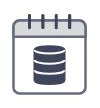
Data Store
| A place where the process reads or writes data that outlives the process instance — a database, an archive, a filing cabinet. Two visual variants are offered in the library. |
Information Object / Business Object families (iGrafx extensions)
| Visually distinct alternatives to the Data Object family — each comes in the same variants (object, collection, input, output, store). Use them to distinguish, for example, business items from information or system data in one diagram. They behave like their Data counterparts. |


















Artifacts and annotations
Shape | Description |
|---|---|
Artifact – Text Object: | Provides additional information about the process flow. |
Group Artifact
| A rounded, dashed rectangle that visually groups related shapes — even across Pool boundaries. It has no effect on the flow; use it to highlight a region, such as the shapes affected by one change. |
Initiating Message / Non-Initiating Message
| Envelope decorations for collaboration diagrams: an unshaded envelope marks the message that initiates an exchange, a shaded one marks the reply. Place them on or near message flows. |
Note | A rich text property that provides supplemental documentation on a Flow Object (shape). Notes can be used to describe an activity procedure or any other information. |
Comment or Annotation | An iGrafx object, a comment added to a specific location on a diagram. Annotations can be used for making remarks; e.g., during a review or approval cycle. |






Naming conventions
There are no official BPMNBPMN An ISO/OMG standard graphical notation for modeling business processes. Process360 Live uses BPMN 2.0 for design and simulation artifacts. naming conventions, but these practices keep diagrams readable:
All objects
- Use keywords that are meaningful to the organization.
- Don't use uncommon abbreviations, the object type in its name, or articles and pronouns.
Activities
- Name them all, with a Verb-Noun phrase ("Enter Order") in the present tense.
- Don't name multiple Activities the same (except Call Activities).
Gateways
- Gateways perform no work and make no decisions; they depict diverging or converging flow.
- Don't name converging Gateways; associate a Text Artifact when the convergence logic isn't obvious.
- Name diverging Exclusive Gateways with an interrogative phrase ("Is Order Large").
Sequence Flows
- Name flows out of diverging Gateways with their conditions stated as outcomes ("Less than $1,000").
Events
- Name all Events: Message Events with a past participle, Timer Events with their schedule, End Events with the end state.
Pools and Lanes
- Name Pools for the Participant or Process; name Lanes for roles, systems, or organizations.
Best practices
Process scope
- Define the scope by identifying the Who, What, When, Where, and Why of the process - the process itself is the How.
- Identify the alternative triggers as Start Events and the alternative end states as End Events.
Diagram layout
- Aim for diagrams that fit one page, laid out left to right with horizontal Sequence Flows and vertical Message Flows; minimize crossings and zigzags.
- Make the primary ("happy") path obvious.
- Externalize business rules into Business Rule Tasks for more concise, agile models.
- Create alternative visualizations for different audiences - for example a summary with Sub-Processes collapsed and a verbose version with them expanded.
Partitioning and structure
- Use Collapsed Sub-Processes for hierarchical layers of detail and Call Activities to reuse other processes.
Start and End Events
- Always use them; separate Start Events per trigger, separate End Events per end state, and merge flows that end in the same state into one End Event.
Gateways
- Always use Gateways to split or merge flow; avoid mixed-mode Gateways (diverging and converging at once).
- Place the ActivityActivity A named step in a process (e.g. "Approve Invoice"). Each event in an event log records one activity occurrence for one case. that determines the condition immediately before a diverging Gateway.
Task types
- Manual Task - work without software. User Task - a human working with software. Automated Task - work done by a system.