Embed a Power BI report in a dashboard
Share analytics or audit reports from Power BI directly on a dashboard: publish the report in Power BI, then embed its URL in an IFrame gadget. Viewers sign in with their Microsoft account before the report renders, so only people who can access the report in your organization see it.
Prerequisites
- A dashboardDashboard A configurable view in Process360 Live that aggregates KPIs, charts, and filters across one or more processes for stakeholders to monitor performance. you can edit — see Work with dashboards.
- A Microsoft account; publishing and embedding may also require a Power BI Pro subscription.
Steps
Publish the report in Power BI
-
Finalize your report in Power BI and save it.
-
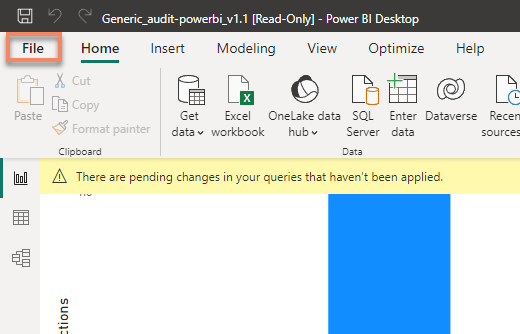
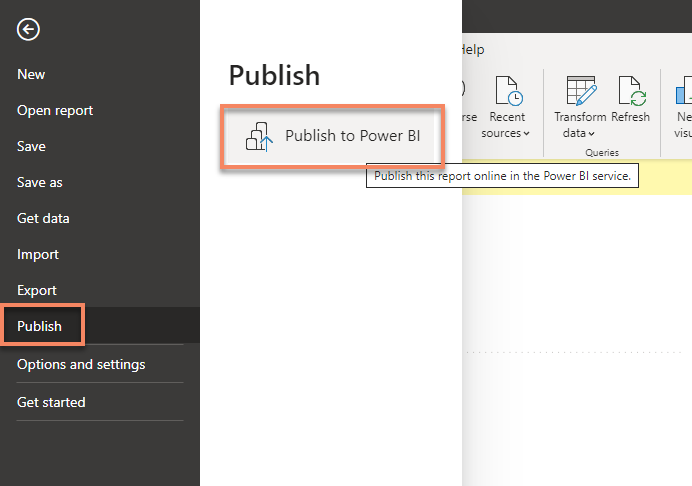
Click File → Publish (you may have to sign in to your Microsoft account first), then click Publish and Publish to Power BI.
-
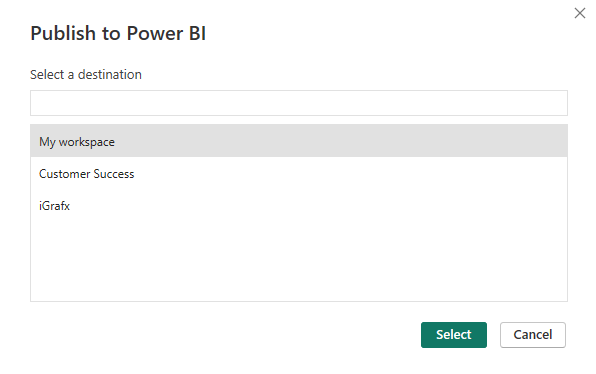
Select your designated workspace.
-
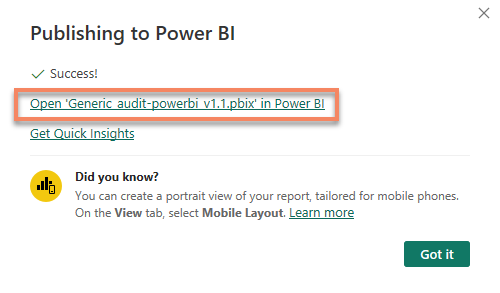
Wait for publishing to complete, then click the Open 'report name' in Power BI link.
-
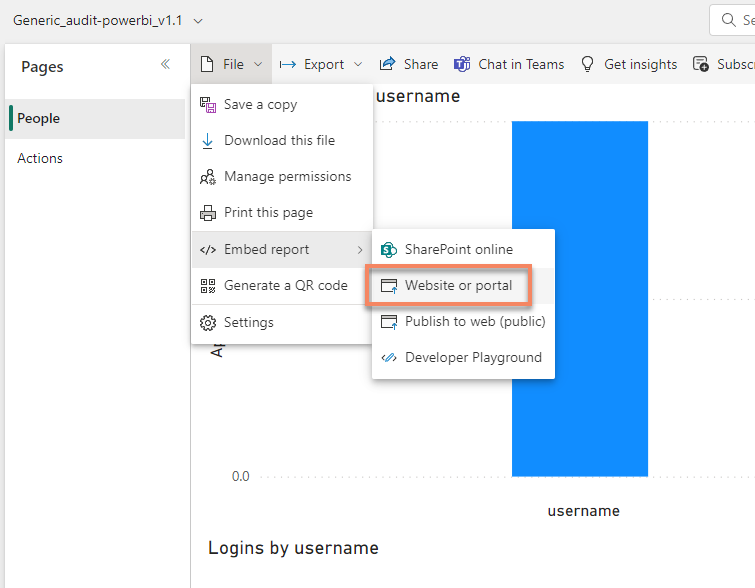
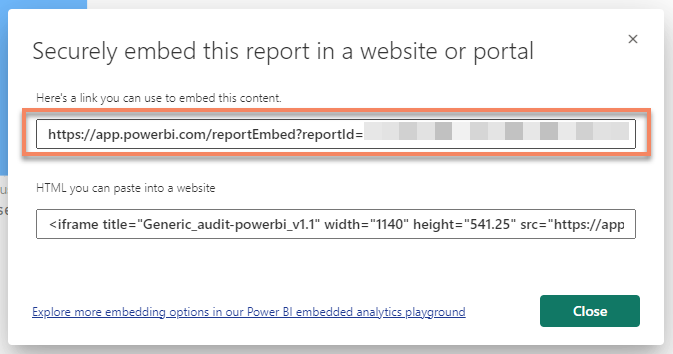
Click File → Embed report → Website or portal, and copy the report URL from the dialog.
Embed the report in your dashboard
-
On your dashboardDashboard A configurable view in Process360 Live that aggregates KPIs, charts, and filters across one or more processes for stakeholders to monitor performance., add an IFrame gadget and paste the report URL into its URL field.
-
Open the dashboardDashboard A configurable view in Process360 Live that aggregates KPIs, charts, and filters across one or more processes for stakeholders to monitor performance.. You — and everyone else viewing it — may have to sign in before the report appears. That's expected: it ensures no one sees the report without also having permission to it in your organization.
