Check your permissions on an item
When you can't edit, delete, or even see something you expected to, an item's Permissions tab tells you what you're actually allowed to do there.
Prerequisites
None for your own permissions — anyone who can open an item can check their abilities on it. Looking up another user's permissions requires the Administer item permission.
Steps
See your own abilities
- Open the item and select its Permissions tab. Without the Administer permission, the tab shows Your abilities on this object: every Ability with your resulting Rights on this item.
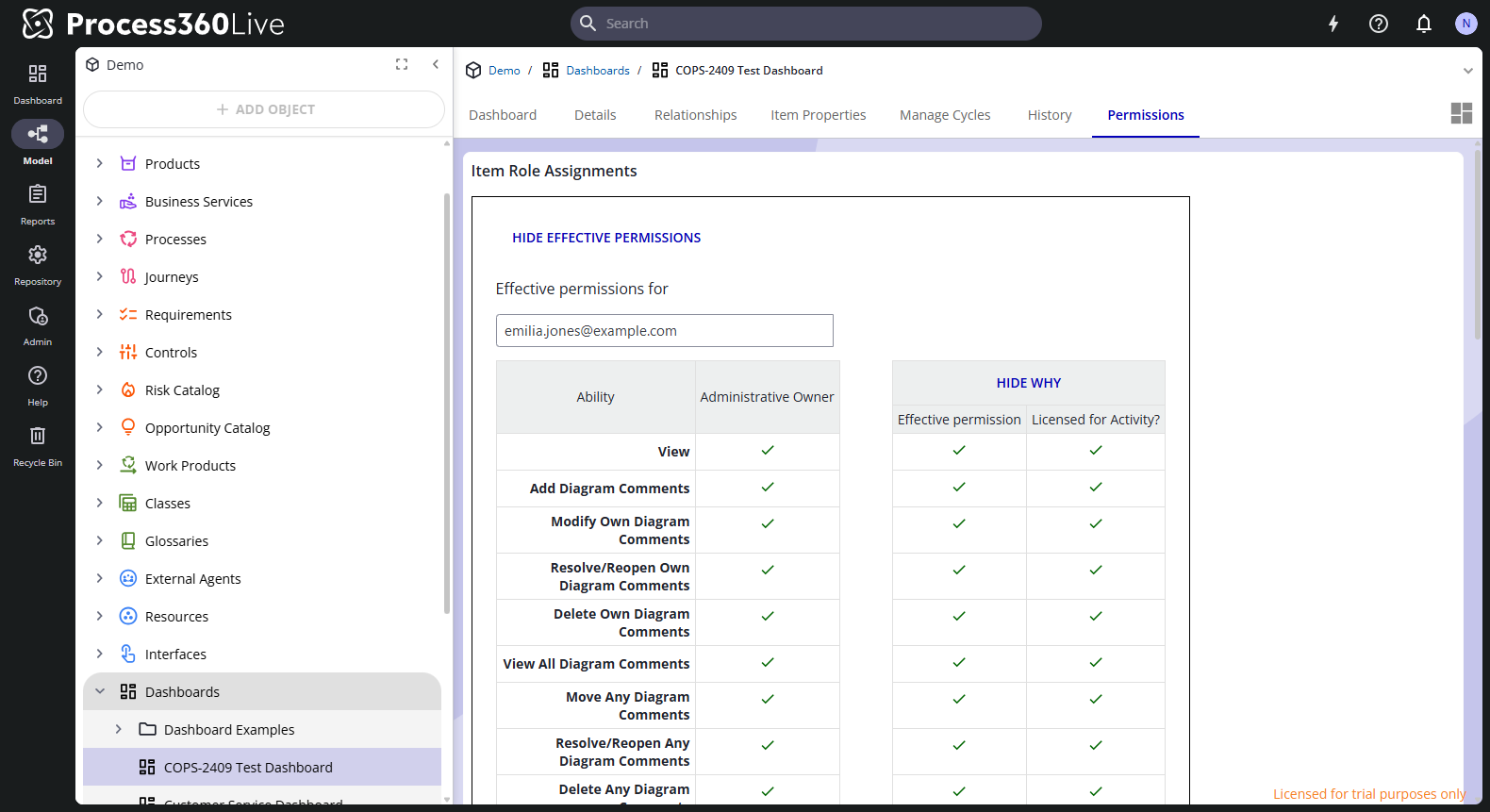
- Click Show why to expand each verdict — what grants or denies the ability, the resulting Effective permission, and whether you're Licensed for ActivityActivity A named step in a process (e.g. "Approve Invoice"). Each event in an event log records one activity occurrence for one case.. A permission only works when your license also covers the action.
- Click an ability row to see which object types you can perform that action on here.
The source column names whichever applies:
- Administrative Owner, when you own the item.
- One column per role you hold, naming the role and the object you inherit it from.
- Set Any Item Permissions, when you hold that repository permission.
- "The user has no roles assigned on this or any parent object", when nothing grants you anything here.
Look up any user's permissions (item administrators)
With the Administer permission, the Permissions tab shows the item's role assignments instead:
- Click View effective permissions, then type the user's name under Effective permissions for and pick them from the suggestions.
- The table works exactly as above, for the user you picked — including Show why and the per-ability detail.
Related
- Roles and permissions — how item roles grant abilities
- License capability matrix — what each license allows