Act on your to-do items
When someone starts a cycle that includes you, the item lands on your to-do list. This page shows how to find your list and complete each kind of action.
Prerequisites
- Taking part in review, approval, and endorsement cycles requires a license that includes cycle participation — see the License capability matrix. Acknowledgement items appear regardless of license.
- Voting on several approvals at once requires the Allow Bulk Approvals repository permission.
Steps
Open your to-do list
- In the upper right, select the bell icon, labeled Notifications. The badge on the bell shows how many actions are waiting for you.
- The To-do tab lists your pending items, grouped by action — Items to Review, Items to Approve, Items to Endorse, and Items to Acknowledge — and by repository.
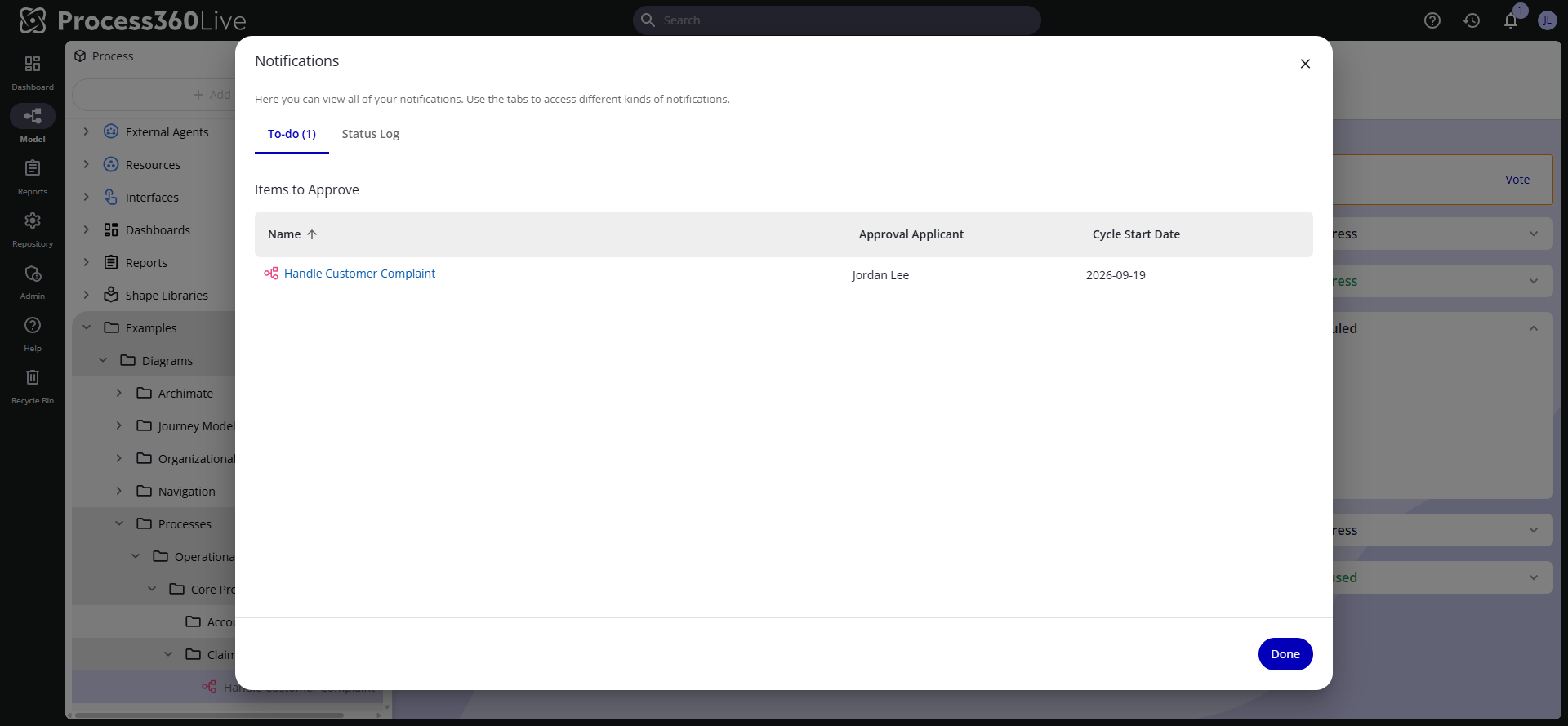
Acknowledgement items also show a Due Date, with a warning icon when the item is overdue. The same list is available as the To-do dashboardDashboard A configurable view in Process360 Live that aggregates KPIs, charts, and filters across one or more processes for stakeholders to monitor performance. gadget.
For cycles with a fixed order or a quorum, an item appears on your list only when it's your turn to act.
Act on an item
-
Select the item's name. The item opens with the message Action is required on this item. and a button for the pending action. An external file opens in a preview, so you complete the action there without navigating to it in the model tree; a diagram opens in the diagram view.
-
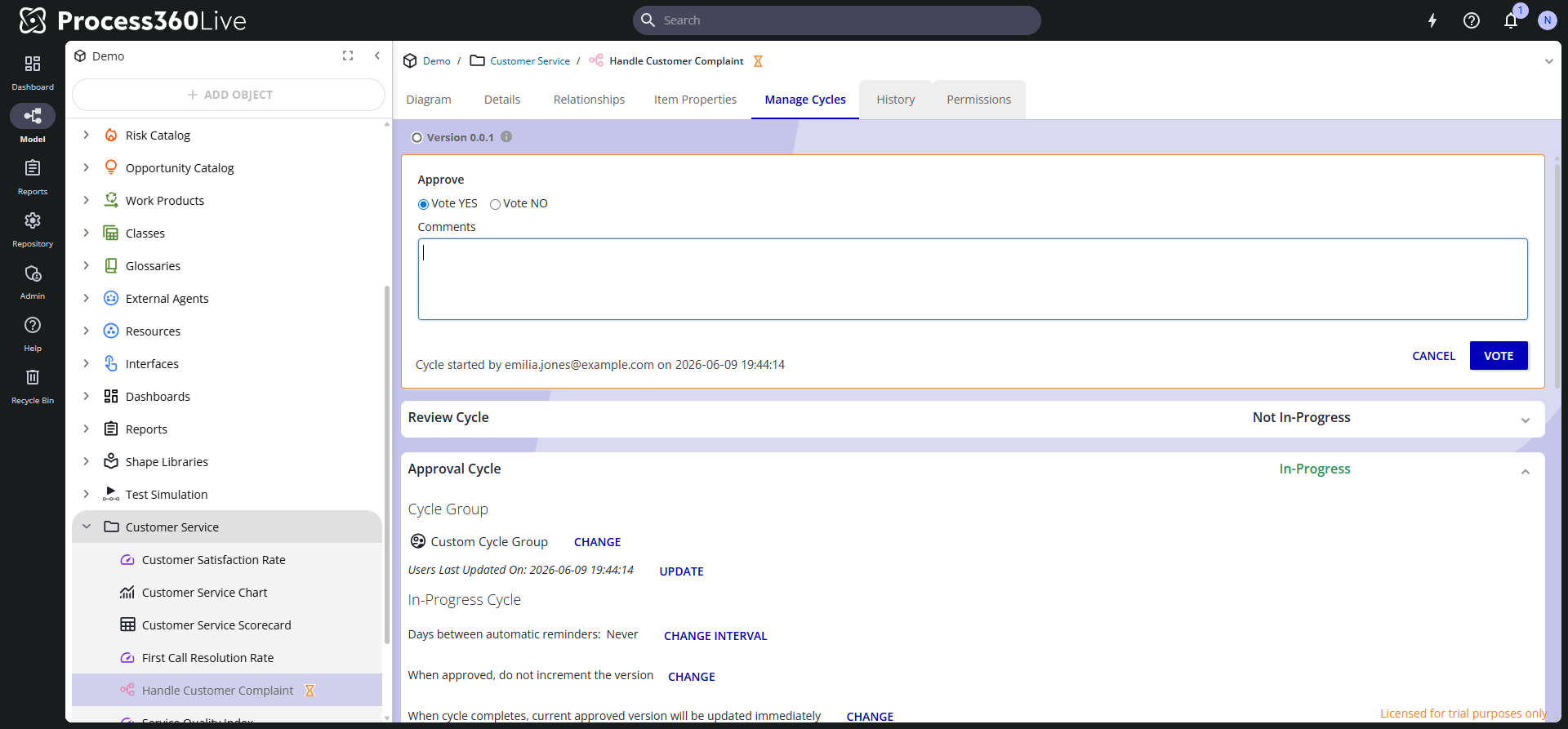
Click the action's button and complete the form:
Action What you do Review Confirm you finished reviewing and add comments. Click Submit. Vote Choose Vote YES or Vote NO, add comments, and click Vote. The form opens with Vote YES selected. Endorse Certify that you inspected, understood, and agree with the approval — a statement of support. Click Submit. Acknowledge Check I Acknowledge to confirm you inspected and understood the version. Click Acknowledge.
To see what changed before you vote on a diagram, click Compare to previous on the vote form. The button appears only when the diagram already has an approved version and it isn't the one you're voting on. It opens the two versions in the comparison view, so go back to the item to cast your vote.
Repository policy decides when a comment is required — some repositories require one for every action, or only when voting No. Once you submit, the item leaves your to-do list. A single No vote ends an approval cycle as rejected.
If you hold the Allow Bulk Approvals permission, you can vote on approvals straight from the list without opening each item — a shortcut for clearing many routine approvals. When a decision needs scrutiny, open the item and review it on its own page first.
You act on the version the cycle covers. If you opened an older version, the form links you to the right one.
Vote on approvals from the list
With the Allow Bulk Approvals permission, you can vote on approvals straight from the to-do list — one item or several — without opening each one. The Items to Approve section shows a checkbox next to each item:
- Check one or more items to vote on, then click Vote.
- Choose Vote YES or Vote NO and add a comment.
- Click Submit. The same vote and comment apply to every selected item.
This shortcut is for approvals only — review, endorsement, and acknowledgement items open from their name. It isn't available in the To-do dashboardDashboard A configurable view in Process360 Live that aggregates KPIs, charts, and filters across one or more processes for stakeholders to monitor performance. gadget; use the Notifications To-do tab or the full to-do page.
Verify
The acted-on items disappear from your To-do tab and the bell badge count drops. Your action, its time, and your comment appear in the item's cycle log.
Related
- Cycles — what each cycle type means
- Start and manage a cycle — the cycle manager's side
- Manage your profile and settings — see which cycle groups you belong to