Use table variables
Load a whole table of values into one simulation variable and read or write its cells like a spreadsheet.
A table variable holds 1- or 2-dimensional data under a single name — task durations, decision percentages, or any values that would otherwise need dozens of separate variables. Expressions read one cell at a time, and assignments can write cells back, so a table can also collect model state during the run for reporting afterwards.
Prerequisites
- The External Data feature, enabled by a server administrator under Admin → Server Settings → Early Access (the External Data feature flag) — table data is imported through it.
- Edit access to a simulation project — see Simulation.
Steps
Define and fill the table
-
In Simulation Properties, open the Variables tab on its Model sub-tab — table variables are model-scoped.
-
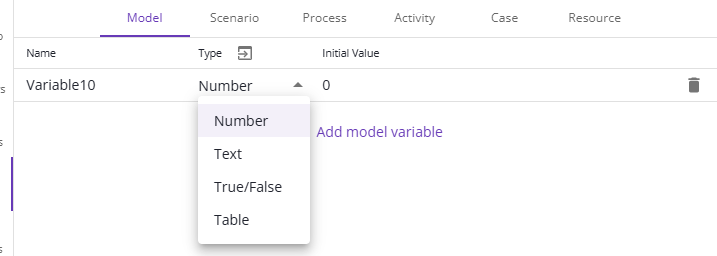
Add a variable and set its Type to Table.
-
The Initial Value field changes into a table import. Click New and follow the import dialog to load the data.
Values that need interpretation don't survive the import as their type — a duration with a unit such as "10 seconds" arrives as text and has to be parsed before use in a duration expression.
Read cells in expressions
In any expression box, address a cell as Variable[Row, Column]:

Assign new values
-
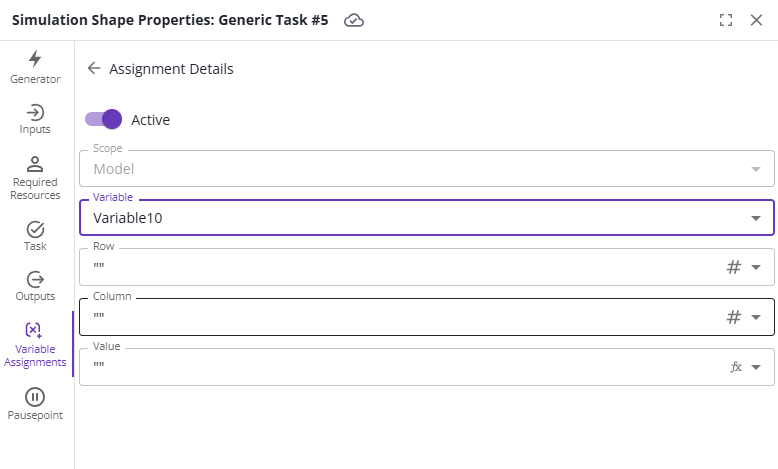
Create a variable assignment as usual and select the table variable. Two extra fields appear: Row and Column.
-
The assignments list previews the target cell in the same
Variable[Row, Column]syntax.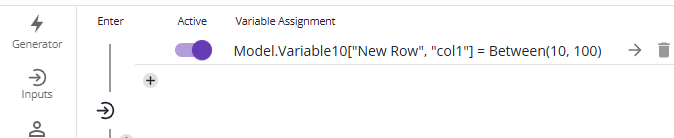
Assignments must target an existing column — a missing column raises an error that stops the run. A missing row is created without warning, which is how a table can grow result rows during the run.
View the table after a run
In the results window's Model tab, select the eye icon under the variable's name (tooltip Show table) to display the table as it stood at the end of the run.
Related
- The Pack Product into Packages sample diagram uses table variables both to control model behavior and to store results, with a documentation file explaining the design.
- Simulation properties — variable scopes and types
- Simulation expressions
- Use the external data generator