Simulation properties
This reference lists the model-level tabs and fields of the Simulation Properties window — what you see when you click Properties in the simulator toolbar with no shape selected. For shape-level properties, see Simulation shape properties. Optional fields hide behind the More button on each tab until you add them.
Run Setup
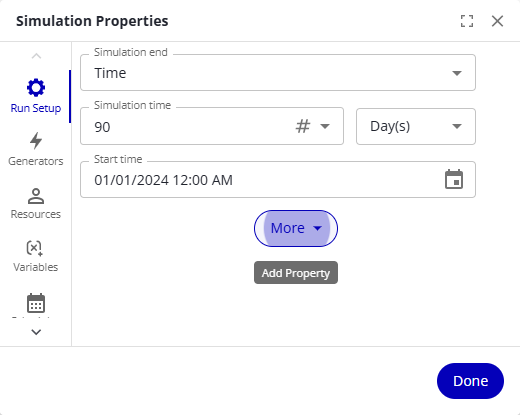
| Field | Description |
|---|---|
| Simulation end | What ends the run: Time (run for a fixed simulated duration) or CasesCase A single instance of a process — for example, one customer order, invoice, or support ticket. An event log groups events by case ID. complete (run until a number of cases finish). |
| Simulation time | With Time selected — the maximum simulated time. The run ends earlier if no cases remain to process. |
| CasesCase A single instance of a process — for example, one customer order, invoice, or support ticket. An event log groups events by case ID. to complete | With CasesCase A single instance of a process — for example, one customer order, invoice, or support ticket. An event log groups events by case ID. complete selected — the number of completed cases that ends the run. |
| Start time | The date and time at which the simulated clock starts. |
| Warmup time (optional) | Time at the start of the run during which statistics are not recorded — use it to measure only the steady state. |
| Random number seed (optional) | The seed for the run's random numbers. With the same seed and the same model, every run produces identical results, even when the model uses random distributions. |
| Log cases (optional) | Records data for every case at every activityActivity A named step in a process (e.g. "Approve Invoice"). Each event in an event log records one activity occurrence for one case. it completes — start and end times, activityActivity A named step in a process (e.g. "Approve Invoice"). Each event in an event log records one activity occurrence for one case. name, and other key values. After the run, Export case log in the results window downloads the log for analysis in spreadsheets, statistics tools, or Process MiningProcess Mining A discipline that uses event data recorded by enterprise systems to discover, monitor, and improve real business processes — revealing how work actually flows rather than how it was designed.. Turning this on slows the simulation down significantly. |
| Seed variations (optional) | Runs that many additional simulations per scenario, each with a different random number seed, so you can see how much the outcome varies by chance. |
| Scoring function (optional) | The scoring function that ranks the runs of a Run all scenarios, or None. |
| Top results (optional) | How many of the highest-scoring runs to keep — the rest are discarded. Appears with Scoring function, and applies only while a function is selected there. Default 5; an integer from 0 to 1024, where 0 keeps every run. It limits Run all scenarios only — a single Run, including its seed variations, keeps every result. |
Generators
The Generators tab lists every generator in the diagram in one place. Turn individual generators on or off with their Active toggles, or open one by name to edit its properties. Generators themselves are defined on shapes — see Generator.
Resources
Resources represent the people or bots that do the work. Each resource has a name of its own, and carries its Organization and Type as properties — so a resource is placed in an organization and given a type on the resource itself. Activities then require resources by type, organization, and role. The Resources tab lists them either By organization or As list.
| Resource property | Description |
|---|---|
| Organization | The organization the resource belongs to, chosen from the ones on the Organizations tab. Read-only on a resource that came from a lane. |
| Type | The resource's type, chosen from the ones on the Resource types tab. |
| Roles | The roles this resource can fill — pick any number. An activityActivity A named step in a process (e.g. "Approve Invoice"). Each event in an event log records one activity occurrence for one case. whose required resource names a role only acquires a resource that carries it. |
| Count | How many people or bots this resource represents. |
| Hourly Rate | The cost per hour while scheduled. |
| Schedule | When the resource is available, from the Schedules tab. |
| Per Use Cost (optional) | A cost charged when the resource is acquired — normally once per activityActivity A named step in a process (e.g. "Approve Invoice"). Each event in an event log records one activity occurrence for one case. that uses it, but not when a resource is held across activities or preempted. |
| Overtime Hours (optional) | How long per day the resource can work outside its schedule. The allowance resets the first time each day the resource comes back into schedule, so a shift that crosses midnight doesn't reset it. |
| Overtime Rate (optional) | The hourly cost while working overtime. Appears once Overtime Hours is set; without it, overtime costs the normal Hourly Rate. |
| Unlimited (optional) | Treats the resource as never running out, instead of using Count. |
| Variable Assignments (optional) | Variable assignments tied to this resource. |
Organizations, resource types, and roles
Organizations, resource types, and roles are defined in views of their own — open one with the Define organizations, Define types, or Define roles button next to the matching resource field:
- Organizations — the organizations resources belong to. An organization can sit under a parent organization, which makes it a suborganization.
- Resource types — the types a resource can take (for example, Person). A type can be given a base type, which makes it a subtype.
- Roles — named roles a resource can fill. Renaming a role updates every resource and required resource that uses it; deleting it removes it from them.
Organizations from swimlanes
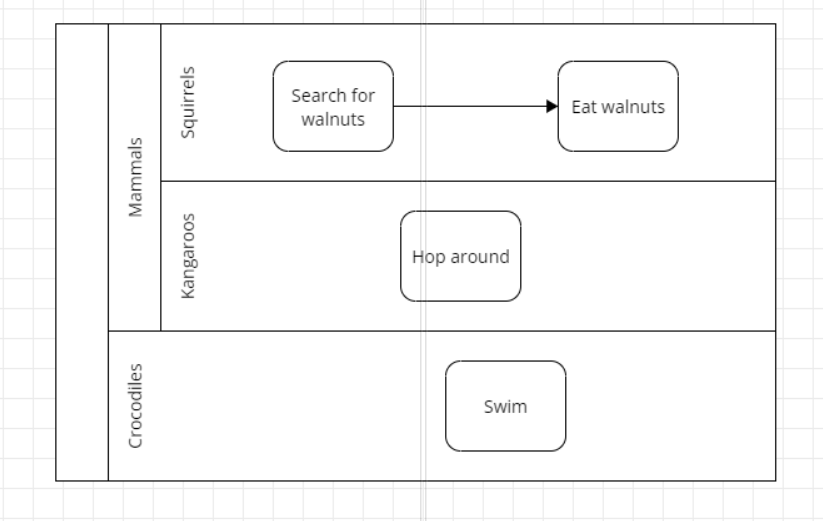
For every lane that contains no sublanes, the simulation creates an organization named after the lane and a resource of the same name inside it. In a pool with lanes Mammals → (Squirrels, Kangaroos) and Crocodiles, you get organizations — each with a matching resource — for Squirrels, Kangaroos, and Crocodiles, but not for Mammals.
Renaming the lane renames both, as long as no other lane or organization already uses the new name. Neither can be deleted except by deleting the lane, and the resource's Organization can't be changed. Organizations and resources you add yourself carry none of these restrictions.
Variables
A variable carries information through the simulation and steers the flow of cases — shape properties read variables in expressions, and variable assignments change them as cases move.
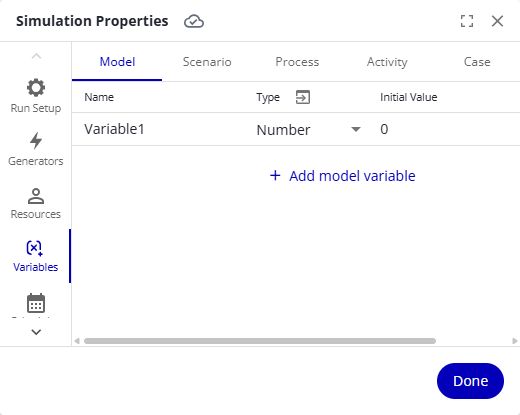
| Aspect | Description |
|---|---|
| Scope | Six scopes, each on its own sub-tab: Model, Scenario, Process, ActivityActivity A named step in a process (e.g. "Approve Invoice"). Each event in an event log records one activity occurrence for one case., CaseCase A single instance of a process — for example, one customer order, invoice, or support ticket. An event log groups events by case ID., and Resource. A model variable has one value for the whole run; a case variable has its own value per case. Resource variables are only usable in resource constraint expressions on Required Resources. |
| Type | Number, Text, True/False, Table (model scope — see Use table variables), or an enumerated type you define with Define types (for example, a Colors type with the values Red, Blue, and Green). |
| Initial Value | Required. The value the variable starts with; assignments can change it during the run. |
Typical uses: set a value once and reference it everywhere instead of hard-coding it in several places, or route cases at a gateway based on a variable's value.
Schedules
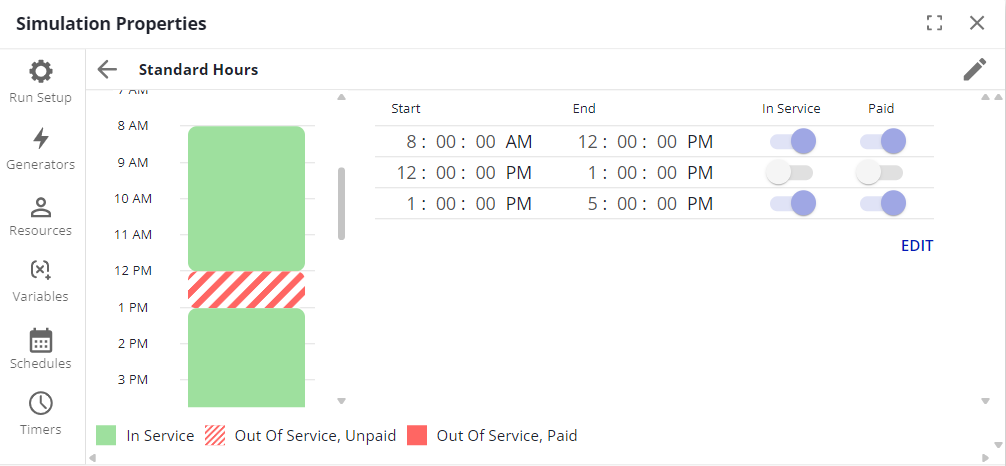
A schedule defines periods of activityActivity A named step in a process (e.g. "Approve Invoice"). Each event in an event log records one activity occurrence for one case. and inactivity — when a resource can work or a generator generates. Each schedule combines a Days definition and an Hours definition; Standard, Swing, and Night schedules are predefined.
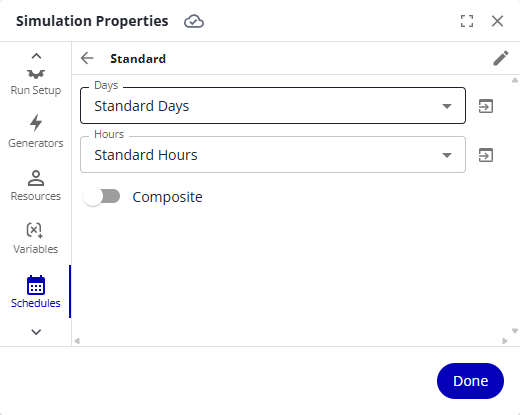
- Days definitions select which days apply — edit them through the navigation icon next to the Days field.
- Hours definitions select the active hours on those days. In the bar display, drag to extend or shrink a bar and right-click to add or delete bars; the time-span display offers Edit for exact times.
- Composite defines a schedule as a combination of other schedules. Where they overlap, the one lower in the list wins.
Timers
A timer fires at defined points in time; a Timer generator creates cases each time its timer fires. Every Morning, Every Afternoon, Every End of Day, Weekly, First of Month, and Last of Month are predefined.
| Field | Description |
|---|---|
| Days | Which days the timer fires, defined like schedule days. |
| Time | The time of day it fires on those days. |
| Composite | Defines a timer as a combination of other timers. |
Functions
Define your own functions for expressions you want to reuse. A function has parameters (named placeholders with types), a function body (the expression evaluated when called), and a return type (used for type checking).
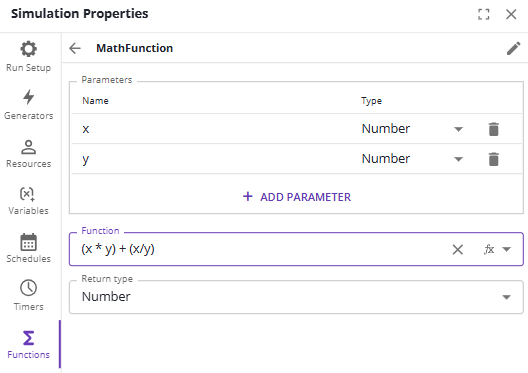
Call it from any expression like a built-in function:

Scenarios
A scenario is a named set of initial values for Scenario-scope variables, so you can switch assumptions without editing the model. The Default scenario uses the initial values from the Variables tab.
Double-click a value or name in the list to edit it. Copy or delete scenarios with the buttons on each row. The simulator toolbar's Scenario dropdown switches the active scenario, and its Scenario Manager entry opens this tab.
| Command | Description |
|---|---|
| Add scenario | Adds a scenario to the list. |
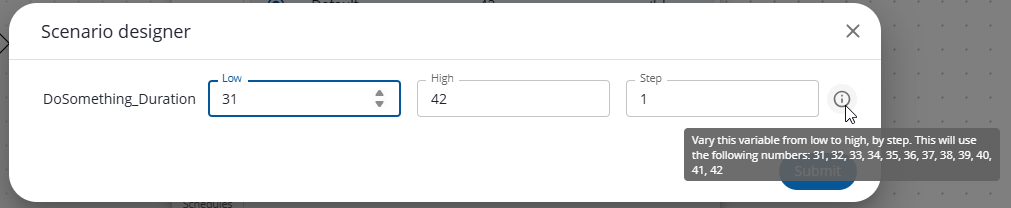
| Design scenarios | Opens the Scenario designer: give a variable a low and a high value (and, for numbers, a step), and a scenario is generated for each value or combination of values. The dialog confirms how many scenarios it will create — designed ranges multiply quickly. Delete all generated scenarios removes them again. |
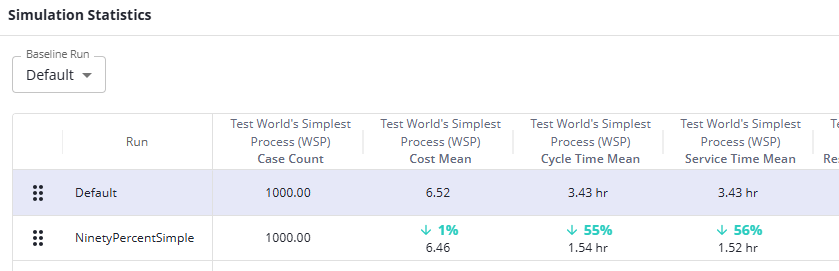
| Run all scenarios | Runs every active scenario once and saves each run's results to the project, so the project comparison view can line them up. With a Scoring function selected on the Run Setup tab, only the Top results highest-scoring runs are kept. |
Scoring functions
A scoring function condenses a run into one number you define, so runs and scenarios compare by score instead of by scanning many statistics columns. Each function is a numeric expression that is evaluated when the run ends.
New functions are named Scoring function 1, Scoring function 2, and so on — rename them, because the name labels the results. The Function expression reads the finished run's statistics through the Statistics scope — Statistics.CaseCount, Statistics.Cost, and Statistics.SimulationTime, plus per-process, per-activityActivity A named step in a process (e.g. "Approve Invoice"). Each event in an event log records one activity occurrence for one case., and per-resource statistics; the expression box's autocomplete lists everything available.
Each function's score appears as a column named after the function — with the run's model statistics, in the saved-run comparison, and in the statistics export.
A scoring function can also decide which runs survive a Run all scenarios: select it in Scoring function on the Run Setup tab and set Top results to the number of runs to keep.
Messages
Messages send information between BPMNBPMN An ISO/OMG standard graphical notation for modeling business processes. Process360 Live uses BPMN 2.0 for design and simulation artifacts. processes (pools). Define a message here; the Send data slider chooses whether it carries data, and if it does, which case variables travel with it.
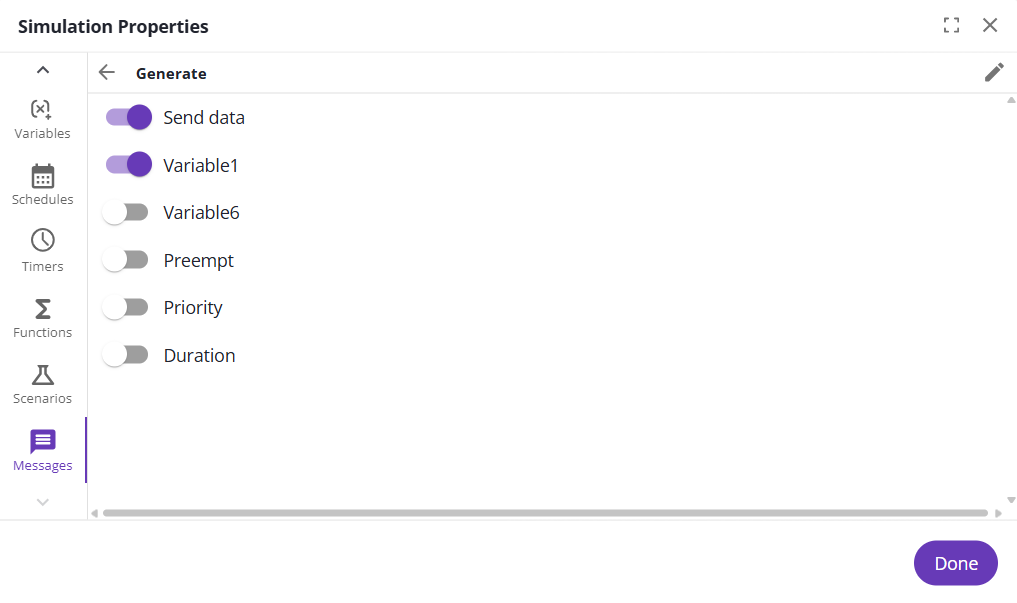
A process sends a message through the Send message and Messaging partner fields on the Task tab. The receiving process needs a Message generator or an Until Message input gate with the matching message name and the sending process as its messaging partner.
Notes / constraints
- The window's title changes with the selection: Simulation Properties (model), Simulation Shape Properties (shape), or Simulation Transition Properties (connector line — a Duration tab and a Variable Assignments tab).
- Changes save as you make them; the Done button closes the window.