Quick Search
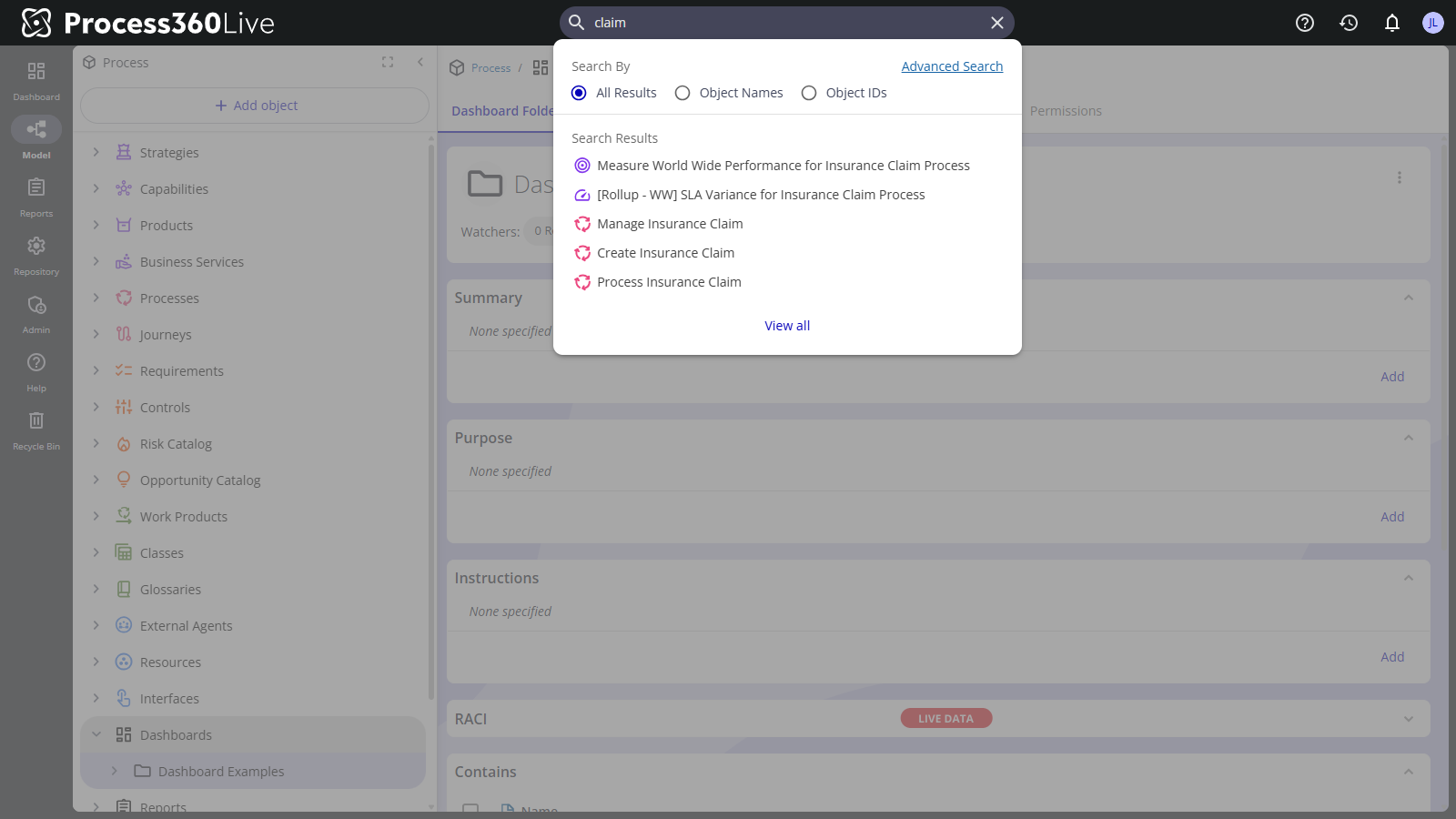
With Quick Search on, results appear in a dropdown under the search box as you type — no need to open the results page for a quick lookup.
Prerequisites
- The Quick Search Early Access feature, enabled by an administrator under Admin → Server Settings → Early Access. Without it, the search box works as described in Search the platform.
Steps
- Type in the Search box in the top bar. A dropdown shows up to five matching items, each with its repository path; select one to open it.
- Use Search By in the dropdown to narrow what's matched: All Results, Object Names, or Object IDs. Your choice is remembered for your next search.
- For more than five results, select View all to open the full results page — or Advanced Search to go there directly and use its filters.
note
The dropdown shows up to five matches as the search finds them — it isn't ranked by relevance, name, or date, so the five aren't necessarily the closest matches or the first alphabetically. Treat it as a quick peek: when you don't see what you expect, select View all for the complete list, which the results page sorts by name and lets you re-sort and filter.
Related
- Search the platform — the full results page, filters, and search syntax