Search the platform
The search box in the top bar finds content across every repository you can access — object names, diagram text, notes, properties, and the contents of external files.
Prerequisites
None — results only ever include items you have permission to view.
Steps
- Type your search term in the Search box in the top bar and press Enter. The results page shows how many items matched, grouped by repository.
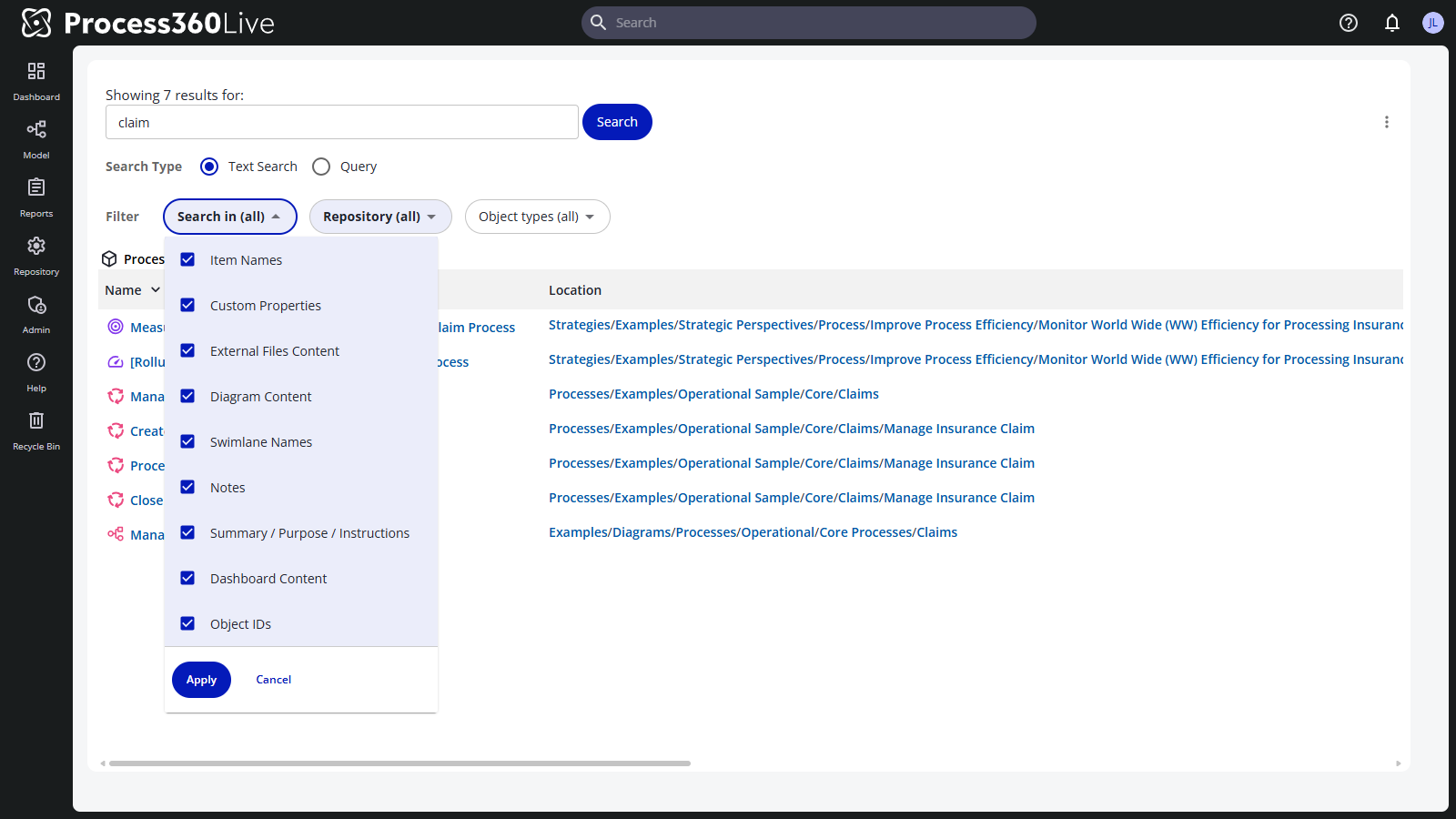
- Narrow the results with the four filter buttons:
- Search in — where the term has to appear: Item Names, Custom Properties, External Files Content, Diagram Content, Swimlane Names, Notes, Summary / Purpose / Instructions, DashboardDashboard A configurable view in Process360 Live that aggregates KPIs, charts, and filters across one or more processes for stakeholders to monitor performance. Content, or Object IDs.
- Repository — limit the search to specific repositories.
- Object types — limit to specific kinds of items.
- File extensions — limit file results to specific extensions; each entry shows how many results it has.
- Select a result to open it.
The menu next to the search field also offers Bulk operations — relationship and process-owner changes, deleting, and archiving, applied to many found items at once; see Bulk changes.
Refine the search term
- Searches are case-insensitive:
Orderandorderfind the same results. - Several words mean all of them must appear in the item. There is no quoted phrase search — the words don't have to be next to each other.
*at the start or end of a word matches any continuation:auto*finds "auto", "automotive", and "automobile".-before a word excludes items containing it:auto* -dieseldrops every result that mentions diesel.- Object IDs searches take the number from the item's URL; they accept digits only, and
*and-don't apply.
Searching inside external files
With External Files Content checked, the search also looks inside uploaded files of these types: Microsoft Office (.doc, .docx, .xls, .xlsx, .ppt, .pptx), OpenOffice (.odt, .ods, .odp), PDF (except encrypted PDFs), .rtf, .txt, and HTML. Other file types — including images — are found by their names, not their contents.
New Search (Early Access)
On iGrafx Cloud, an administrator can switch on New Search, an Early Access feature, under Admin → Server Settings → Early Access. New Search first reads through each repository before it can search it; once that's done, the search box in the top bar opens the rebuilt search page instead of the one described above:
- Results sort by Relevance, Name A–Z, Name Z–A, or Type.
- The Filters panel narrows results by Repository, Object types, and Versions — latest, approved, or upcoming approval.
- Bulk edit acts on the results you select, from one repository at a time.
- A repository that New Search is still reading through is marked Indexing, with its progress, and becomes searchable when that finishes.
- When a repository can't be searched yet, the results carry a Results may be incomplete notice naming what's missing, and the page links to the legacy search so you can still search it. These notices appear only on the full search results page, not in the dropdown under the search box.
Limitations
- The results page shows at most 1,000 results per repository; a message tells you when more matched. Add filters or a more specific term to narrow down.
Related
- Quick Search — results in a dropdown as you type (Early Access)
- Bulk changes — act on many search results at once
- Find where an item is used — relationship-based lookup for one item