Manage cycle groups
Named cycle groups are the reusable participant groups every item in a repository can use for its cycles. Maintain them repository-wide here; choosing a group for an individual item is covered in Set up a cycle group.
Prerequisites
- The Manage Cycle Groups repository permission. With View Cycle Groups instead, the pages are read-only.
Steps
In the Repository area, select Cycle Groups.
Create a named cycle group
-
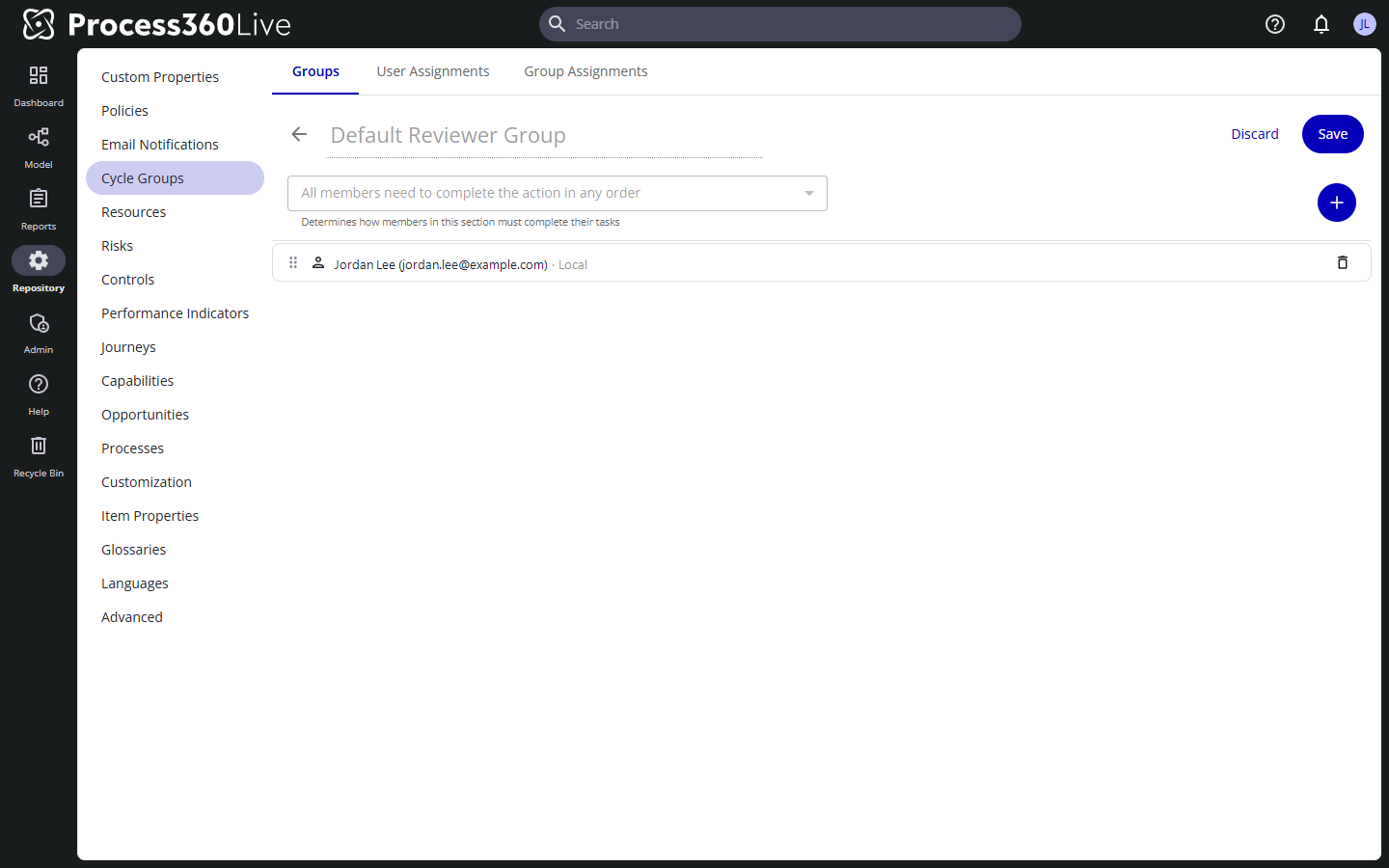
On the Groups tab, click Create Cycle Group and enter a group name.
-
Click the plus icon, tooltip Add, then select Add User / Group. Search and pick the members, then confirm. A group can contain individual users, platform user groups, and other named cycle groups.
-
Set the completion requirement in the dropdown above the member list:
- All members need to complete the action in any order
- All members need to complete the action in this order — drag members to set the order; when someone rejects, members later in the order are not asked.
- {n} of {m} need to complete the action — a quorum.
A platform user group always counts as "all members in any order".
-
For tiered workflowsWorkflow An automated or semi-automated sequence of tasks that moves work from initiation to completion, often with routing rules and human-task assignments., click the plus icon again, then select Add Subgroup. Each subgroup has its own members and completion requirement, so you can combine, for example, a one-of-two department sign-off with a final named approver. Subgroups nest.
-
Click Save.
Edit, rename, or delete a group
- Find the group on the Groups tab — the Jump to letters skip through the alphabetical list, and picking a group from Search cycle groups jumps to it and opens it. Expand a group to preview its members; Collapse all closes every group you have opened.
- Open the group's menu and select Edit to change members, order, completion requirements, or the name.
- Deleting a group resets every item that used it to the default group for that cycle type.
Every repository has four built-in defaults — Default Reviewer Group, Default Approval Group, Default Endorsement Group, and Default Acknowledgement Group — which new items use automatically. You can edit their members but not rename or delete them.
Look up memberships
- The User Assignments tab lists the repository's users; expand one to see every cycle group they belong to, directly or through nesting.
- The Group Assignments tab does the same for groups, and also lists the items assigned to each group, with the cycle type each one uses it for.
Push a group change to running cycles
Review, approval, and endorsement cycles freeze their participants when the cycle starts, so editing a group leaves a running cycle on the membership it started with. Re-apply the group to bring those cycles up to date — for a batch of items, or for one item. Either way you need the manage-cycle permission for that cycle type on each item you update; items you can't update aren't selectable.
- A batch of items — on the Group Assignments tab, expand the group. Its assigned items are listed with a Users Last Updated On column. Check the items to refresh and click Update Users.
- One item — open the item and go to its Manage Cycles tab. During a running cycle the group appears as Cycle Group Based On, with Users Last Updated On below it; click Update beside that date.
Re-applying the group replaces the frozen participants with the group's current members. Acknowledgement cycles need none of this and offer neither control — they always read the latest group membership.
Export cycle groups to Excel
Click Export as Excel to download the repository's cycle groups as a spreadsheet. The export covers each group's members — including nested groups and the users within them — the group hierarchy, basic group details, and assigned objects, so you can use the data for analysis, documentation, or reporting.
Limitations
- Review, approval, and endorsement cycles lock in their participants when the cycle starts, so editing a group doesn't reach a running cycle on its own — re-apply it as described in Push a group change to running cycles. Acknowledgement cycles always reflect the latest group membership. See Cycles.
- Acknowledgement cycles ignore completion requirements and ordering: all members are collected into a flat list and each person acknowledges once.
Related
- Set up a cycle group — choose or build the group for one item
- Cycles
- Start and manage a cycle