Configure object types
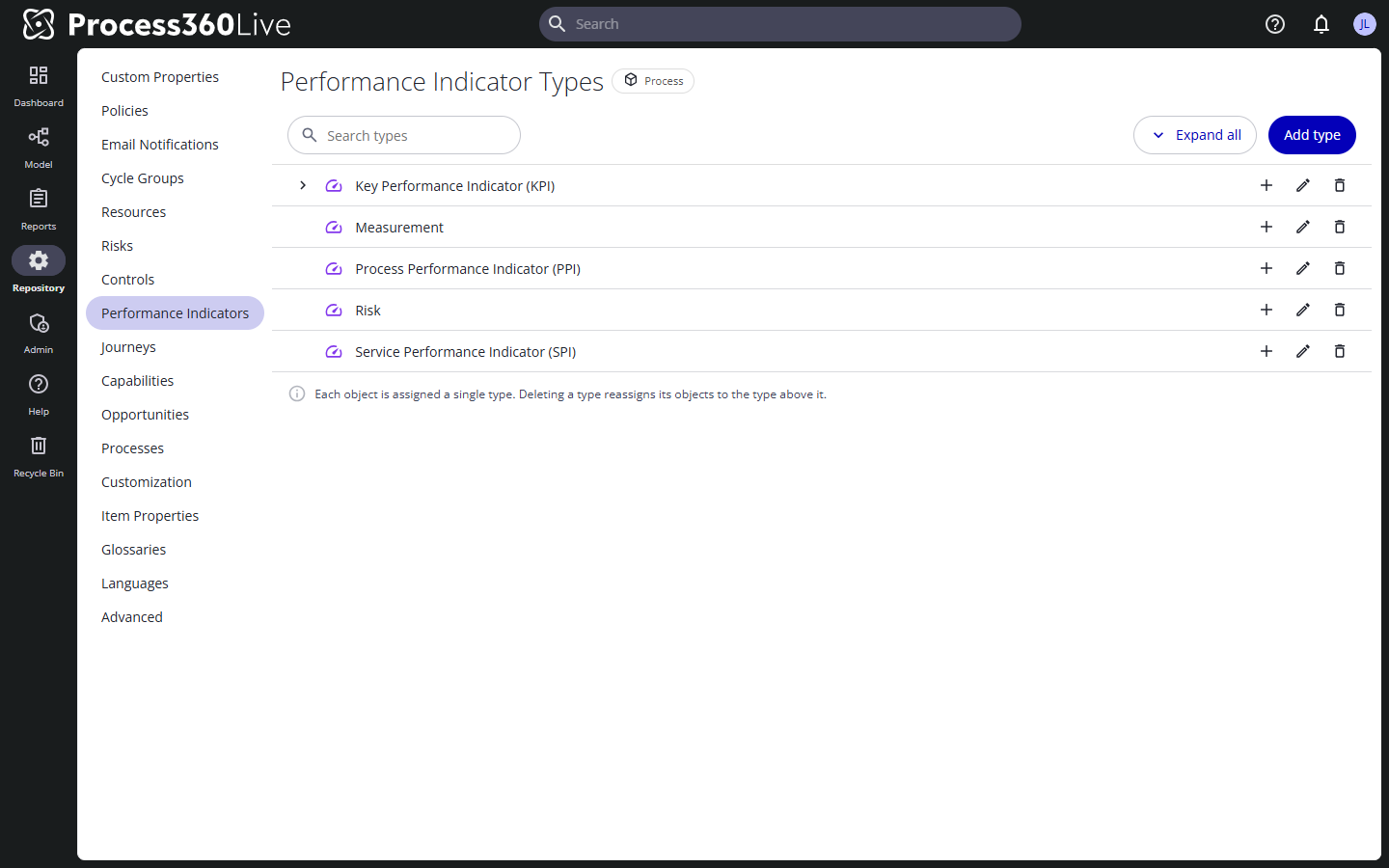
Maintain the type lists users pick from when they create or edit a Performance Indicator, Journey, Capability, Opportunity, or Process. All five areas use the same screen, so the steps below apply to each.
Prerequisites
- The matching repository permission for each area — Manage Performance Indicator Configuration, Manage Journey Configuration, Manage Capability Configuration, or Manage Opportunity Configuration. Process Types instead requires Manage Repository Configuration. See Assigning Security Roles.
Steps
-
In the Repository area, select the object type to configure:
Area Type lists Performance Indicators Performance Indicator Types Journeys Journey Types Capabilities Capability Types Opportunities Opportunity Types and, on a second tab, Opportunity Instance Types Processes Process Types -
Click Add type to add a top-level type, or Add subtype on a row to nest a child type. Type names can be up to 255 characters and must be unique.
-
Save the row. Use a row's Edit and delete actions to maintain existing types, and Expand all to open the whole hierarchy.
To find a type in a long hierarchy, type part of its name in Search types. The tree keeps each match together with the types above it, and expands to reveal it.
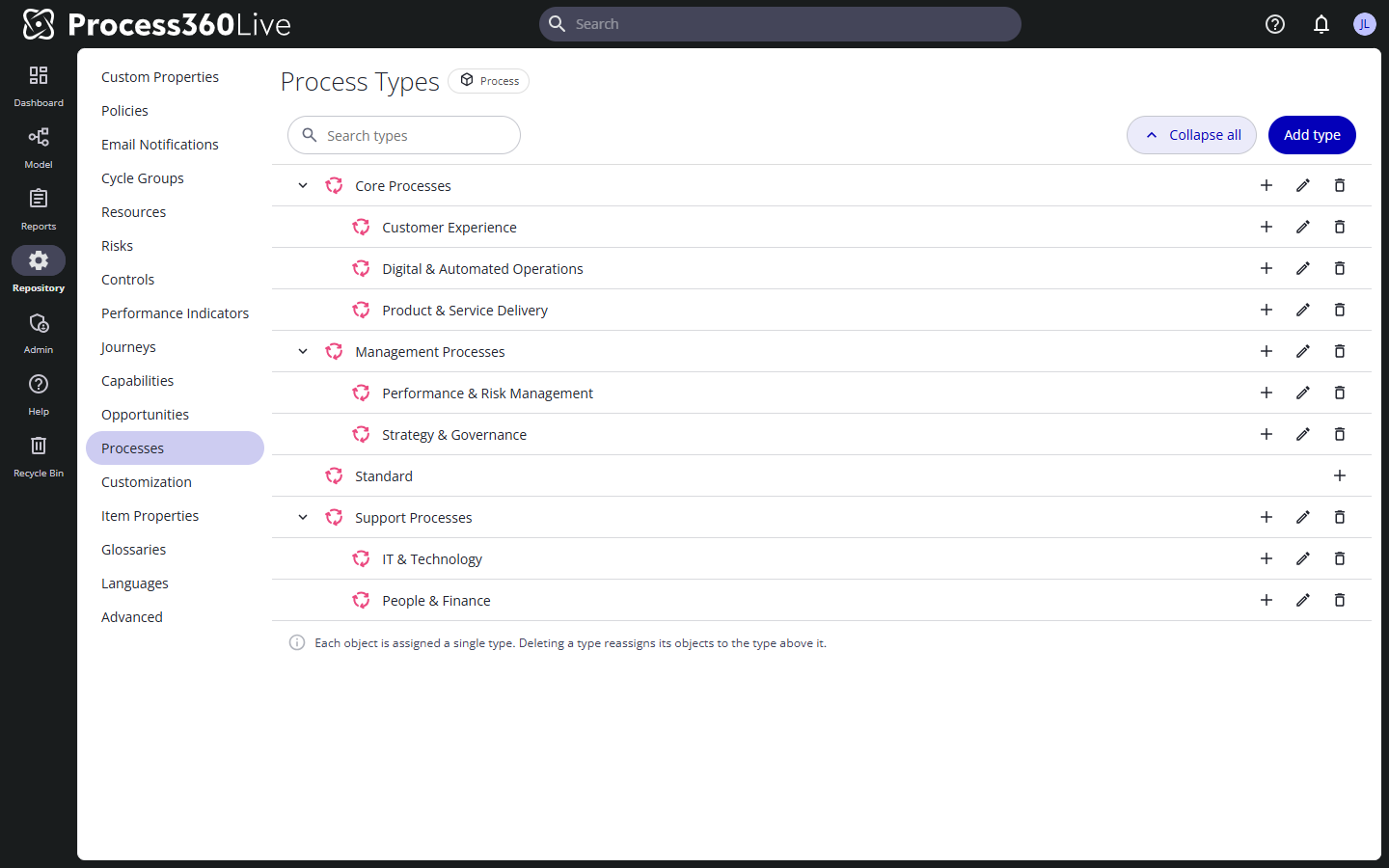
Process Types ships with a standard hierarchy — Management, Core, and Support processes with their child types — and a read-only Standard type that every process gets by default and that you can't rename or delete. Set a process's type on the process's Settings tab.
Limitations
- Each list must keep at least one type.
- These screens manage names only. Risk, control, and resource types carry extra settings and have their own pages — see Configure risks, Configure controls, and Configure resources.