Narrative reports
A narrative report turns a diagram or repository object into a structured, readable document — a written description of how a process, function, or system works. It puts the process flow into plain language for business users, auditors, and other readers, and can pull in related context such as the departments involved, business risks, regulatory requirements, and supporting systems. Narratives are used for documentation, training, audits, compliance, and cross-team communication.
Overview
A narrative report is a report object whose type is Narrative Template. Its settings are an ordered set of sections — for example a summary, the diagram, a shape list, effective dates, or related objects — that you arrange to control what the document contains and in what order. To create one, see Create a report and choose the Narrative Template type.
Narrative types
A narrative reports on one of three things, which sets its type. You choose it under Content Type on the narrative's Settings tab:
| Narrative type | Content Type | Reports on |
|---|---|---|
| Diagram narrative | Diagrams | A diagram and its elements |
| Shape narrative | Shapes | A single shape and the object it describes |
| Object narrative | Repository Objects | A single repository object and its metadata |
SOP narrative
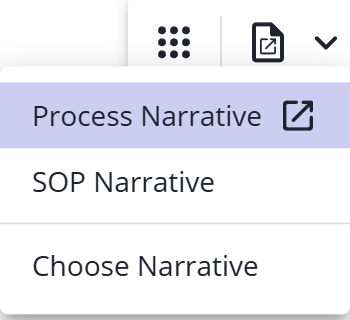
The diagram narrative has a second presentation: the SOP narrative (standard operating procedure), a step-by-step layout of the same diagram content. It isn't a separate type — it's a variantVariant A unique trace pattern in an event log. Variant analysis ranks how often each path is taken and is the fastest way to spot process deviation. of the diagram narrative, offered next to Process Narrative in the narrative menu on a diagram (see Reading a narrative). Choosing SOP Narrative opens it in a dialog and makes it what the narrative icon runs, until you switch back. The entry is unavailable when the repository has no default SOP narrative, or when you can't access the one it points to. The SOP narrative has its own configurable default (see Default narratives), so you can keep an SOP template distinct from the plain diagram template.
Choosing a narrative type
- Diagram narrative — documents a process end to end. It's the only type that can show the diagram image, a shape-by-shape list, the object the diagram describes, and approval effective dates. Use it for a process specification, or — as the SOP variantVariant A unique trace pattern in an event log. Variant analysis ranks how often each path is taken and is the fastest way to spot process deviation. — a standard operating procedure.
- Object narrative — documents a single repository object, such as a risk, control, capability, or resource, from its own fields, history, relationships, and custom properties, with no diagram or shapes. Use it when the object itself, not a process flow, is the subject.
- Shape narrative — documents one shape and the object it describes. It's deliberately minimal — a shape list and free text only — and is meant for the Narrative side panel while you read a diagram.
Narrative sections
You build a narrative by adding sections with New section and dragging them into order. Which sections are available depends on the narrative type, and each section carries its own content:
| Section | Available in | What it includes |
|---|---|---|
| Summary | Diagram, Object | The item's Summary text. |
| Purpose | Diagram, Object | The item's Purpose text. |
| Instructions | Diagram, Object | The item's Instructions text. |
| Document Information | Diagram, Object | Authorship details you choose to show: creator, create date, owner, version, and version number. |
| Diagram | Diagram | The diagram image, optionally limited by sub-process depth (top level only, one level down, or all sub-processes). |
| History | Diagram, Object | Version-history columns you choose: version, modified by, modify date, comments, approval applicant, approval date, and approvers. |
| Object Described By Diagram | Diagram | The object the diagram describes, showing the fields you choose — name, summary, purpose, instructions, relationships, and custom properties. |
| Shape List | Diagram, Shape | The diagram's shapes, as a compact table or a detailed list (see below). |
| Rich Text | Diagram, Shape, Object | Free-form text you write into the narrative — boilerplate, legal wording, or notes. |
| Effective Dates | Diagram | The approved version and the dates it is or was in force. |
| Diagram Custom Properties | Diagram, Object | The item's custom properties that you select; empty ones can be hidden. |
| Relationships | Diagram, Object | The item's relationship types that you select; empty ones can be hidden. |
The Shape List presents each shape either as a table (one compact row per shape) or a detailed list (a fuller entry per shape). Both show the shape's number, ID, text, type, and note, plus the object it describes and that object's summary, purpose, instructions, and relationships; the detailed list additionally includes the shape's and the described object's custom properties. The list can include pools and lanes alongside activityActivity A named step in a process (e.g. "Approve Invoice"). Each event in an event log records one activity occurrence for one case. shapes, follow a set sub-process depth, and group shapes by sub-process — on screen and in the Word and PDF export.
Sections that list fields can leave out the ones with no value. Turn on Hide empty sub-sections so the narrative shows only fields that have a value.
Header and footer
Set header and footer content under Header and Footer, in the menu next to Check In on the Settings tab — six positions in all: left, center, and right, for both the header and the footer. In an object narrative, header and footer fields can include custom-property tags that fill in from the object.
Reading a narrative
-
From a diagram: click the narrative icon to open your last-used narrative, or click the arrow next to it to choose a different one. The icon shows the name of your default narratives so you can recognize them.
-
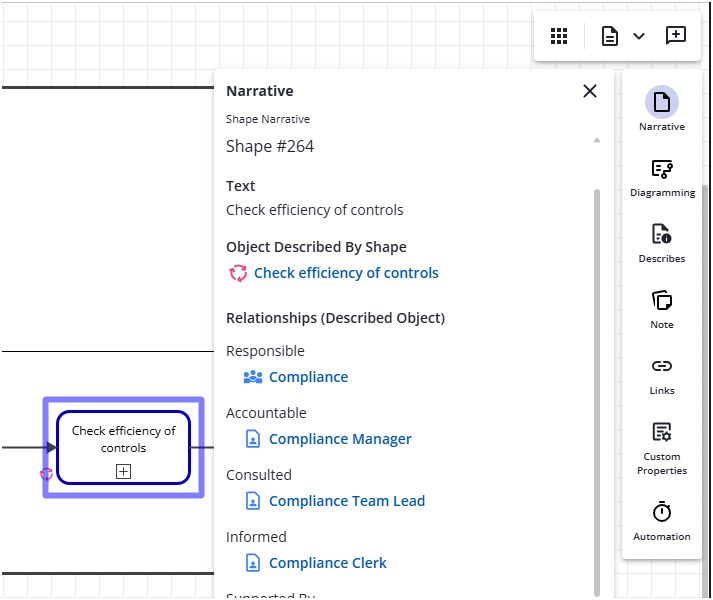
For a shape: select a shape and open the Narrative side panel to read its Shape Narrative. The panel shows the repository's default Shape narrative, set under Repository → Advanced → Narrative Options (see Default narratives).
-
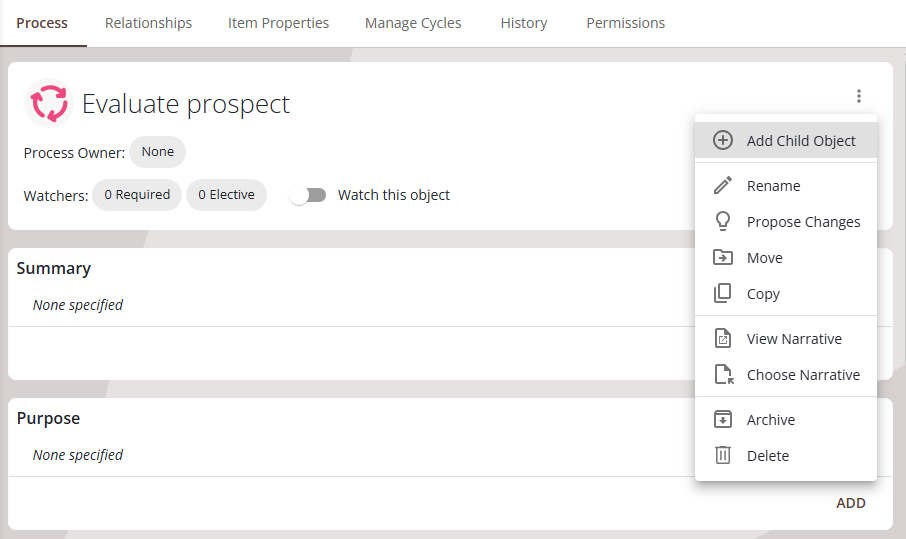
For a repository object: run it from the narrative report object with Run Report on its Report tab, or open the object's more menu and choose View Narrative to run the default template, or Choose Narrative to pick a specific one.
Preview a shape narrative
Preview a shape narrative to see how the template renders before you rely on it. Open the shape narrative report object, check it out, and on its Settings tab choose Preview Report from the menu next to Check In. Choose the object to preview against, then follow the on-screen steps — Select a shape, then Open this panel. The Narrative panel shows the narrative you're previewing (the template on that Settings tab), not the repository's default Shape narrative.
Default narratives
A repository administrator sets the default narratives under Repository → Advanced → Narrative Options. There are four defaults — Diagram, SOP, Shape, and Repository Object — so the SOP narrative has its own default even though it's a variantVariant A unique trace pattern in an event log. Variant analysis ranks how often each path is taken and is the fastest way to spot process deviation. of the diagram narrative. These defaults are the narratives offered from the diagram icon and the object menu.
Exporting a narrative
After you run a narrative, download it as a Word Document or a PDF. The PDF is an export of the same Word document.
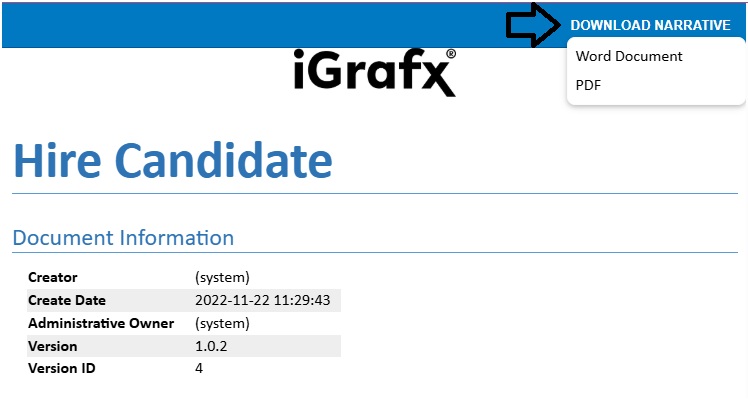
A server administrator can upload a Word theme file to control the layout of the Word export — the Narrative Export Theme under Administration → Customization → Appearance. The Word theme sets the styling of the exported tables and headings, and applies to the Word and PDF output only — not the on-screen preview.
To rename a built-in column heading in a section — for example the Shape List's Text or Note column — edit the matching label under Administration → Customization → Localization Properties.