Reporting
A report is a saved, re-runnable view of the objects in your repository and the properties, relationships, or risks attached to them. It saves its settings, not its results: each time someone opens it, iGrafx runs the query again, so the output shows the repository as it stands at that moment.
Overview
Every report is built from three parts:
- Settings define what the report returns — which objects to include and which of their properties or relationships to show. You write these using the iGrafx Query Language (IQL). See Use IQL in a report.
- Output is the rendered result shown when you open the report. Objects in the output link to their definitions in the repository.
- View options let a reader adjust the displayed result — sorting, filtering, or limiting which relationships show — without changing the saved settings.
Report output respects the permissions of the person viewing it. If a reader lacks access to an object that would otherwise appear, that object is dropped from their view of the report results.
For the two list-style report types, you also choose which version of each object the report reads: Current Approved Version or Latest Version.
Report types
iGrafx Process DesignProcess Design The discipline of explicitly modeling business processes to document, analyze, and optimize them. In Process360 Live, process design is the authoring side that complements mining's data-driven view. offers five report types. You choose the type when you create the report.
| Report type | What it shows |
|---|---|
| Generic List or Table | A list of objects, with selected properties shown as columns. |
| Text Search Report | A list report you refine with a search term. |
| Generic Matrix | A grid that shows where relationships exist between two sets of objects. |
| Risk Map | An impact-versus-likelihood chart for objects that carry risks. |
| Narrative Template | A configured set of sections that document a diagram or object as readable text. See Narrative reports. |
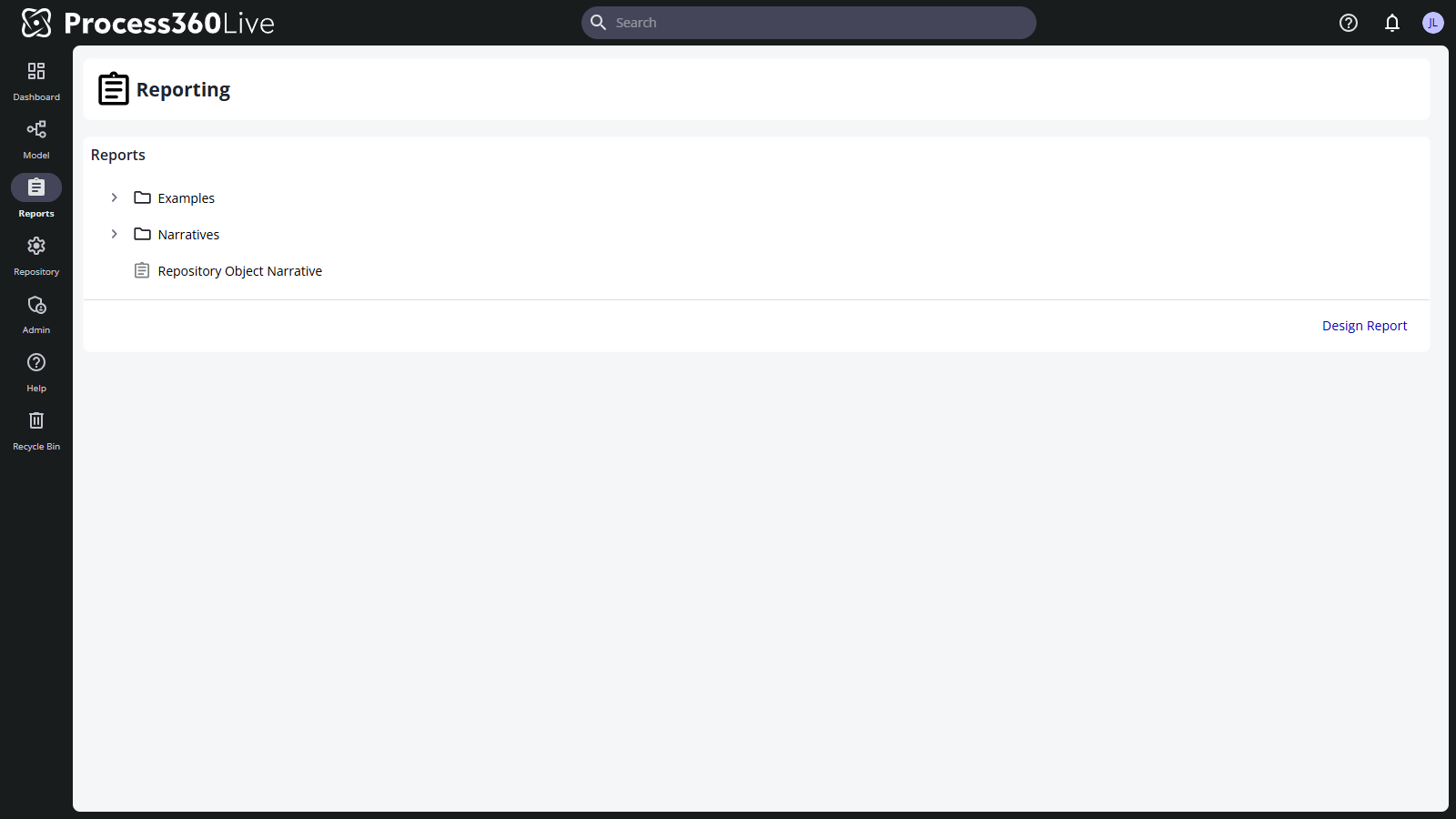
You reach saved reports from Reports in the navigation rail, or from the Reports folder of the repository tree.
Permissions
All license types can view reports. Viewers can only see approved objects, so unapproved content doesn't appear in their reports. Creating and editing reports requires a license that allows it, and Risk Map reports additionally require risk-reporting access. See the License capability matrix for what your license includes.