19.3.1 Datacenter Highlights
Features
UI Language - Arabic
Users may select Arabic as a UI language in their profile settings. Click your profile image → My Profile, and scroll to the Language section.
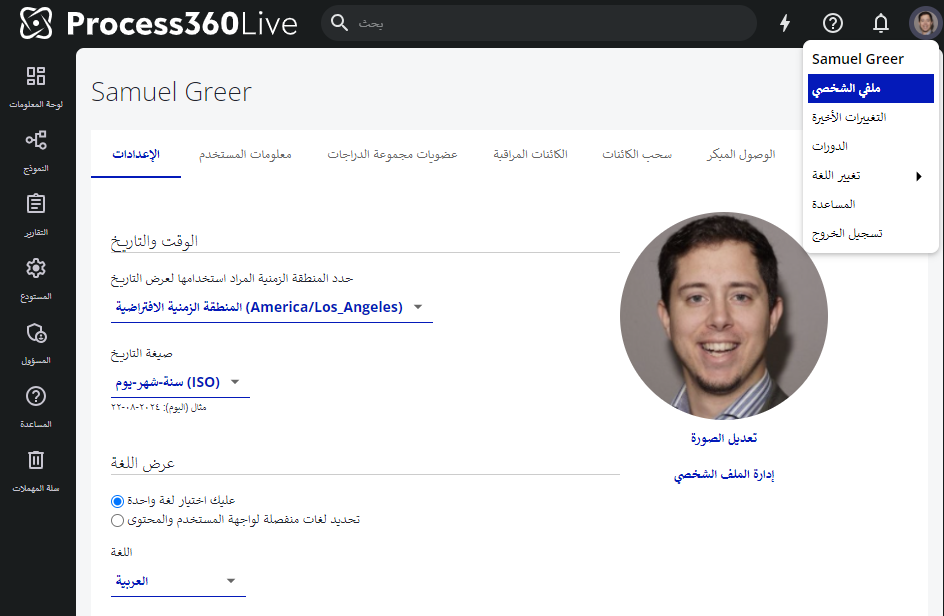
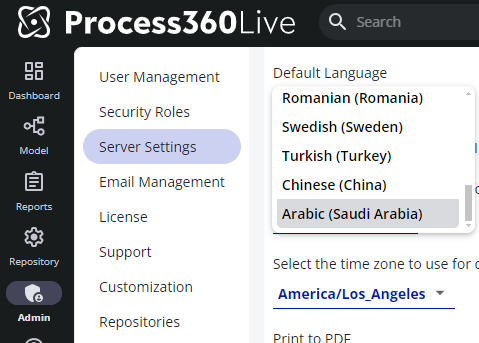
Admin’s may also set the default server server language to Arabic navigating to Admin → Server Settings → General Configuration, and scrolling to the Default Language setting.
Note: Arabic support does not support right to left language justification.
Reporting - Diagram ElementType
Report on diagram element type information to report on more information inside diagrams.
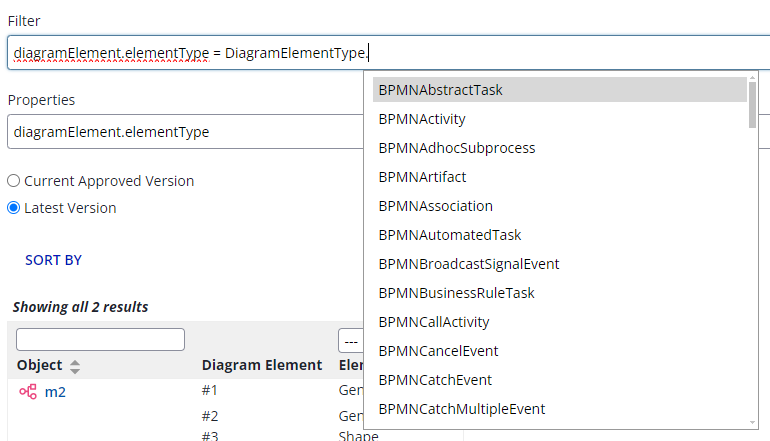
For example, this capability enables reporting on the number of activities in a diagram that are automated vs. manual, assuming the shape type was specified in the diagram.
Note: The current implementation of this feature requires diagrams to be checked out and checked back in since the release of v19.3.0 in order for ElementType to be reported on.
Learn more about ElementType reporting.
REST API - Update KPI Targets
Update KPIKPI A quantitative measure used to evaluate process performance against a target — for example, average throughput time, automation rate, or rework percentage. targets via REST API.
Navigate to the API documentation by navigating to Admin → Support → REST API → iGrafx Platform API Documentation → Performance Indicators
General Access Features
Process Owner
Process OwnerProcess Owner The person accountable for a specific business process — its design, performance, and improvement. The primary stakeholder for mining and simulation outputs. is a new field for Process Objects and Process Diagrams located in the “Process” tab and “Details” tab, respectively.
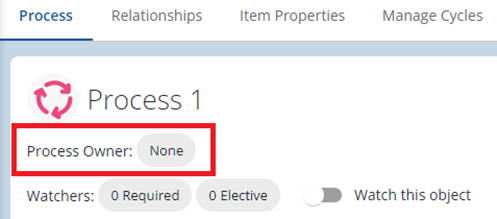
When the Process OwnerProcess Owner The person accountable for a specific business process — its design, performance, and improvement. The primary stakeholder for mining and simulation outputs. chip is selected a single named Process360 LiveProcess360 Live iGrafx's cloud platform for end-to-end process management — combining process design, mining, simulation, and automation in a single environment. user may be entered as the Process OwnerProcess Owner The person accountable for a specific business process — its design, performance, and improvement. The primary stakeholder for mining and simulation outputs.. The user’s name and e-mail address (if available) are then displayed in the Details tab AND (if specified on a Diagram) on the info box in Diagram.
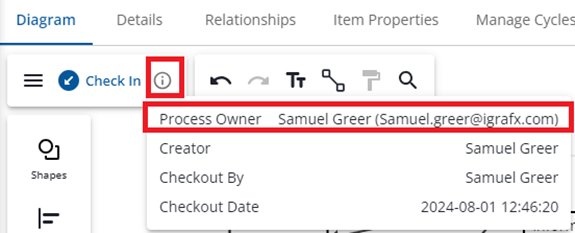
For many organizations, the Process OwnerProcess Owner The person accountable for a specific business process — its design, performance, and improvement. The primary stakeholder for mining and simulation outputs. is a point of contact for a process that frequently acts as the primary editor of the process, and may or may not be aligned with RACI assignments.
Process OwnersProcess Owner The person accountable for a specific business process — its design, performance, and improvement. The primary stakeholder for mining and simulation outputs. may be updated across processes in bulk via the Bulk Object Changes feature.
Learn more about Process Owner
Bulk Object Changes
Make changes to many object relationships in one action with Bulk Object Changes. Search for objects, select multiple search results to perform bulk operations on by checking the objects to modify, and open the Bulk operations panel via the 3 dots in the top right of the search results page.
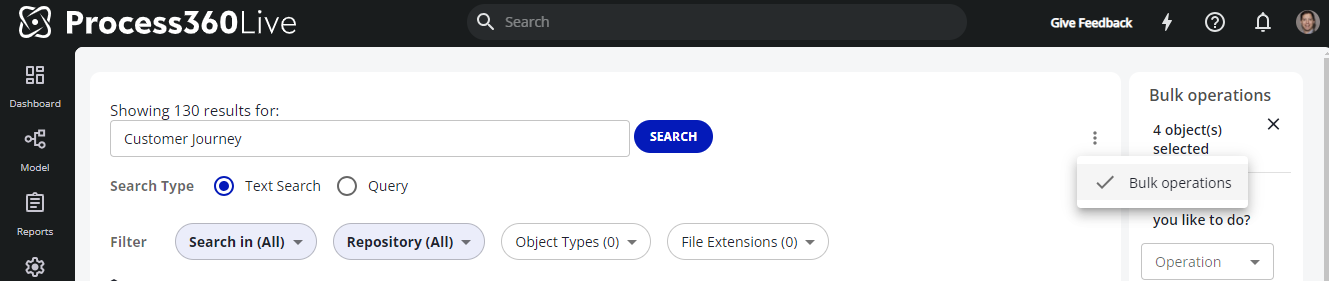
IQL Queries are now possible in the Search results page, which enables more targeted search results on which to perform bulk operations. Navigate to the search results page and change the search type to “Query” to search using IQL properties.

Learn more about Bulk Object Changes
Tablet Diagramming
When opening diagrams on devices with small screens or small browser windows, diagrams will automatically open in full screen mode, creating more space for the user to view the diagram.
Note: Users may exit full screen mode by clicking the “exit full screen” button in the bottom right corner of the diagram, or by clicking / swiping the back button on their device or browser.
