Okta — SAML setup with iGrafx Identity
Configure Okta as the SAMLSAML An XML-based standard for exchanging authentication and authorization data between an identity provider and a service provider. Process360 Live supports SAML 2.0 for SSO. identity provider for the iGrafx Identity Solution.
Prerequisites
- Okta administrator access.
- Your Tenant ID from the iGrafx Support team (used in the URLs below as YourTenant).
Steps
-
In Okta as an administrator, select Applications → Applications, then Create App Integration.
-
Select SAMLSAML An XML-based standard for exchanging authentication and authorization data between an identity provider and a service provider. Process360 Live supports SAML 2.0 for SSO. 2.0 and click Next.
-
Enter an app name (for example
iGrafx), optionally an app image, and click Next. -
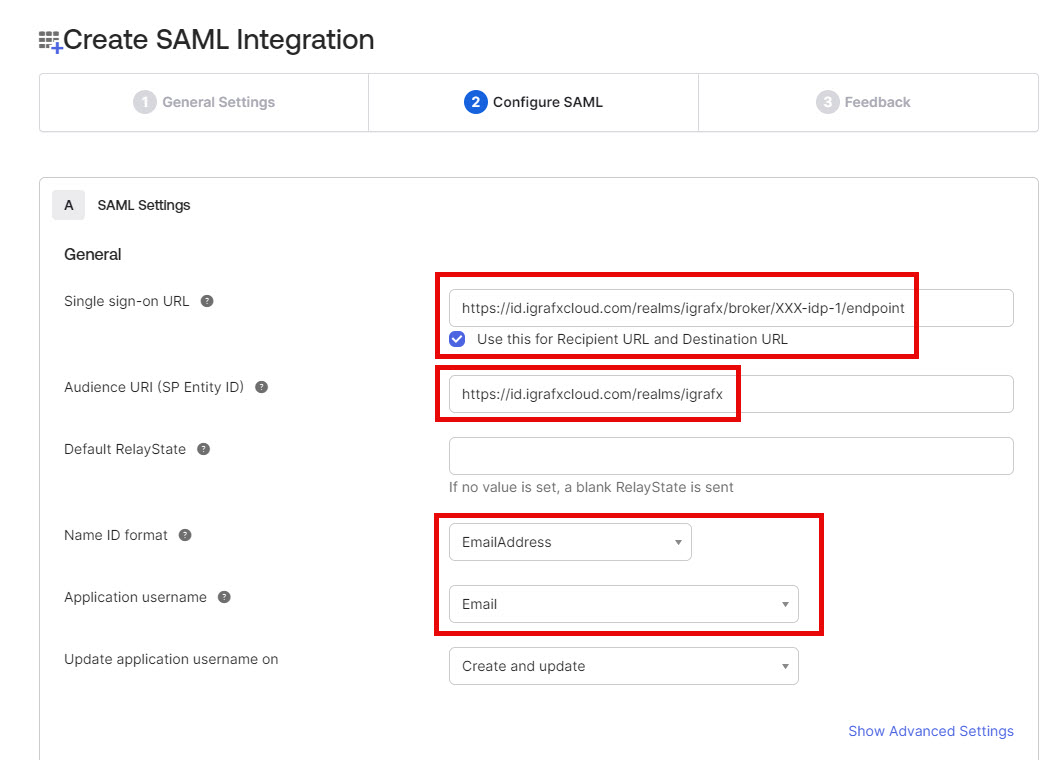
Configure SAMLSAML An XML-based standard for exchanging authentication and authorization data between an identity provider and a service provider. Process360 Live supports SAML 2.0 for SSO. with these settings (use the URL for your region):
Setting Value Single sign-on URL EMEA/Europe: https://id.igrafxcloud.eu/realms/igrafx/broker/YourTenant-idp-1/endpoint
Rest of the world / NA:https://id.igrafxcloud.com/realms/igrafx/broker/YourTenant-idp-1/endpointAudience URI (SP Entity ID) EMEA/Europe: https://id.igrafxcloud.eu/realms/igrafx
Rest of the world / NA:https://id.igrafxcloud.com/realms/igrafxDefault RelayState Leave blank Name ID format EmailAddress Application username Email 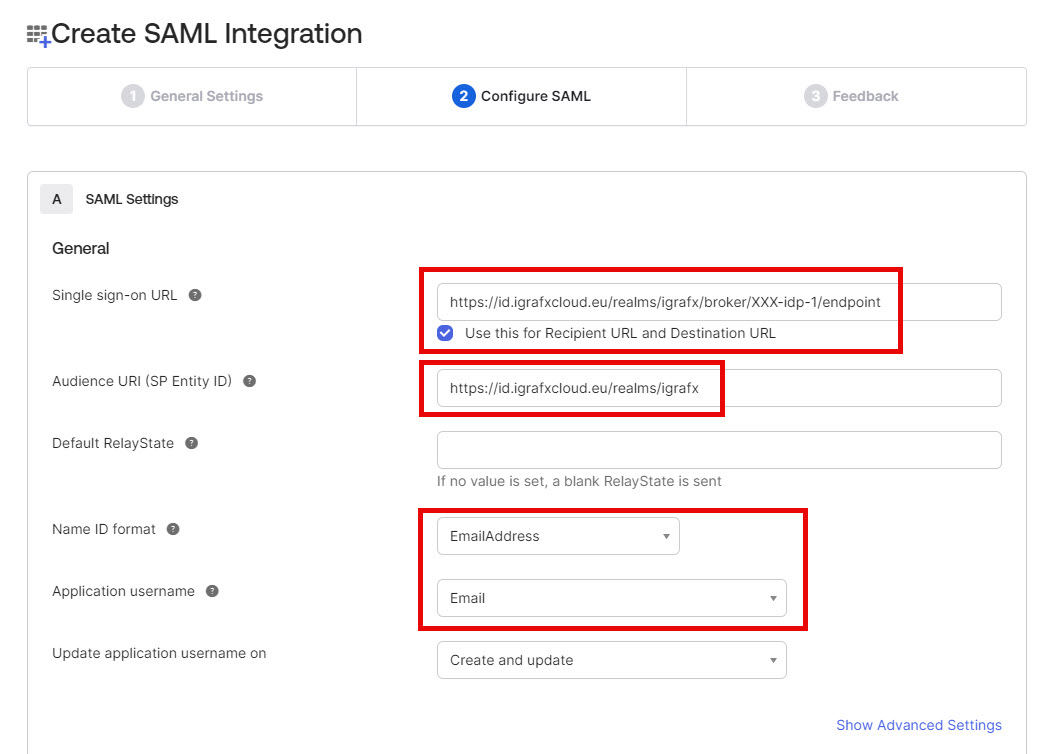
-
Set the attribute statements, then click Next:
Attribute name Name format Value http://schemas.xmlsoap.org/ws/2005/05/identity/claims/givennameUnspecified user.firstNamehttp://schemas.xmlsoap.org/ws/2005/05/identity/claims/surnameUnspecified user.lastName -
Complete the feedback page, click Next, then Finish.
-
On the application's Assignments tab, click Assign to add the users and groups that should have access to iGrafx.
-
On the Sign On tab, copy the Metadata URL.
-
Provide the metadata URL to your iGrafx team at echo.igrafx.com.
-
The iGrafx team then configures the iGrafx IdentityiGrafx Identity The iGrafx identity and access management service that brokers authentication between customer identity providers and Process360 Live components. Solution and tells you when it's ready to test.