Microsoft Entra ID / Azure AD — SAML setup with iGrafx Identity
Configure Microsoft Entra ID (Azure AD) as the SAMLSAML An XML-based standard for exchanging authentication and authorization data between an identity provider and a service provider. Process360 Live supports SAML 2.0 for SSO. identity provider for the iGrafx Identity Solution.
Prerequisites
- Access to the Azure portal with permission to create an enterprise application.
- Your Tenant ID and the region-specific reply URL from iGrafx (used below as YourTenant).
Steps
Create the enterprise application
-
In the Azure portal, search for and select Enterprise applications.
-
Click New application.
-
On the Microsoft Entra Gallery page, click Create your own application.
-
Enter a name for the application.
-
Select Integrate any other application you don't find in the gallery (Non-gallery).
-
Click Create.
-
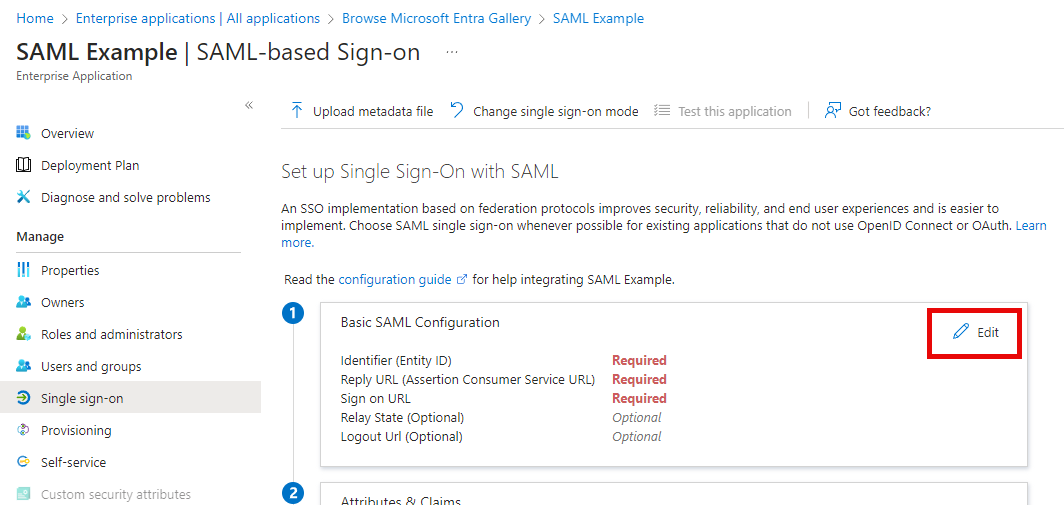
In the new enterprise application, open the Single sign-on blade.
-
Select SAMLSAML An XML-based standard for exchanging authentication and authorization data between an identity provider and a service provider. Process360 Live supports SAML 2.0 for SSO..
-
Click Edit to configure SAMLSAML An XML-based standard for exchanging authentication and authorization data between an identity provider and a service provider. Process360 Live supports SAML 2.0 for SSO..
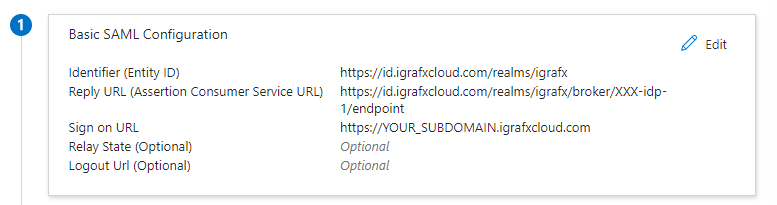
Configure the basic SAML settings for your region
Europe / EMEA:
- Identifier (Service Provider Entity ID):
https://id.igrafxcloud.eu/realms/igrafx - ACS / Reply URL:
https://id.igrafxcloud.eu/realms/igrafx/broker/YourTenant-idp-1/endpoint(iGrafx provides your specific Reply URL). - Sign on URL:
https://YOUR_SUBDOMAIN.igrafxcloud.com
Rest of the world / NA:
- Identifier (Service Provider Entity ID):
https://id.igrafxcloud.com/realms/igrafx - ACS / Reply URL:
https://id.igrafxcloud.com/realms/igrafx/broker/YourTenant-idp-1/endpoint(iGrafx provides your specific Reply URL). - Sign on URL:
https://YOUR_SUBDOMAIN.igrafxcloud.com
Click Save.
Finish and send the metadata
-
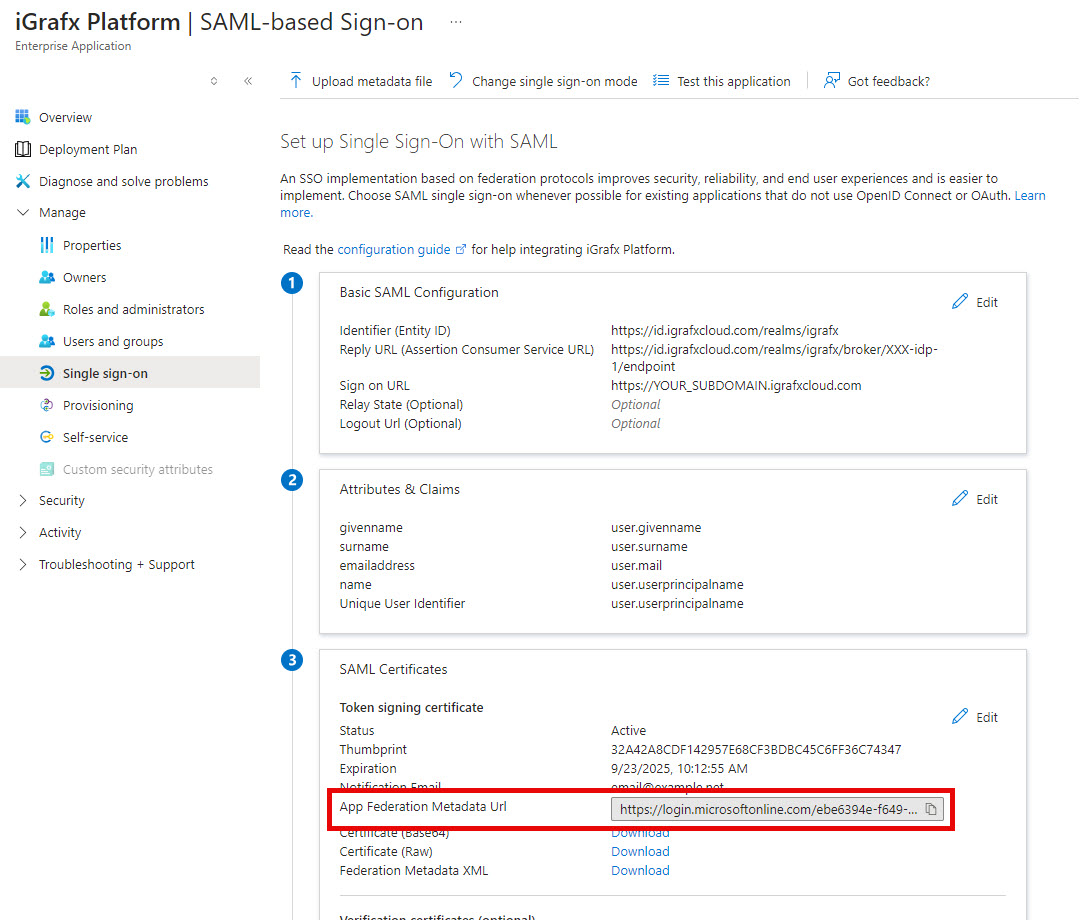
The Attributes & Claims section is usually correct — leave it unchanged.
-
Copy the SAMLSAML An XML-based standard for exchanging authentication and authorization data between an identity provider and a service provider. Process360 Live supports SAML 2.0 for SSO. metadata URL (the copy button in that section) to provide to iGrafx.
-
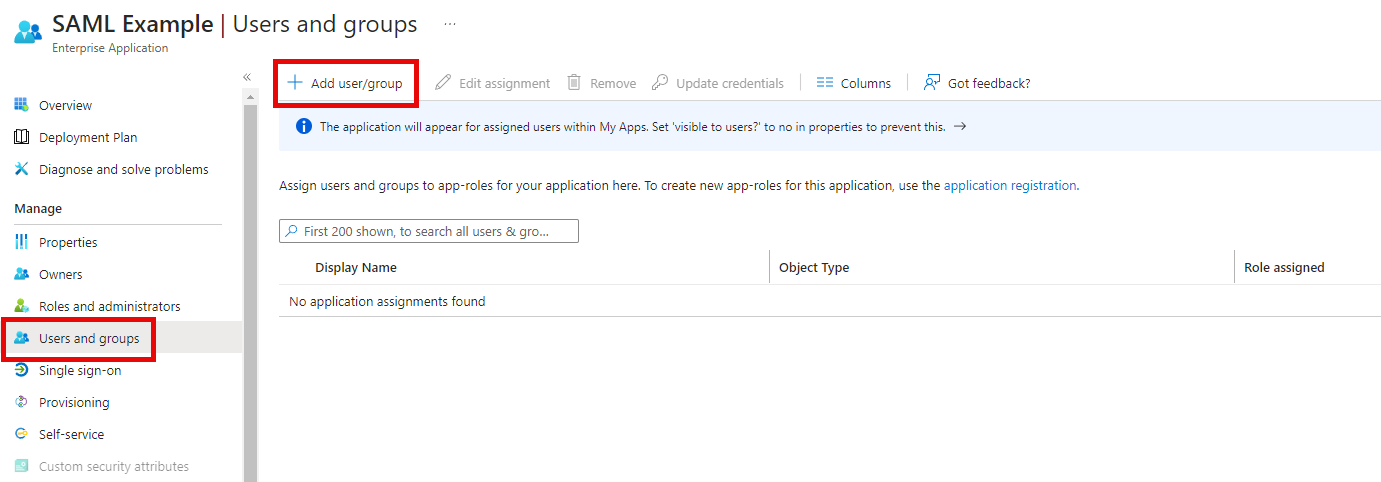
Configure the groups and users allowed to use SSOSSO An authentication scheme that lets users sign in once with an identity provider and access Process360 Live without re-entering credentials. with the enterprise application.
-
After you send the metadata URL to iGrafx, the iGrafx team configures the iGrafx IdentityiGrafx Identity The iGrafx identity and access management service that brokers authentication between customer identity providers and Process360 Live components. Solution and tells you when it's ready to test.