Legacy SAML setup guide
This guide is for customers not on the new iGrafx IdentityiGrafx Identity The iGrafx identity and access management service that brokers authentication between customer identity providers and Process360 Live components. Solution. To check: open your platform URL in a private browser window — if you're forwarded to id.igrafxcloud.com or id.igrafxcloud.eu, you're on the new flow, so follow the SAML setup guide for the iGrafx Identity Solution instead.
SAMLSAML An XML-based standard for exchanging authentication and authorization data between an identity provider and a service provider. Process360 Live supports SAML 2.0 for SSO. (Security Assertion Markup Language) provides single sign-on between service providers (applications that require authentication) and identity providers (applications that provide it). The iGrafx platform is the service provider; your Azure AD, ADFS server, or Okta instance is the identity provider.

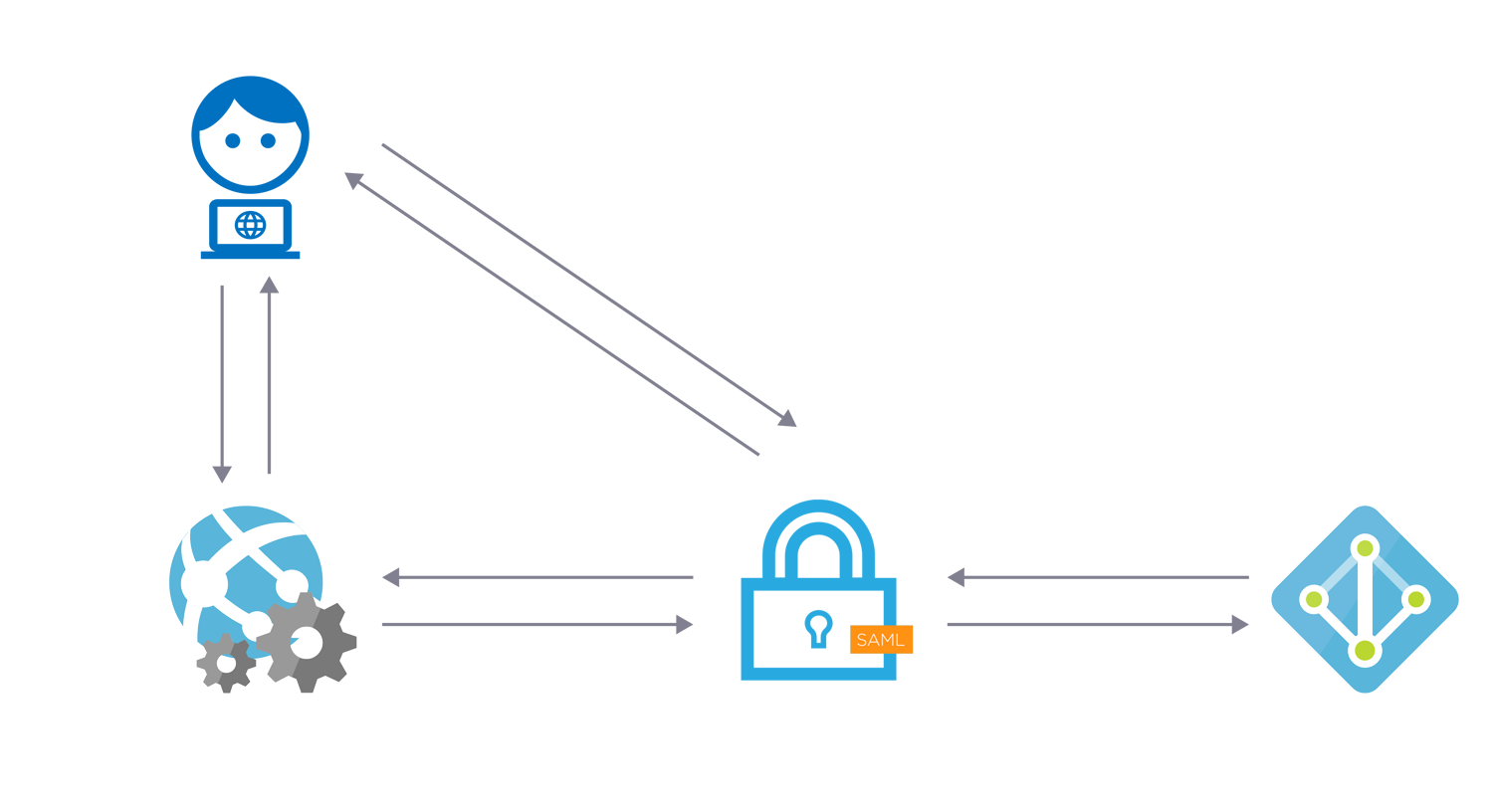
Prerequisites
- A SAMLSAML An XML-based standard for exchanging authentication and authorization data between an identity provider and a service provider. Process360 Live supports SAML 2.0 for SSO. 2.0–compatible identity provider.
- A test user in your cloud platform whose username matches the NameID of a user in your identity provider.
Steps
Follow the procedure for your identity provider, then test SSOSSO An authentication scheme that lets users sign in once with an identity provider and access Process360 Live without re-entering credentials. with your test user. Once authentication succeeds, create a ticket in the iGrafx Service Desk to disable form-based login (recommended). SSOSSO An authentication scheme that lets users sign in once with an identity provider and access Process360 Live without re-entering credentials. is then complete and user import/synchronization is ready to configure.
Microsoft Azure Active Directory
- Add the iGrafx Platform enterprise application to your Azure Active Directory.
- Follow the Microsoft tutorial.
- Set your Unique User Identifier to the
mailattribute in your integration. - In Administration → User Management → SAMLSAML An XML-based standard for exchanging authentication and authorization data between an identity provider and a service provider. Process360 Live supports SAML 2.0 for SSO., click Update Identity Provider Metadata and provide the metadata URL.
- Change the NameID policy to Email.
- Test the flow from your Login page with Sign in via SSOSSO An authentication scheme that lets users sign in once with an identity provider and access Process360 Live without re-entering credentials..
The enterprise application for SCIM is registered separately — see Synchronizing your user base.
Microsoft ADFS Server
- Get the
spring_saml_metadata.xmlfile from the iGrafx team. - In the AD FS 2.0 Management Console, select Add Relying Party Trust (you may need to install Active Directory Federation Services).
- Select Import data about the relying party from a file, choose
spring_saml_metadata.xml, and click Next. Ignore any warning that some metadata isn't supported. - Enter a display name, leave multi-factor authentication unconfigured, and Permit all users to access this relying party.
- On Ready to Add Trust, confirm the Endpoints tab has multiple endpoints — if not, regenerate the metadata with HTTPS URLs.
- Leave Open the Edit Claim Rules dialog selected and finish.
- Select Add Rule → Send LDAP Attributes as Claims → Next. Name it
NameID, choose Active Directory, mail as the LDAP attribute, and Name ID as the outgoing claim type. Finish and confirm. - Download your IdP metadata from
https://YOUR_ADFS_SERVER/FederationMetadata/2007-06/FederationMetadata.xml. - In Administration → User Management → SAMLSAML An XML-based standard for exchanging authentication and authorization data between an identity provider and a service provider. Process360 Live supports SAML 2.0 for SSO., click Update Identity Provider Metadata and provide the file.
- Confirm the NameID policy is unspecified (unless you have a custom policy), then test with Sign in via SSOSSO An authentication scheme that lets users sign in once with an identity provider and access Process360 Live without re-entering credentials..
Okta
-
In Administration → User Management → SAMLSAML An XML-based standard for exchanging authentication and authorization data between an identity provider and a service provider. Process360 Live supports SAML 2.0 for SSO., click Download Service Provider Metadata.
-
In Okta as an administrator, select Applications → Create New App, choose SAMLSAML An XML-based standard for exchanging authentication and authorization data between an identity provider and a service provider. Process360 Live supports SAML 2.0 for SSO. 2.0, and Create.
-
Name the app (for example
iGrafx) and click Next. -
Configure SAMLSAML An XML-based standard for exchanging authentication and authorization data between an identity provider and a service provider. Process360 Live supports SAML 2.0 for SSO.:
Setting Value Single Sign-on URL https://SUBDOMAIN.igrafxcloud.com/saml/SSO(use your cloud subdomain)Audience URI (SP Entity ID) The value from the <md:EntityDescriptor entityID="???">attribute of thespring_saml_metadata.xmldownloaded in step 1Relay State Leave blank Name ID format E-Mail Application username Any option that maps to login names that exist in your iGrafx platform -
Finish creating the app. Optionally configure custom username mappings on the People page.
-
On the Sign On tab, download the Okta IdP metadata via the Identity Provider metadata link.
-
In Administration → User Management → SAMLSAML An XML-based standard for exchanging authentication and authorization data between an identity provider and a service provider. Process360 Live supports SAML 2.0 for SSO., click Update Identity Provider Metadata and provide the URL.
-
Optionally change the NameID policy to Email, then test with Sign in via SSOSSO An authentication scheme that lets users sign in once with an identity provider and access Process360 Live without re-entering credentials..
Other identity providers
Providers such as Ping Identity, Centrify, Auth0, and HP IceWall are supported as long as they support SAMLSAML An XML-based standard for exchanging authentication and authorization data between an identity provider and a service provider. Process360 Live supports SAML 2.0 for SSO. 2.0. Follow your provider's manual and use Administration → User Management → SAMLSAML An XML-based standard for exchanging authentication and authorization data between an identity provider and a service provider. Process360 Live supports SAML 2.0 for SSO. to set it up, then test with Sign in via SSOSSO An authentication scheme that lets users sign in once with an identity provider and access Process360 Live without re-entering credentials..
Whichever provider you use, prefer a valid email address as the Unique User Identifier / NameID. The iGrafx IdentityiGrafx Identity The iGrafx identity and access management service that brokers authentication between customer identity providers and Process360 Live components. Solution expects an email address, so matching that now keeps a later move to it straightforward.
Debugging
In Administration → Support → Logging Settings, add these classes at DEBUG level:
org.springframework.security.saml2— version 20.0.0 and later. On earlier versions, useorg.springframework.security.samlinstead.org.opensamlPROTOCOL_MESSAGE