Enable the Sign in with Microsoft button
With Azure AD, you can add a Sign in with Microsoft button to the login page so users don't have to type their email address to sign in.
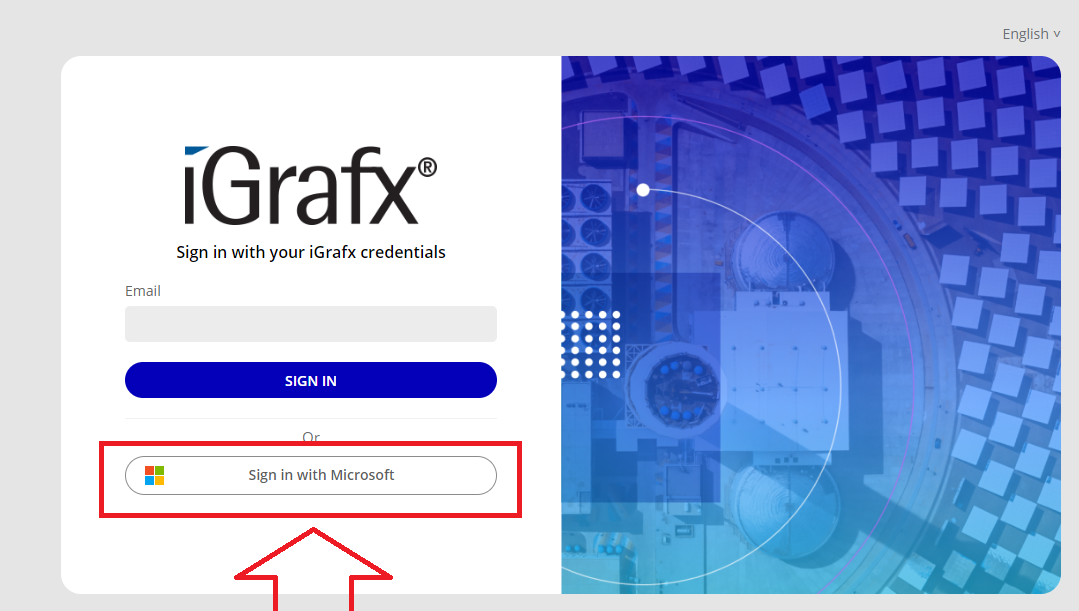
Prerequisites
- An Azure AD (Microsoft Entra ID) tenant.
Steps
Set it up
-
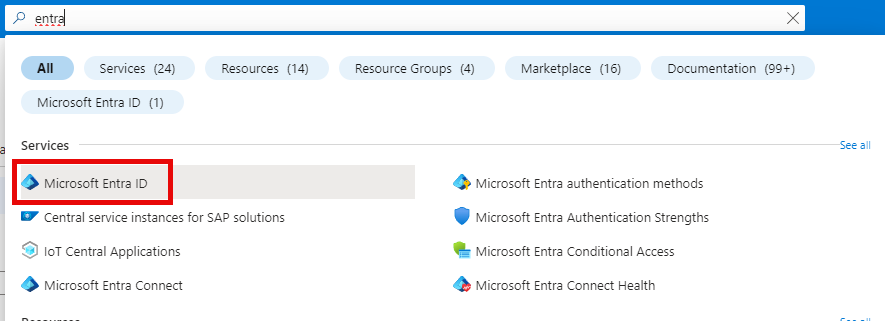
Sign in to Azure, search for Entra, and select Microsoft Entra ID.
-
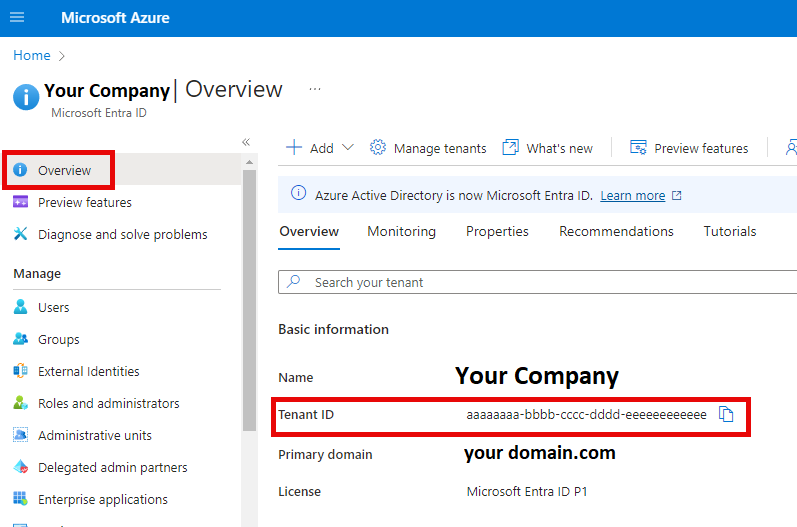
Copy your Tenant ID.
-
Provide the Tenant ID to iGrafx.
Accept permissions
The first time a user signs in, they're prompted to accept the permissions the application requests.
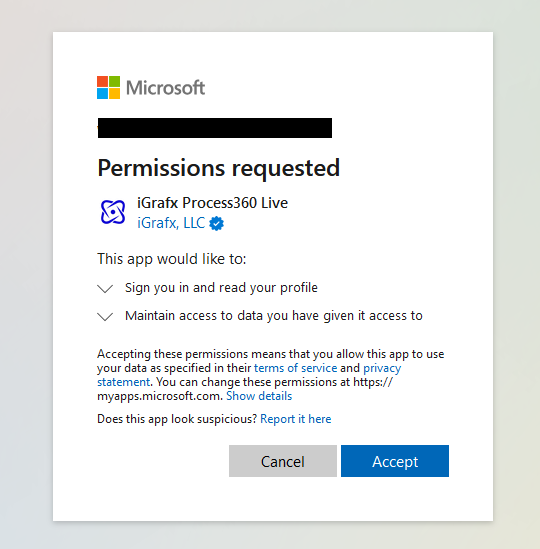
An administrator can grant consent for all users — so new users sign in without seeing the consent screen — by selecting the consent checkbox on the initial consent screen and accepting.
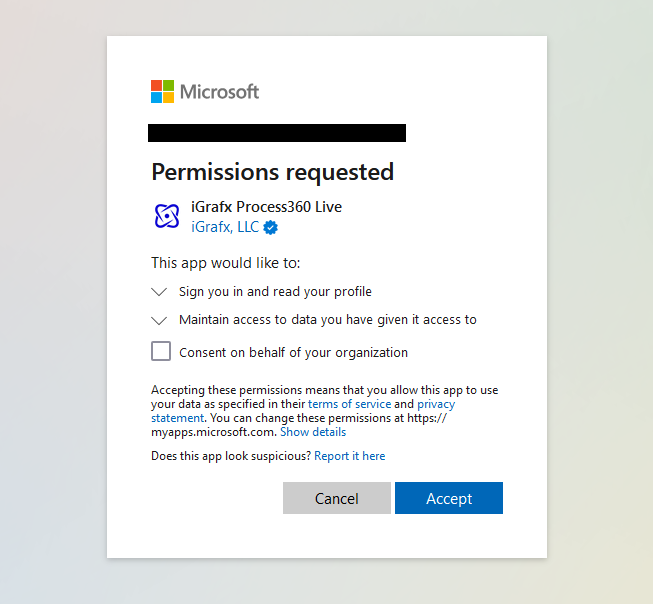
An admin can also grant consent later, from the application management steps below.
Manage the iGrafx Process360 Live application
Once a user has signed in and accepted the permissions, the iGrafx Process360 LiveProcess360 Live iGrafx's cloud platform for end-to-end process management — combining process design, mining, simulation, and automation in a single environment. application appears under your enterprise applications in Entra ID, where you manage it like any enterprise application.
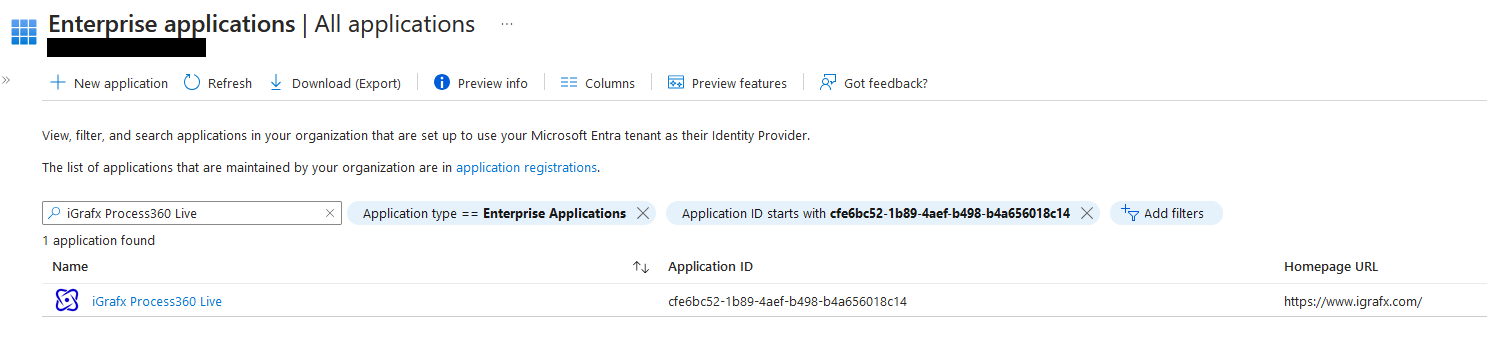
- The Properties blade controls whether sign-in is enabled, whether user assignment is required, and whether the application is visible to users.
- If user assignment is required, assign access from the Users and groups blade.
- Grant or revoke admin consent under the Permissions blade.