Customize risk instructions
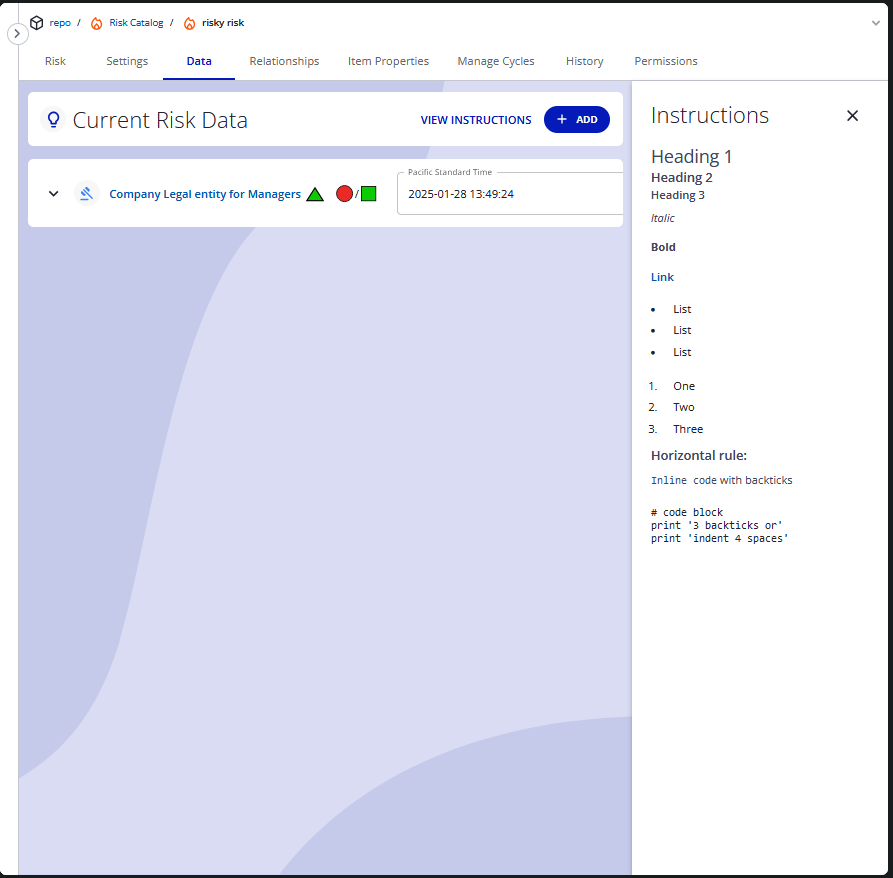
Write your own guidance for people entering risk data. The text appears in the Instructions panel on an Internal Control System (ICS) risk's Data tab — opened with View Instructions. The risk's category decides which text appears, so each category can carry its own instructions.
Prerequisites
- Administrator access to Admin → Customization.
- Instructions display on ICS risks, so the ICS Style Risks Early Access feature must be enabled for users to see them — see ICS risks.
- The ID of the risk category the instructions are for. Find it in the Repository area under Risks → Risk Categories — for example
FINANCIAL.
Steps
- Go to Admin → Customization and select the Localization Properties tab.
- Select Add New Property.
- Enter the property name as
igrafx.risks.instructions.followed by the risk category ID — for exampleigrafx.risks.instructions.FINANCIAL. - Enter a placeholder string in the selected language and save. The property turns into a text area.
- Type the instructions into the text area, as plain text or markdown (CommonMark — headings, bold, italic, links, lists, blockquotes, horizontal rules, and code). Resize the text area to see more of the text.
- Click outside the text area to save your changes.
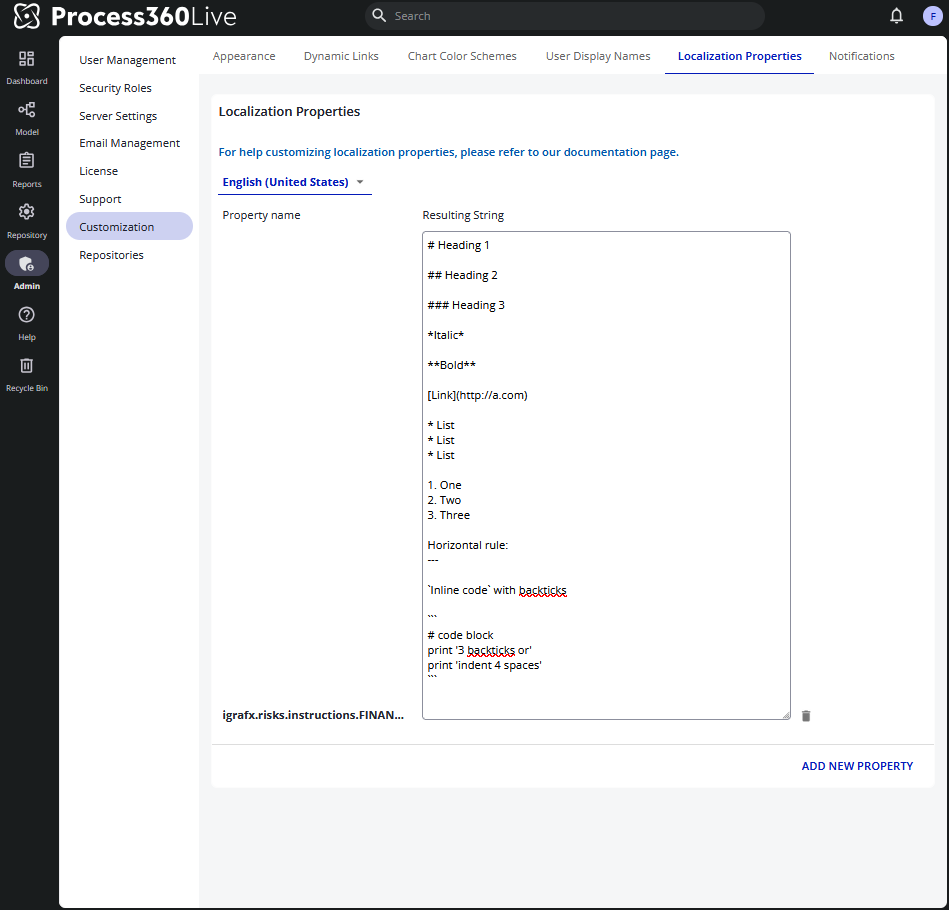
To translate the instructions, switch the language selector above the property list and enter the text again for that language.
Verify
Open an ICS risk whose category matches the property, select the Data tab, and select View Instructions. The panel shows your text with the markdown rendered. A risk whose category has no instructions property shows "Nothing added yet" instead.