Use Pia for reports and search
Ask Pia in plain language for what you want to find, and it writes the iGrafx Query Language (IQL) filter behind a search or a report and runs it. You can use Pia on the Search page and on report objects.
Prerequisites
- Pia for Reports and Search must be enabled for your organization. It's an Early Access, cloud-only feature — see Process Intelligence Assistance — Pia for how an administrator turns it on.
- On the Search page, anyone who can use it can use Pia — no extra permission is required.
- On a report object, you need to check the report out.
Steps
On the Search page
-
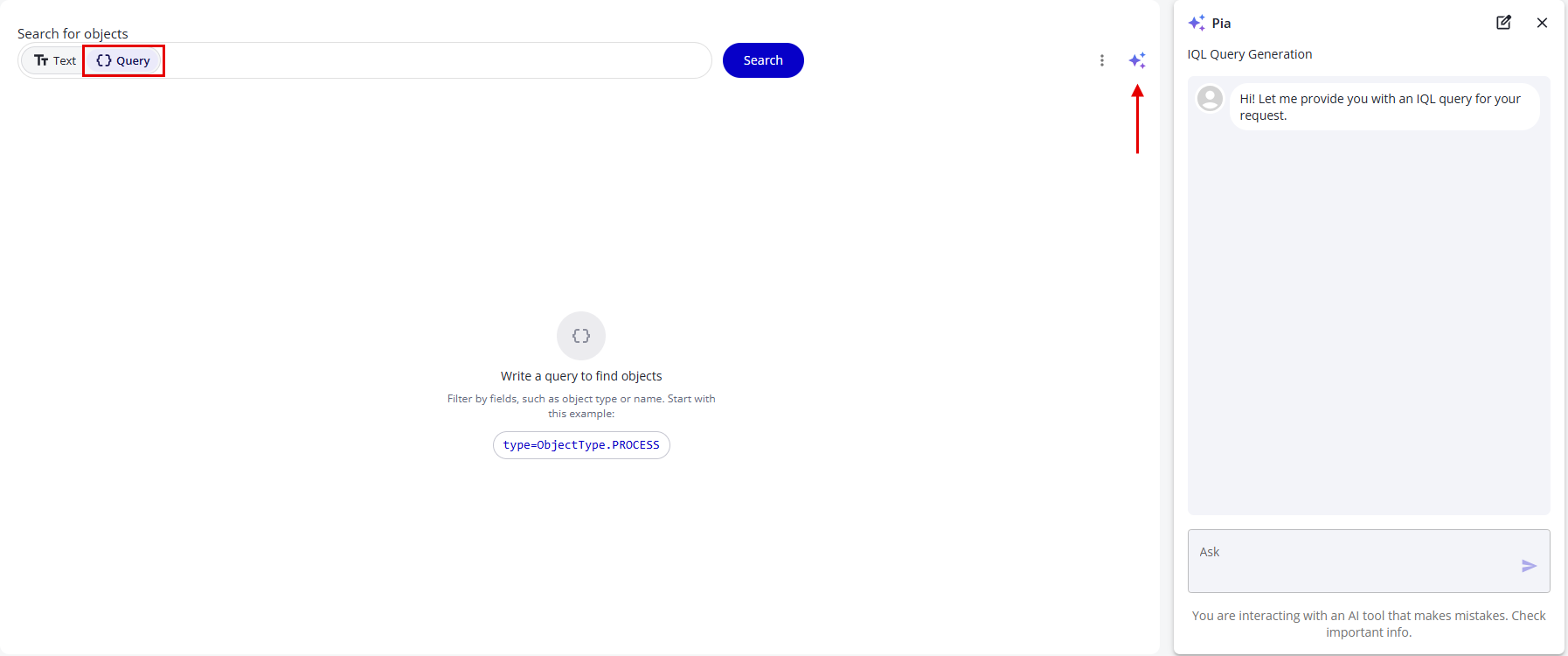
Open the full Search page and switch to Query mode.
-
Click the Pia icon — the sparkle icon at the right of the search bar — to open the Pia panel.
-
Describe what you want to find. Pia returns an IQL filter, applies it, and shows the results. If your request is unclear, Pia replies with a follow-up question instead and applies no filter until you answer it.
On a report object
-
Check out a report object, or create a new one.
-
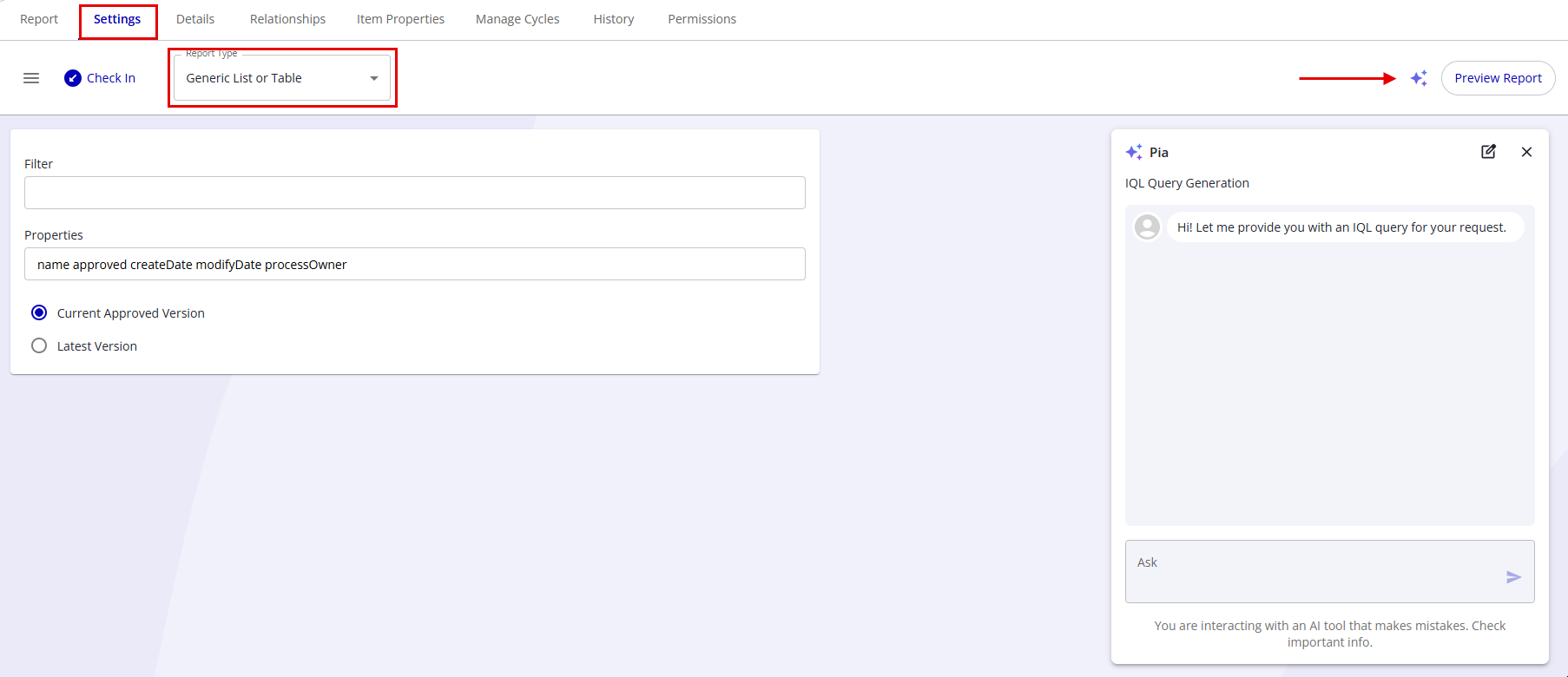
On the Settings tab, set the report type to Generic List or Table or Text Search Report. Pia can write queries for these two types.
-
Describe what you want in the Pia panel. Pia inserts the generated IQL filter into the Filter field, and the preview updates to show the matching results. As on the Search page, if your request is unclear Pia asks a follow-up question instead of inserting a filter.
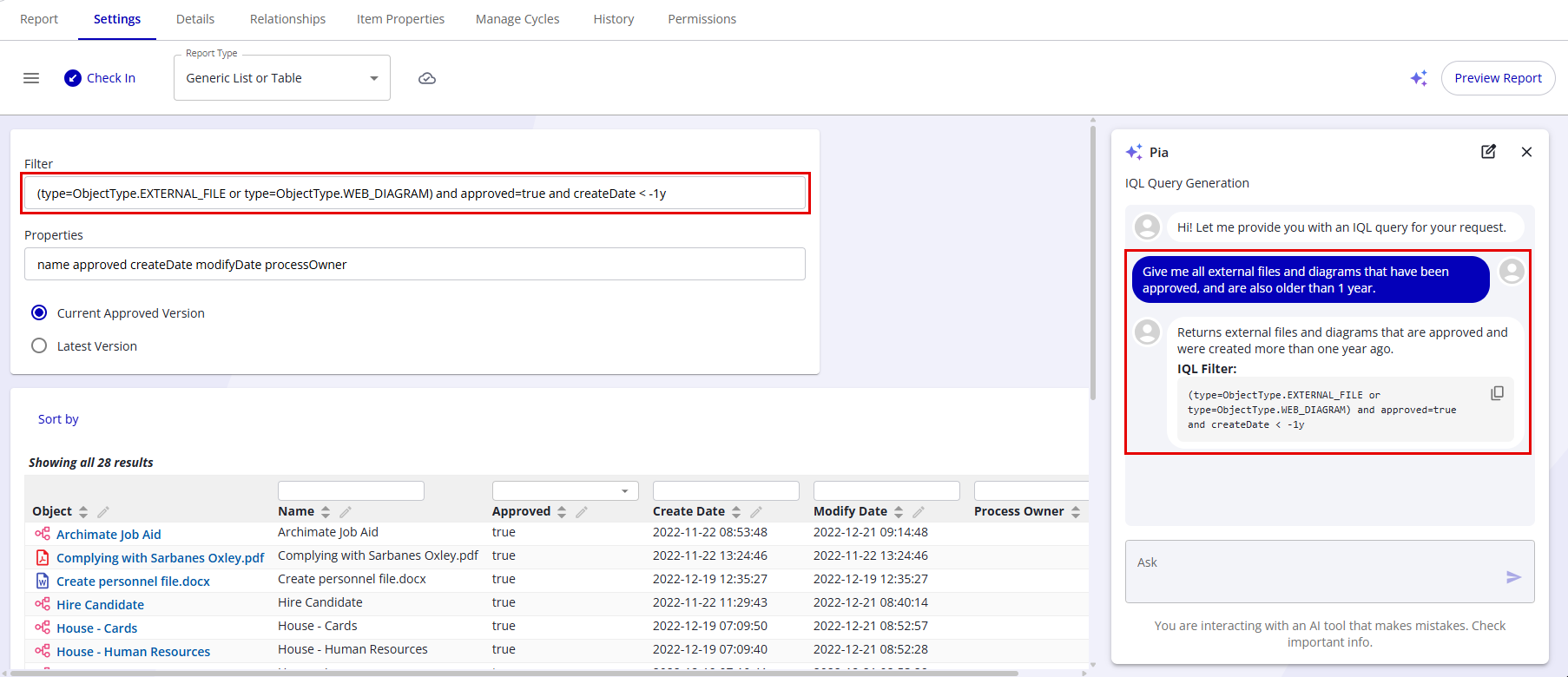
Some requests you can try:
- "Give me all diagrams that don't have a process ownerProcess Owner The person accountable for a specific business process — its design, performance, and improvement. The primary stakeholder for mining and simulation outputs. and are currently approved."
- "Find all objects that contain the word process and are not diagrams."
- "List all Resource objects that are responsible for another object and were modified in the past year."
Verify
The results update to match the filter Pia generated. On a report object, the generated text appears in the Filter field, where you can read or adjust it.
Limitations
- Pia fills only the Filter field, not a report's Properties field.
- Pia isn't available on a report you build with Design Report in the Reporting area. That report runs without being saved to the repository, and Pia works only on a saved report object. Click Save Report on the results, then use Pia on the saved report's Settings tab.
- Pia can't build filters that use sub-properties (for example,
currentRiskData.initialRisk). For the full list of available properties, see IQL query properties.