Translate a diagram with Pia
Use Pia to fill in missing translations for a diagram's shape textShape text The text displayed on a diagram shape. Type while a shape is selected to add or edit it. Part of the shape feature family alongside Shape Links and Shape Properties., notes, and headers and footers across the languages the diagram supports. Pia fills only the empty fields and leaves text that's already translated unchanged.
Prerequisites
- Pia Diagram Insights must be enabled for your organization. It's an Early Access, cloud-only feature — see Process Intelligence Assistance — Pia for how an administrator turns it on.
- Check the diagram out first. Checking out a diagram requires permission to modify it, and only one person can have it checked out at a time — see Check out a diagram. Until you check it out, the Translate all button is disabled, with the tooltip "Check out to translate".
Steps
-
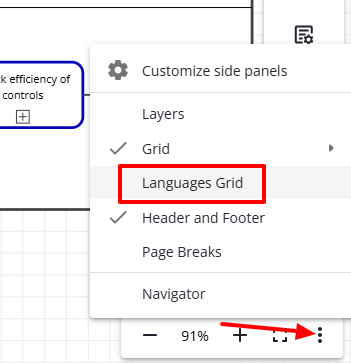
Check out the diagram and open the Languages grid.
-
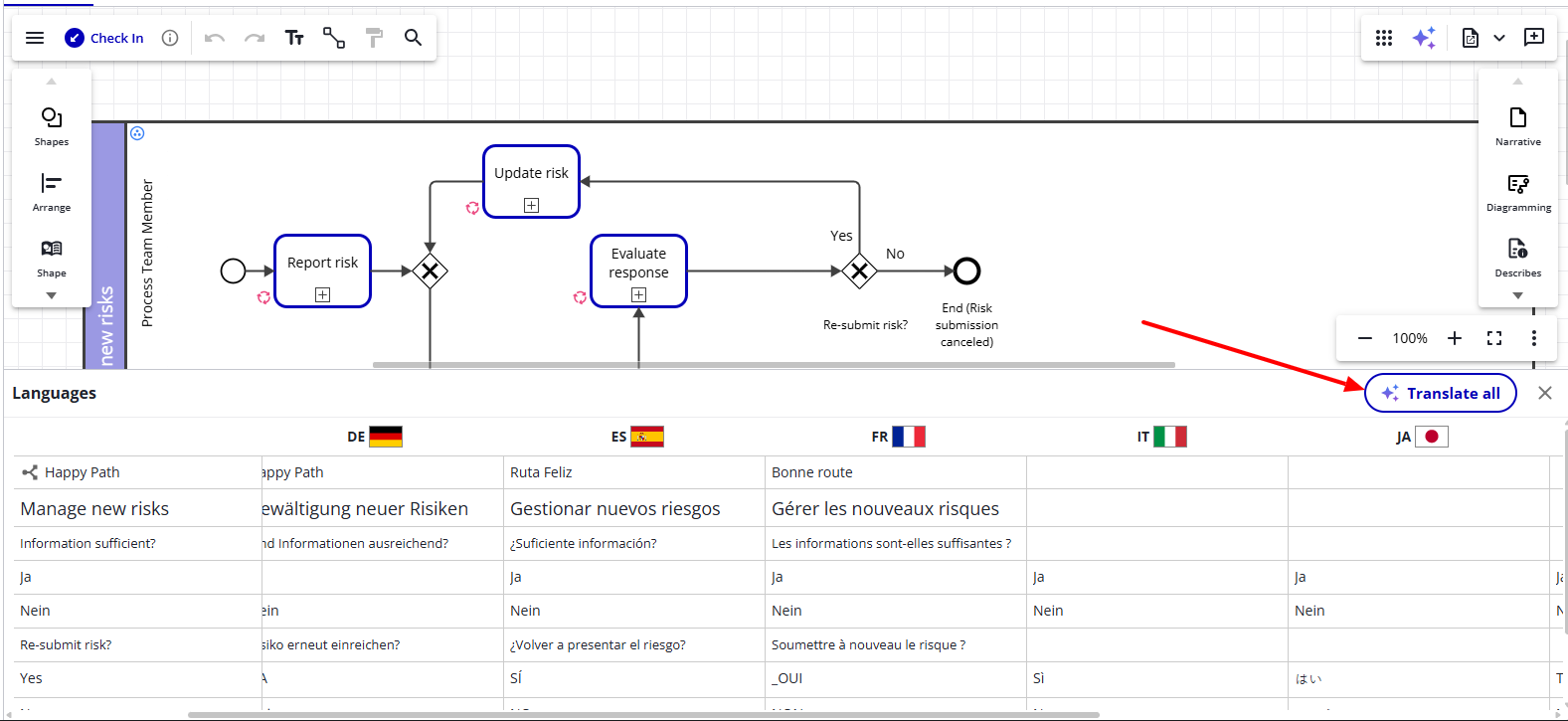
In the grid header, click Translate all.
-
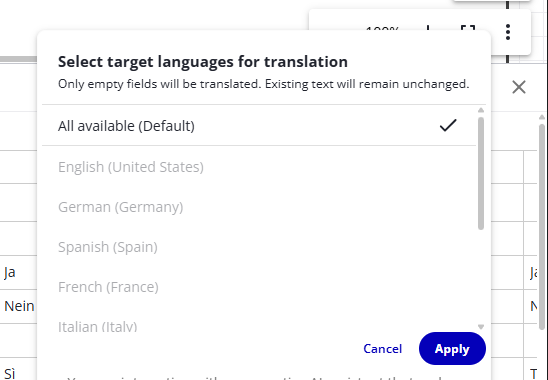
In the Select target languages for translation dialog, choose what to translate. By default, All available (Default) is selected, which covers every language the diagram has. To translate only some languages, clear that option and select the languages you want. When you select specific languages, the Translate all button changes to Translate (N), showing how many you picked.
-
Click Apply — available once at least one language is selected; click Cancel to close without translating. Pia fills in the missing translations for the languages you selected. While it works, a progress overlay covers the grid. A large diagram, or one with a lot of text, can take a while to finish. If a translation fails, an error message appears with the reason.
-
The grid stays open with the filled-in cells in place. Review the new translations for accuracy, then check the diagram in.
Limitations
- Pia fills only empty translation fields; it doesn't change text that's already translated.