Upgrading the iGrafx platform
Upgrade the on-premises iGrafx platform by replacing the application server with the new version while keeping your igrafxdata base directory and databases. Plan the version path first — old versions must pass through intermediate "stepping-stone" releases.
Prerequisites
- Your current platform version. Check it before planning the path.
- Access to the stepping-stone installers — provide your order number and date at the iGrafx licensed-software page.
Stepping-stone versions
When upgrading from an old version, upgrade through these intermediate versions in order before going further:
| Coming from | Upgrade to |
|---|---|
| 15.x | 16.1.0 |
| 16.0 – 16.2 | 16.3.4 |
| 16.3 – 17.2 | 17.3.3 |
| 17.3 – 17.5 | 17.7.0.758 |
| 17.6 – 18.2 | 18.3.7.941 (⚠️ not 18.3.8) |
| 18.3 and later | latest |
For example, from 16.4 to 18.3 you upgrade to 17.3, then 17.7, then 18.3.
Java: The required JRE depends on the release — Java 11 for 17.7–19.4, Java 21 for 19.5–19.24, and Java 25 for 20.0 and later. The pre-deployed packages ship with Tomcat 11 (16.3.x–17.2.x shipped Tomcat 8; 17.3.x–17.4.x shipped Tomcat 8.5, 17.4.x-19.24.x shipped Tomcat 9).
Backup requirements
Before any upgrade, back up all databases — the administration database and every repository database (they may be combined or separate, and you may have several repositories). Also back up your igrafxdata base directory (for example C:\iGrafx\iGrafxPlatform\igrafxdata).
Maintenance window / downtime
The service is removed and reinstalled, so the platform is down during the upgrade. Also:
- ⚠️ In a cluster, stop all nodes before upgrading — data can be corrupted if a node accesses the database during the upgrade.
- ⚠️ If the admin or a repository database is actively mirrored, disable mirroring for the duration.
- Never connect two platform servers to the same administration or repository databases at the same time (except in a cluster).
If you customized the platform service — a non-default security scheme, Java memory settings, extra startup variables — note the existing service settings before you remove the service, and reapply them afterward. Gathering this can depend on your environment; if in doubt, check with iGrafx Professional Services first. Settings to capture include JVM memory, the security scheme, SAML2 configuration, and any other customizations.
Steps
Pre-deployed Tomcat on Windows (current installation 16.3 or later)
-
Confirm your database and
igrafxdatabackups (above). -
Open a command line, go to your existing installation directory (for example
C:\iGrafx\iGrafxPlatform), and open thewindowssubfolder. -
If you customized the service (or aren't sure): run
manage_service.bat iGrafxPlatform(replaceiGrafxPlatformwith your service name). On the Java tab, copy the memory, security-scheme, and port settings into a text file for later, then close the dialog. -
Run
remove_service.bat iGrafxPlatform. -
Rename the existing installation directory so you can identify it as the previous version — for example
C:\iGrafx\iGrafxPlatform_w.x.y.z. -
Extract the new
iGrafxPlatform*-Predeployed.zipinto the location you want the server to run from (for exampleC:\iGrafx\iGrafxPlatform). Don't ignore decompression warnings — if one appears, try a location nearer the drive root. -
Copy the
igrafxdatafolder from the renamed previous base directory into the new one (for example from…_w.x.y.z\igrafxdatato…\igrafxdata). -
As a best practice, archive your log files, then empty the
\igrafxdata\logsfolder. -
If you modified
server.xmlorcontext.xmlin the previous Tomcat (for example for SSL behind a proxy or a JNDI database connection), reapply those changes to the new files inapache-tomcat-11.x.xx/conf. Don't overwrite the new files with the old ones. -
From the
windowssubfolder, runinstall_service.bat 8080. To use different ports, a different service name, or a different authentication scheme, adjust the command — runinstall_service.batwith no port to see the format and defaults. Confirm the UAC prompt if asked. The service starts automatically and shows a confirmation.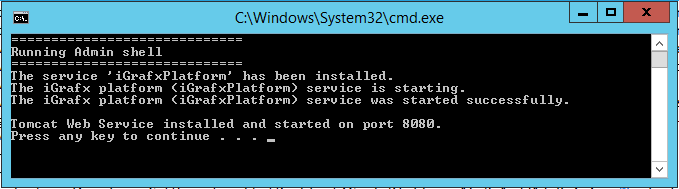
-
If you did step 3: run
manage_service.bat iGrafxPlatformagain, reapply the memory settings and any custom system properties from your notes, then save with OK and restart the service from the Windows Services dialog. (A-XX:MaxPermSizeparameter is ignored on Tomcat 8 and 9 — don't set it.) -
Open the application in a browser from a different machine to confirm it's reachable.
-
Apply any database adjustments relevant to your environment.
-
If the platform connects over TLS to a server with a self-signed certificate or one from a non-standard CA — a mail server, an LDAP or Active Directory server, or an iGrafx Process AutomationProcess Automation Executing a modeled process directly via a workflow engine, with human tasks, system calls, and decision logic orchestrated from the model. server — re-import those certificates into the new installation's Java keystore. See Trust an external server's certificate.
If the browser shows a setup page asking for database details, you most likely skipped copying igrafxdata (step 7). Stop the service, redo that step, and restart.
Database adjustments
-
SQL Server statistics — after upgrading a repository database, refresh its statistics so the query optimizer performs well:
USE dbNameHere;GOEXEC sp_updatestats;
Verify
- Open the application in a browser from a machine other than the server.
- In a cluster, bring all nodes back to the same version, then restart them.
- Confirm the database adjustments above where applicable.
Rollback / backout
The renamed previous installation directory and your backups are your fallback. If an upgrade fails, restore the database backups and revert to the previous installation. When moving the platform to new hardware, copy the igrafxdata folder across, and never restart the service on the old hardware after starting it on the new one. These articles can help:
Related
- Installation and base directories
- Upgrading
server.xmlfor Tomcat 11 — required reading if you have customizedserver.xmland are upgrading to iGrafx Platform 20.0 or later.