Setting up SSO via an Azure AD enterprise application
Configure SAMLSAML An XML-based standard for exchanging authentication and authorization data between an identity provider and a service provider. Process360 Live supports SAML 2.0 for SSO. SSOSSO An authentication scheme that lets users sign in once with an identity provider and access Process360 Live without re-entering credentials. for an on-premises iGrafx platform using an Azure AD enterprise application.
These steps apply to the iGrafx platform Datacenter Edition (on-premises) only. For the cloud solution, follow the Legacy SAML setup guide instead.
Prerequisites
- A SAML keystore set up, with the keystore details in
igrafx.properties. - Access to Enterprise Applications in the Azure portal.
Steps
-
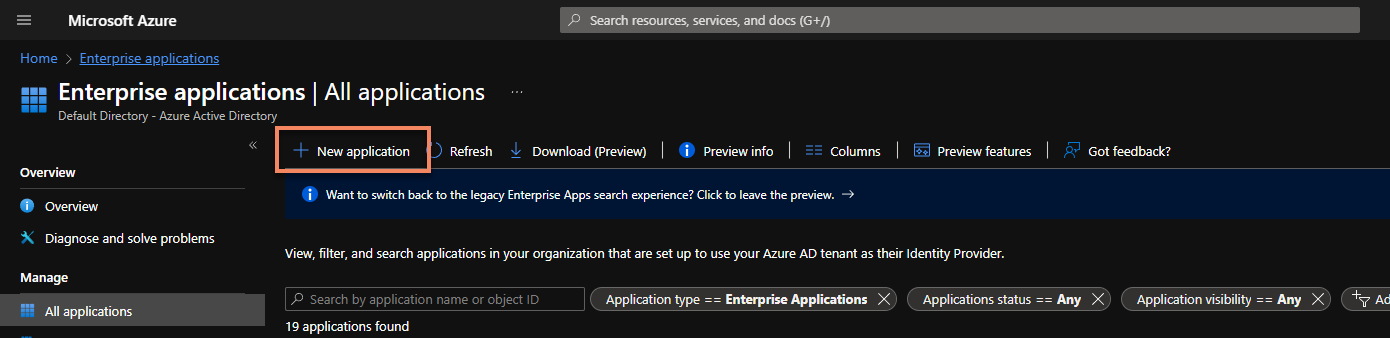
In the Azure portal, go to Enterprise Application and select New application.
-
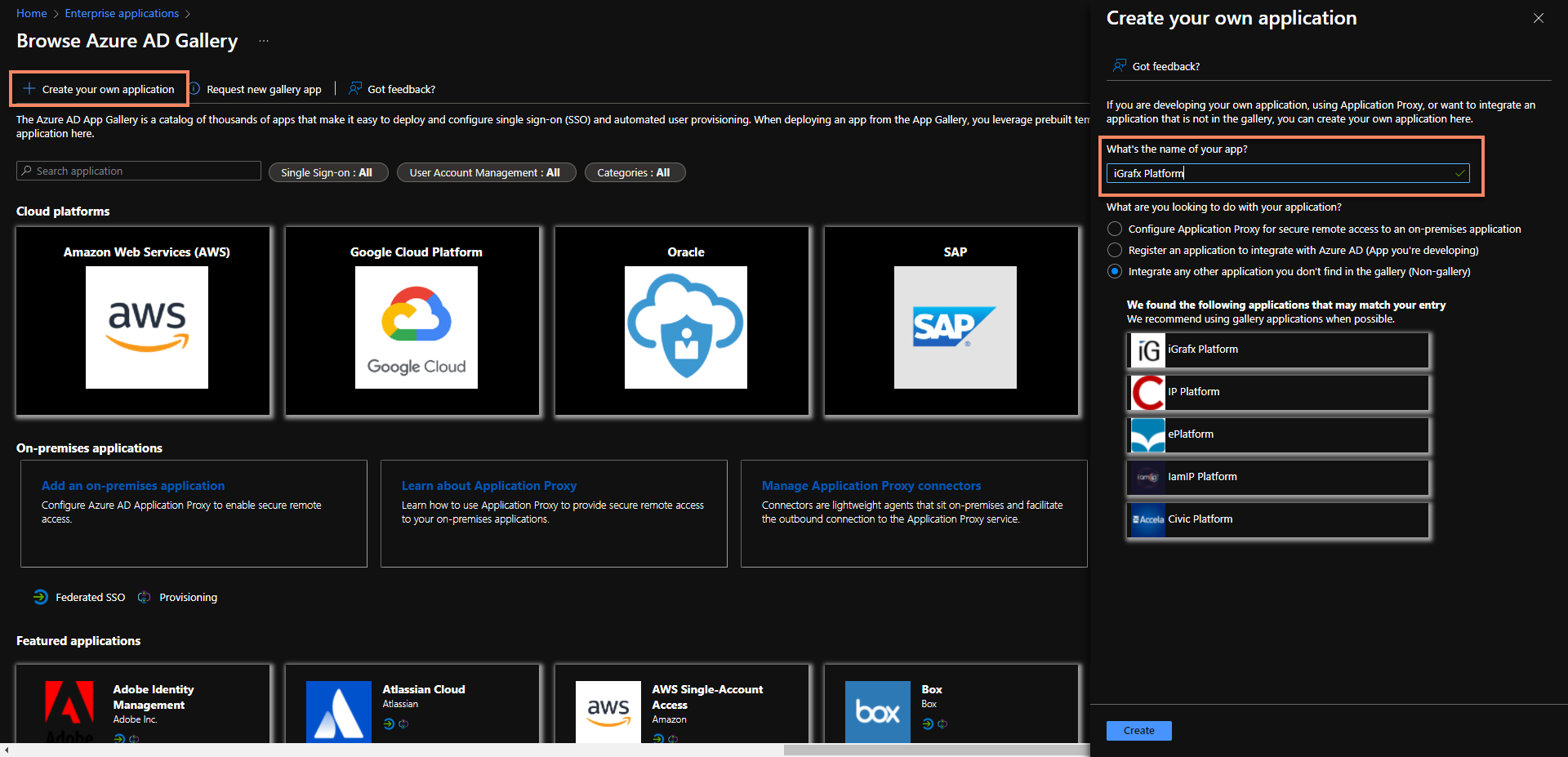
Click Create your own application, enter a name, and click Create.
-
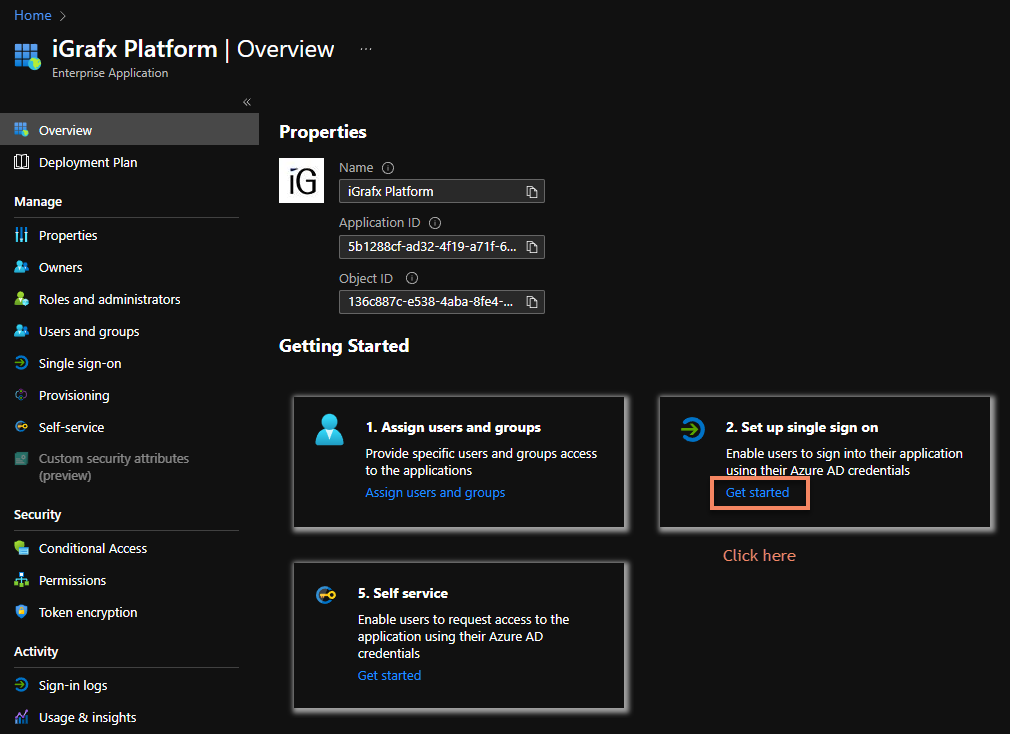
Select Get started.
-
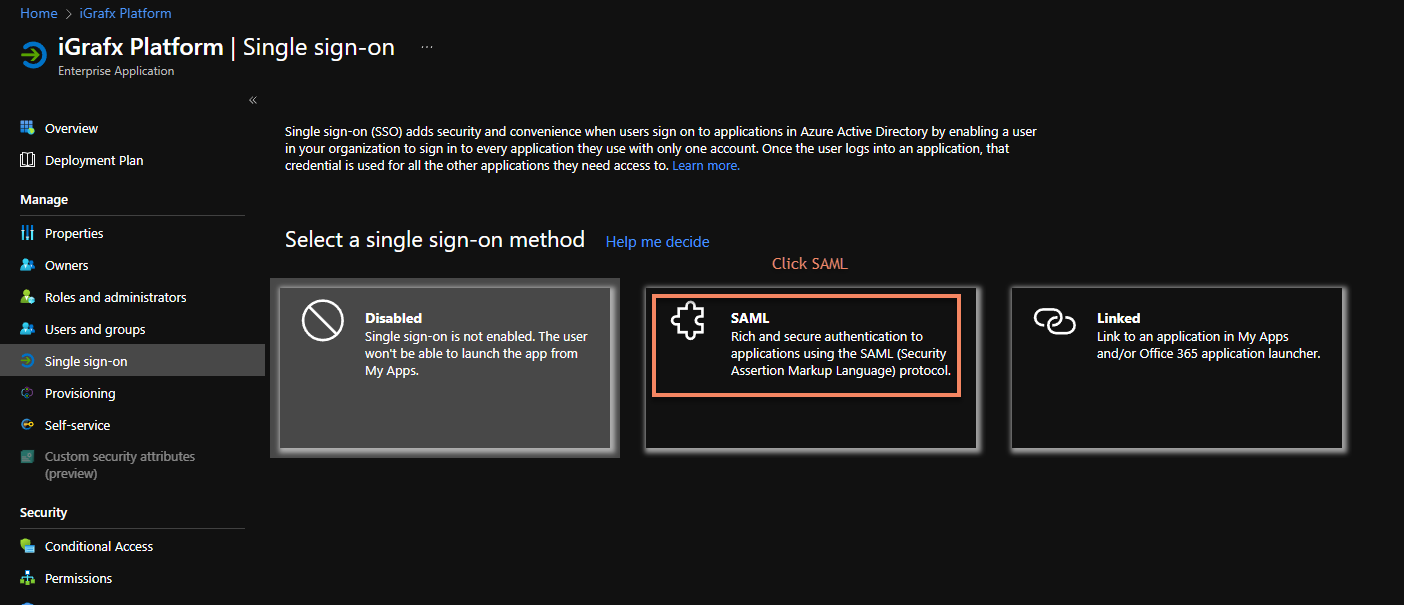
Select SAMLSAML An XML-based standard for exchanging authentication and authorization data between an identity provider and a service provider. Process360 Live supports SAML 2.0 for SSO..
-
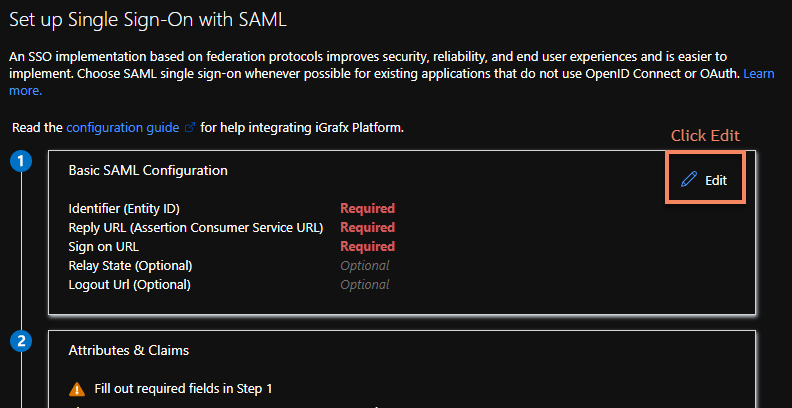
Select Edit on the basic SAMLSAML An XML-based standard for exchanging authentication and authorization data between an identity provider and a service provider. Process360 Live supports SAML 2.0 for SSO. configuration.
-
Select Add identifier and enter your platform URL with
/saml/metadataappended. Add the Reply URL as your platform URL with/saml/SSO, and add the Sign on URL.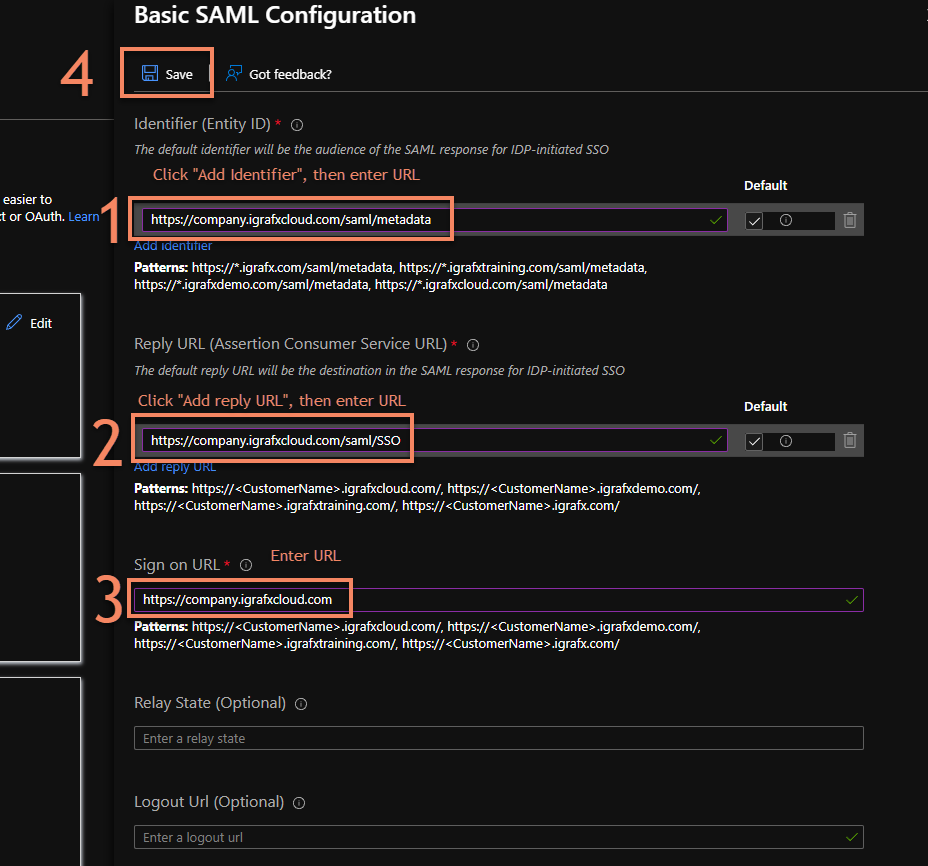
-
Click Save.
-
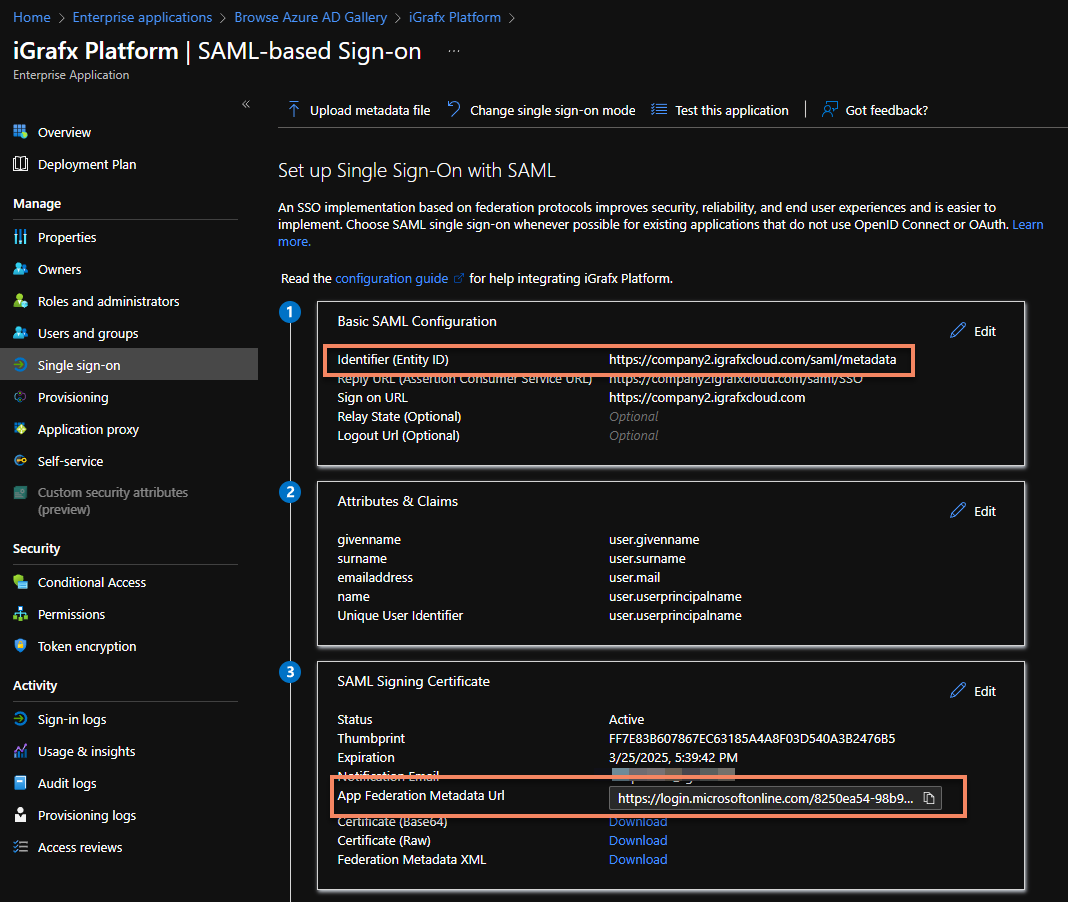
Copy the App Federation Metadata URL.
-
In your system properties, set the metadata URL (or download the XML from it and upload it under Administration → User Management → SAMLSAML An XML-based standard for exchanging authentication and authorization data between an identity provider and a service provider. Process360 Live supports SAML 2.0 for SSO. → Upload metadata file), the entity ID (shown at the top of the same Azure page), and the SAMLSAML An XML-based standard for exchanging authentication and authorization data between an identity provider and a service provider. Process360 Live supports SAML 2.0 for SSO. profile:
igrafx.usercentral.saml.metadataurl=YOUR_METADATA_URLigrafx.usercentral.saml.entityId=YOUR_ENTITY_IDspring.profiles.active=samlsecurity -
Confirm
samlKeystore.jksis set up and its access details are inigrafx.properties— see Set up a SAML2 keystore. -
Restart the platform.
-
Make sure your NameID (in the Attributes & Claims section) matches the login name of your users in the platform.
-
If issues arise, follow the debugging steps.