Kerberos (SPNEGO)
Profile: spnegosecurity
SPNEGO/Negotiate gives Windows users single sign-on from both the web and the iGrafx Desktop Client, with a login-form fallback if SSOSSO An authentication scheme that lets users sign in once with an identity provider and access Process360 Live without re-entering credentials. fails. Once the server and client are configured, browsing to your platform instance signs you in automatically as your current Windows user; if that fails, you're sent to the form-based login. In the desktop client, choose Use Single Sign-On in the Open Repository dialog.
Because of the SPNEGO/Negotiate protocol, you can't sign in from a browser or desktop client on the same machine that runs the platform instance. Test SSOSSO An authentication scheme that lets users sign in once with an identity provider and access Process360 Live without re-entering credentials. from a second machine in the domain.
Prerequisites
- A domain controller (or Kerberos server) where you can create a user and a service principal.
- The platform ships with a JRE tested for Kerberos. Not every JRE version supports Kerberos authentication.
Steps
Domain controller setup
Create a user
If you don't already have one, create a user on the domain controller with an appropriate name such as webapp, using a policy-accepted password (this example uses w3b@pp550()). Make sure the password doesn't expire and isn't required to change at next logon.
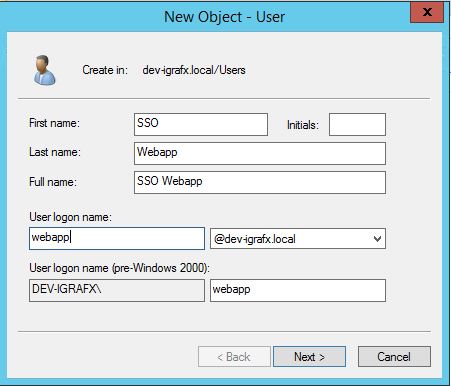
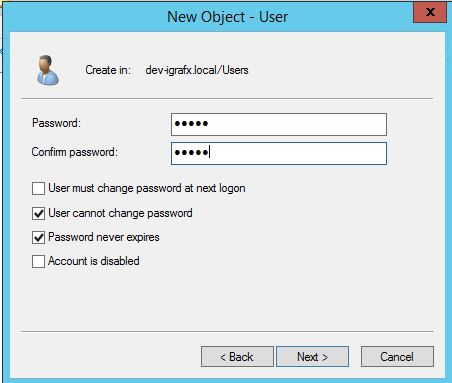
Create the service principal and keytab
Map a service principal to that user and create the keytab in one ktpass call, with these parameters:
| Parameter | Value |
|---|---|
-out | ssowebapp.keytab (or another file name for the keytab data) |
-princ | The principal name — in this example the instance is hosted at http://platform.igrafxintra.net |
-mapuser | The user (with domain prefix if needed) from the previous step |
-crypto | ALL |
-ptype | KRB5_NT_PRINCIPAL |
-pass | The user's password |
The principal must take the form HTTP/domain.com@KERBEROSREALM.COM — the HTTP prefix and the Kerberos realm in all caps, and the domain matching your instance's URL. SPNEGO SSOSSO An authentication scheme that lets users sign in once with an identity provider and access Process360 Live without re-entering credentials. won't work otherwise.
C:\> ktpass -out ssowebapp.keytab -princ HTTP/platform.igrafxintra.net@DEV-IGRAFX.LOCAL -mapuser dev-igrafx\webapp -crypto ALL -ptype KRB5_NT_PRINCIPAL -pass w3b@pp550()

Verify the mapping with setspn -L webapp (substitute the user's logon name):

After mapping, the user's Kerberos username field in Account Settings changes:
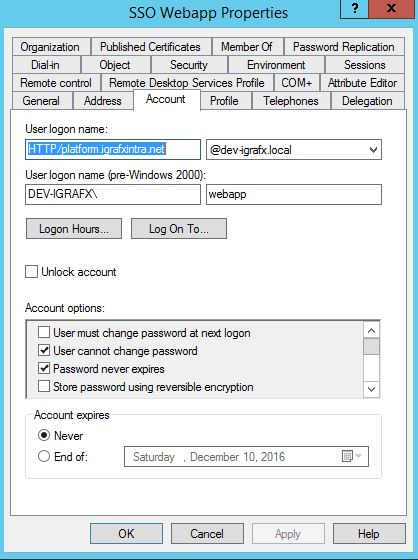
KRB5 configuration file
You also need your Kerberos configuration file (krb5.ini or krb5.conf, depending on the host OS). An example for the platform.igrafxintra.net domain:
[libdefaults]
default_realm = DEV-IGRAFX.LOCAL
default_tgs_enctypes = rc4-hmac des-cbc-md5 des-cbc-crc aes128-cts-hmac-sha1-96 aes256-cts-hmac-sha1-96
default_tkt_enctypes = rc4-hmac des-cbc-md5 des-cbc-crc aes128-cts-hmac-sha1-96 aes256-cts-hmac-sha1-96
[realms]
IGRAFX.COM = {
  kdc = dc1.dev-igrafx.local
  admin_server = dc1.dev-igrafx.local
  default_domain = IGRAFX.COM
}
Replace the example values with your realm, domain controller, and admin server. The kdc setting is the DNS name of the Kerberos domain controller named in admin_server. For help creating a principal or keytab or configuring krb5.ini, contact your domain controller administrator; Microsoft's Kerberos Infrastructure Configuration guide includes another example.
Server-side setup
After installing, edit igrafx.properties in the base directory (create it if needed) and add these three lines, updating the principal and the location and name of the keytab and krb5 files:
igrafx.usercentral.negotiate.principal=HTTP/platform.igrafxintra.net@DEV-IGRAFX.LOCAL
igrafx.usercentral.negotiate.keytab=file:c:/ssowebapp.keytab
igrafx.usercentral.negotiate.krb5conf=c:/krb5.ini
Activate the spnegosecurity profile and restart the application server.
Server-side logging
To enable debugging:
- Add
igrafx.usercentral.negotiate.debug=truetoigrafx.propertiesand restart the server. - In Administration → Support → Logging Settings → Custom Classes, add
org.springframework.security.kerberosat log levelDEBUG.
Client-side setup
If the client machine isn't configured correctly, opening a repository with Use Single Sign-On may show a "Server Busy" message over the SSOSSO An authentication scheme that lets users sign in once with an identity provider and access Process360 Live without re-entering credentials. login dialog: "This action cannot be completed because the other program is busy."
- Internet Explorer — go to Tools → Internet Options → Security → Local Intranet → Sites → Advanced and add your instance's host address (for example
igrafx.yourcompany.com), then Add, Close, OK, OK. You may also need to add it to the Trusted sites list. If SSOSSO An authentication scheme that lets users sign in once with an identity provider and access Process360 Live without re-entering credentials. is common in your company, this is likely already configured in your network zone. - Edge — you may still need to configure the trusted intranet site through Internet Explorer.
- Firefox — open
about:config, search fornetwork.negotiate-auth.trusted-uris, and set it to your instance's host name (comma-separate multiple URIs). If Firefox isn't configured for SSOSSO An authentication scheme that lets users sign in once with an identity provider and access Process360 Live without re-entering credentials., it shows a blank page instead of falling back to basic authentication. - Chrome on Windows — uses the same configuration as Internet Explorer.
- Chrome on macOS — check existing entries with
defaults read com.google.Chrome AuthServerWhitelist, then set or append your server withdefaults write com.google.Chrome AuthServerWhitelist "yourserver.yourdomain.com"and restart Chrome. If it isn't configured for SSOSSO An authentication scheme that lets users sign in once with an identity provider and access Process360 Live without re-entering credentials., it shows a blank page. - iGrafx Desktop Client — no special configuration; choose Use Single Sign-On when connecting to a repository.
Troubleshooting
- Kerberos SSO stops working after updating to iGrafx Platform 18.x — a common problem with locally available encryption algorithms.
- For a specific log error, search its keywords in this documentation and on the internet. Most Kerberos configuration issues come down to the wrong principal name.