Configuring authentication
The iGrafx platform supports several authentication schemes. You select one by activating its Spring security profile; the scheme you choose affects how users sign in through both the web and the desktop client.
Prerequisites
- The authenticated user must also exist in one of the platform's configured user directories. For example, if you configure SPNEGO but don't add your Active Directory as a user directory, the authenticated user sees a 403 Forbidden page.
Steps
Set the authentication scheme
How you set the profile depends on your installation type:
-
Pre-deployed Tomcat on Windows — pass the scheme to
install_service.batwhen installing. To change it later, runmanage_service.bat(in theWindowsdirectory of your base directory) and, on the Java tab, edit the profile — for example change-Dspring.profiles.active=defaultsecurityto-Dspring.profiles.active=samlsecurity. Restart the service afterward.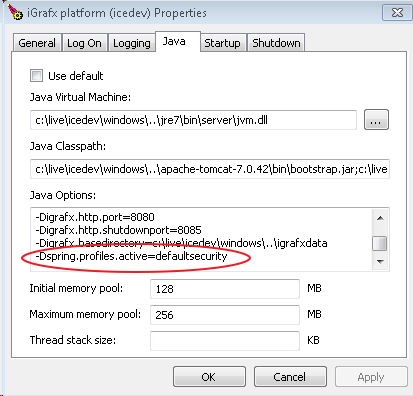
-
Other application servers — start the service with the system variable
-Dspring.profiles.active=<profile>, replacing<profile>with the profile name for your scheme.
If no profile is set, the platform uses the default security profile. Some profiles need a few extra configuration variables, covered per scheme below.
Authentication schemes
Default login form
Profile: defaultsecurity
The default scheme needs no special setup. It's active when no profile is set or the profile is defaultsecurity. Users enter their credentials when they sign in with a browser, and when they open or load a repository in a desktop client (for example iGrafx FlowCharter).
JASIG CAS
Profile: cassecurity
After installing, edit igrafx.properties in your base directory and set your CAS server's URLs:
igrafx.usercentral.cas.loginurl=http://www.yourcasserver.com/login
igrafx.usercentral.cas.logouturl=http://www.yourcasserver.com/logout
igrafx.usercentral.cas.casurl=http://www.yourcasserver.com
Activate the cassecurity profile and restart the application server. CAS works for web sign-in only; the desktop client signs in as in the default scheme. See jasig.org/cas.
Preauthentication
Profile: preauthsecurity
Use this when the application server authenticates users before they reach the platform. The platform reads the principal from the HTTP request the server passes on. Activate the preauthsecurity profile and restart the application server. Preauthentication works for web sign-in only; the desktop client signs in as in the default scheme.
The desktop-client fallback works only in a preauthentication environment that supports session-based authentication. If you use two-way SSL or similar, the desktop client won't work — consider SAML2 instead.
Other schemes
- Kerberos (SPNEGO) — profile
spnegosecurity. - SAML2 (ADFS, Okta, Centrify) — profile
samlsecurity. - SiteMinder / CA SSO — profile
sitemindersecurity.