Migrating to the iGrafx platform
Migrate an existing Process Central 15.x repository to the iGrafx platform with the iGrafx Repository Migration Tool (IRMT). The IRMT works on a copy of your repository — it never alters the original — and registers the migrated database in the new platform.
This page applies only if you have a Process Central 15.x repository to keep. A brand-new environment with no existing 15.x database doesn't need the IRMT.
Process Central 2015 is more than five years old. iGrafx platform versions after 17.7.0.760 can't migrate directly from Process Central. To reach a newer version, first install 17.7.0.760 and migrate to it, then upgrade to the newer version.
Prerequisites
- A Process Central repository at version 15.0 or later. Verify the version with the 15.2.x Process Central Server Admin Tool. A repository earlier than 15.0 (iGrafx 2013) must first be upgraded to 15.x with the 15.2.x Admin Tool, following the normal upgrade procedure.
- A database login that can create databases on the host.
- The IRMT installer (in the
\MigrationToolfolder of the iGrafx installation files). You can install it on the database host or on a separate management machine.
From version 16.0, the platform no longer manages users in the database. You need only one database user — the service user that connects the application server to the database. Don't assign SQL logins to ordinary users.
Desktop clients earlier than 16.0 can't connect to a 16.0 platform repository, and 16.x clients can't connect to repositories earlier than 16.0.
Backup requirements
The IRMT performs all operations on a copy, created in the same database instance, and leaves the original v15 repository untouched. Even so:
- If you're upgrading from a version earlier than 15.0, the pre-requisite 15.x upgrade does alter your existing repository — back it up first, and consult iGrafx Professional Services before proceeding.
- Before migrating, run an Analyze and Fix on the repository and confirm it's error-free with the 15.2.x Process Central Admin Tool. If the tool reports that Pagination is required, you can skip it — rebuilding the diagram cache (the last step) regenerates the pagination data.
Maintenance window / downtime
Test the migration before you move all clients to the new version, to get familiar with the process. For the final migration:
- No files or diagrams may be in a checked-out state.
- No users may be connected to the Process Central repository other than the user the IRMT uses.
- Stop the WebCentral and MailCentral services.
The IRMT's Upgrade command checks for these conditions and warns you if any aren't met.
Steps
1. Install the IRMT
- Open the iGrafx installation files and browse to the
\MigrationToolfolder. - Run
svsetup.exeto start the wizard. On Windows Server, if you didn't run the installer as administrator, confirm the User Account Control (UAC) prompt. - Accept the license agreement, choose a destination folder, and complete the wizard.
2. Migrate the repository database
- From the Start menu, run the Repository Migration Tool.
- Log in to the database that holds your Process Central repository:
- SQL Server — on the Log In - SQL Server tab, enter the server, choose Windows or SQL authentication (with a name and password for SQL), and click OK.
- Oracle — on the Log In - Oracle tab, choose Use ODBC DSN, Specify Server and Database (default Oracle port 1521), or Use Oracle TNS name, then enter a user name and password and click OK.
- Select the existing 15.x repository and click Upgrade.
- Enter a name for the new database. The IRMT creates this new database and leaves the original v15 repository untouched.
3. Create the database service user
Create the user the platform will use to connect the application server to the migrated database, and map it to the repository database.
- SQL Server — follow Create the database user in Database setup.
- Oracle — create a tablespace, then a role with these permissions and grant it to the connecting user:
CREATE SESSION,ALTER SESSION,CREATE TABLE,CREATE VIEW,CREATE SYNONYM,CREATE PROCEDURE,CREATE SEQUENCE,CREATE MATERIALIZED VIEW, andCREATE TRIGGER.
4. Install the iGrafx platform
Install the platform as described in the rest of this installation guide, then return here. If you migrate from Process Central 2013/2015, install 17.7.0.760 at this stage.
5. Register and migrate the repository
If your Process Central repository used Active Directory users (not only local SQL Server or Oracle users), import the users from Active Directory before this step.
- In the platform, open Administration → Repositories.
- Click Register Existing Repository.
- Enter the details for the database you migrated in step 2, using the service user from step 3 — see Managing repositories.
- Click Register Existing Repository to register it and start the migration wizard — see Migrating repositories.
6. Rebuild the diagram cache
Some functionality is available only once the cache for existing diagrams is rebuilt. Depending on the version you migrated from, the cache may already be current or in an intermediate state.
The machine you use needs an iGrafx Desktop Client installed, and the user needs View and Edit permission on all diagrams plus a Desktop Connector or Desktop Connector+ license. If a run stops partway, you can restart it later — diagrams already rebuilt are skipped. Don't run several desktop clients in parallel to speed it up; contact your iGrafx Account Manager about performance or a partial rebuild.
-
In the platform, open the Administration → Repositories list. An Update Diagram Cache button appears next to each repository whose cache is outdated.
-
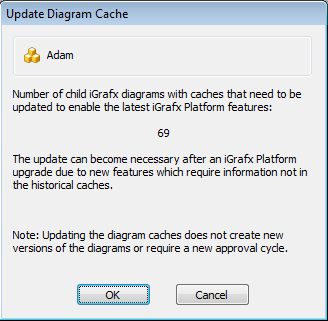
Click Update Diagram Cache to open the desktop client. The dialog shows how many diagrams need an update.
-
Click OK, then choose a rebuild level. The Number of selected diagrams value reflects how many diagrams the level affects.
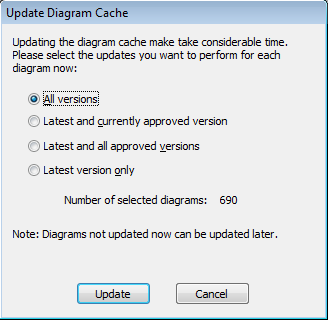
For example, a repository of 10 diagrams with 20 versions each, where 5 are approved and all were approved once before, gives: all versions = 200; latest and currently approved = 14; latest and all approved = 19; latest only = 10.
infoThe rebuild opens every affected diagram in the desktop client, which can take a long time depending on diagram size and complexity and on host and network performance.
-
Click Update to begin.
Verify
Once migration finishes, check that these areas look as expected:
- User Management → Users and Groups — users and groups are mapped to the right directory.
- Security Roles → Item Roles — roles created by the migration wizard are set up correctly.
- Security Roles → Repository Role Assignments — the expected users and groups have access.
- License → License Assignments — migrated users have the required licenses.
- In the Model area, the repository root Permissions — migrated users and groups are assigned as expected.
If you migrated from Process Central 2013/2015 on 17.7.0.760, now perform the upgrade to your target version.
Rollback / backout
Because the IRMT migrates a copy and leaves the original v15 repository untouched, you can back out by continuing to use the original Process Central repository — no restore needed. (The exception is a pre-15.0 source, where the pre-requisite 15.x upgrade altered the original; restore from the backup you took.)