Review and approve a process
A process that matters needs a formal yes. In this tutorial you run your diagram through an approval cycle and see what changes for its readers once a version is approved.
What you'll build
An approved version of your tutorial diagram: you choose the approvers, start the cycle, approve, and check the result. Plan for about 15 minutes.
To keep the tutorial self-contained, you act as both starter and approver. In real life the cycle group holds the actual approvers — the steps are the same, only spread across people.
Prerequisites
- The checked-in diagram from the first tutorial — a cycle always runs on a checked-in version.
- The permissions to set approvers and start approval cycles on the diagram — see Set up a cycle group and Start and manage a cycle for the exact requirements.
Step 1 — Choose the approvers
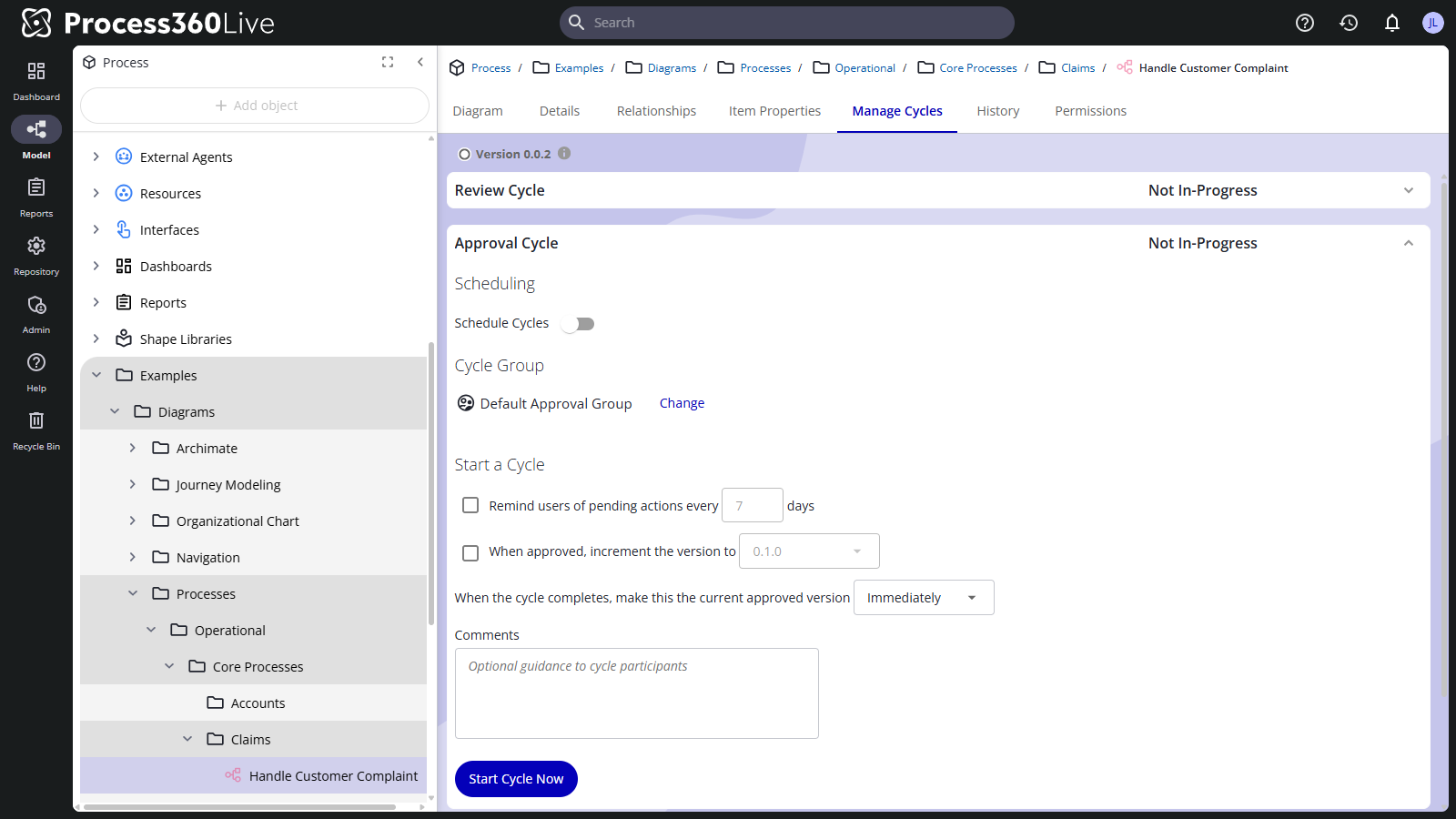
- Open your diagram and select the Manage Cycles tab. It lists the four cycle types — Review, Approval, Endorsement, Acknowledgement — each marked Not In-Progress.
- Expand Approval Cycle. Under Cycle Group you'll see the repository's default (for example Default Approval Group).
- Click Change and pick a group — or build a custom group for this diagram and add yourself to it, so you can complete the tutorial alone. See Set up a cycle group for the editor.
Step 2 — Start the cycle
- Still under Approval Cycle, look at Start a Cycle: you can have the platform remind participants of pending actions every few days, and add a comment as guidance to them.
- Click Start Cycle Now. (The Scheduling section can instead start cycles automatically on a rhythm — skip that for now.)
The Approval Cycle section now shows the cycle in progress, and every approver gets a to-do — with an email, if the repository's notification settings say so.
Step 3 — Approve
- Select the bell icon in the header to open Notifications — your approval task is in the to-do list.
- Open the task and approve, adding a comment if asked — whether comments are required on approvals is a repository policy. The full participant flow is in Act on your to-do items.
Once everyone the cycle group requires has approved — in this tutorial, only you — the cycle completes.
Step 4 — See what readers see
- Open the diagram's History tab. The Approved Versions section lists your version with its effective date, and the timeline records the cycle.
- Open the user menu and select View Approved Only to read the repository the way a reader without draft access sees it: only approved versions. Switch back the same way.
From now on, work continues safely: you can check out and edit new drafts while readers who only see approved versions keep seeing the approved one, until the next approval replaces it.
What's next
- Cycles — the four cycle types and how approved versions behave.
- Start and manage a cycle — scheduling, updating participants, canceling.
- Watch an item — get notified when the process changes.
- Set email notifications — which cycle events send email.