Build your first process diagram
Learn the basic loop of Process DesignProcess Design The discipline of explicitly modeling business processes to document, analyze, and optimize them. In Process360 Live, process design is the authoring side that complements mining's data-driven view.: find your place in the repository, create a diagram, draw a small process, and save a version others can see.
What you'll build
A small BPMNBPMN An ISO/OMG standard graphical notation for modeling business processes. Process360 Live uses BPMN 2.0 for design and simulation artifacts. process diagram — a start event, a few tasks, a decision, and an end event — checked into your repository as a version. Plan for about 15 minutes.
Prerequisites
- A repository where you're allowed to create content: the Create item permission on a folder, and a license that includes web diagram editing. If you're unsure, ask your administrator for a sandbox or training folder.
Step 1 — Open your repository
- Select Model in the navigation rail. The left side shows the repository tree: a root folder per object family (Processes, Resources, Risk Catalog, and so on), plus the folders your organization added.
- If you have access to several repositories, check the name at the top of the tree. To switch, open the user menu (your avatar, top right) and select Change Repository.
- Find the folder where you'll work and select it.
You should see the folder's page on the right, with a Contains table of what's already inside.
Step 2 — Create the diagram
- Click Add Object at the top of the tree (or right-click the folder and select Add Child Object).
- Under Select Type, choose Diagram, then click Continue.
- Under Start with, select Diagram View — that's the visual editor. (Among the others, QuickMap builds a diagram from a table of steps and Import a file starts from an existing file.) The dialog opens on whichever option you picked last, so check it before you continue.
- Under Template, pick Standard BPMNBPMN An ISO/OMG standard graphical notation for modeling business processes. Process360 Live uses BPMN 2.0 for design and simulation artifacts. Diagram. The rest of the list holds the other built-in diagram types and any templates your repository adds.
- Enter a Name — for example
My first process— pick the version number for the first check-in, and click Finish.
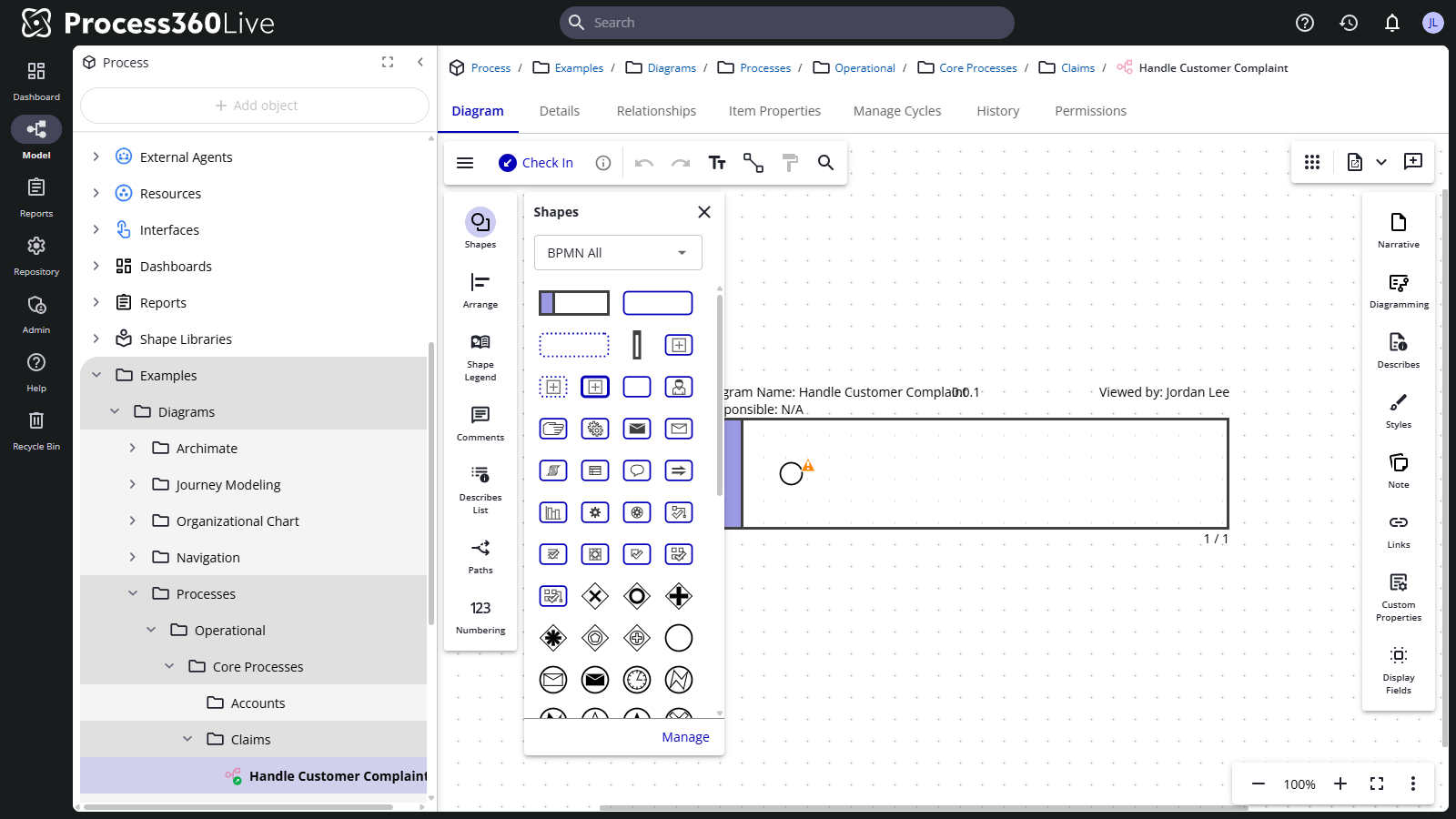
The diagram opens in the editor, already checked out to you: the toolbar shows Check In, and in the tree the diagram's name turns bold with a check mark on its icon. While you hold the check-out, nobody else can edit it.
Step 3 — Draw the process
The template doesn't leave you with a blank canvas. The band across the page is a Pool: it holds the flow and carries the name of whoever does the work. The circle inside it is the start event that every BPMNBPMN An ISO/OMG standard graphical notation for modeling business processes. Process360 Live uses BPMN 2.0 for design and simulation artifacts. process begins with — a Generic Event in the shape library.
- Open the Shapes panel on the left if it isn't open. It shows the BPMNBPMN An ISO/OMG standard graphical notation for modeling business processes. Process360 Live uses BPMN 2.0 for design and simulation artifacts. All shape library; Manage adds other libraries.
- Double-click the colored strip at the left of the pool and type the team or role the process belongs to — for example
Sales. - Select the circle and type
Startas its shape textShape text The text displayed on a diagram shape. Type while a shape is selected to add or edit it. Part of the shape feature family alongside Shape Links and Shape Properties.. - Keep the event selected. Orange circular handles appear on its faces: select the one pointing right. A connected Generic Task is added, and the Quick Shape Menu opens beside it so you can pick a different shape type. While the new shape is selected, type a verb-noun phrase as its shape textShape text The text displayed on a diagram shape. Type while a shape is selected to add or edit it. Part of the shape feature family alongside Shape Links and Shape Properties., like
Take order. - Repeat to grow the flow: add another task (
Check stock), then use the Quick Shape Menu to make the next shape an Exclusive Gateway for the decision, and typeIn stock?as its shape textShape text The text displayed on a diagram shape. Type while a shape is selected to add or edit it. Part of the shape feature family alongside Shape Links and Shape Properties.. Each orange circular handle you select on the gateway adds an outgoing flow with a case label (Yes,No) — select a flow line and press the space bar to switch its case. - Finish each branch with a task and end the flow in a Generic Event with the shape textShape text The text displayed on a diagram shape. Type while a shape is selected to add or edit it. Part of the shape feature family alongside Shape Links and Shape Properties.
End— an event with only an incoming flow gets the thick border of an end event automatically. - Adjust as you go: drag shapes (or nudge with the arrow keys), connect shapes with their orange circular handles — or use the Add lines tool in the toolbar to join two existing shapes — and undo anything with Ctrl+Z.
You should see a small, connected start-to-end process. If Error Checking is turned on in the app menu, warning icons on shapes flag BPMNBPMN An ISO/OMG standard graphical notation for modeling business processes. Process360 Live uses BPMN 2.0 for design and simulation artifacts. conformance hints — select one to read what's missing.
Step 4 — Save a version
- Click Check In in the toolbar.
- Pick the version number for this check-in — the choices follow your repository's version numbering policy — and click Continue.
- Add a comment describing what you did and click Finish. (Your repository may require check-in comments.)
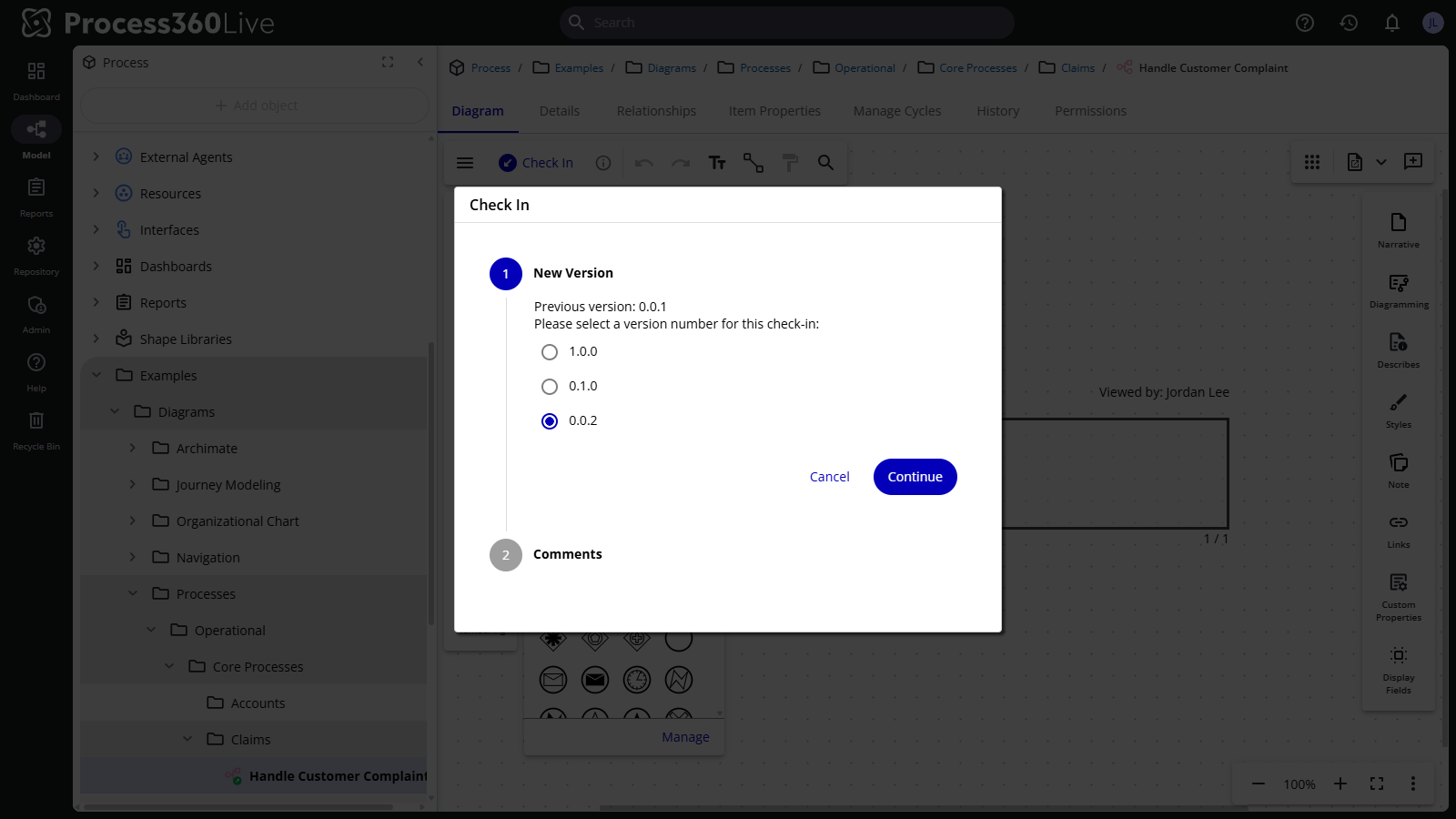
You no longer hold the check-out: the toolbar shows Check Out again, and the bold name in the tree returns to normal. Anyone with access can read the diagram, and anyone allowed to edit it can check it out next. Open the diagram's History tab to see your version, with your comment. Click Check Out whenever you want to continue editing.
What's next
- Connect your diagram to the enterprise model — the next tutorial: make your shapes mean something.
- Review and approve a process — get the diagram formally approved.
- Going deeper on drawing: shape numbering, paths, and BPMN basics.
- Manage items — rename, move, copy, and organize what you create.