Manage items
Create, organize, and retire the items of your repository — everything here happens in the Model area's repository tree.
Prerequisites
- Each action needs the matching item permission, granted on the item (or inherited from its ancestors) through repository roles: Create on the parent to add or paste items, Rename, Move, and Delete on the item itself. See Roles and Permissions.
- What you can create also depends on your license — see the License capability matrix.
Steps
Create an item
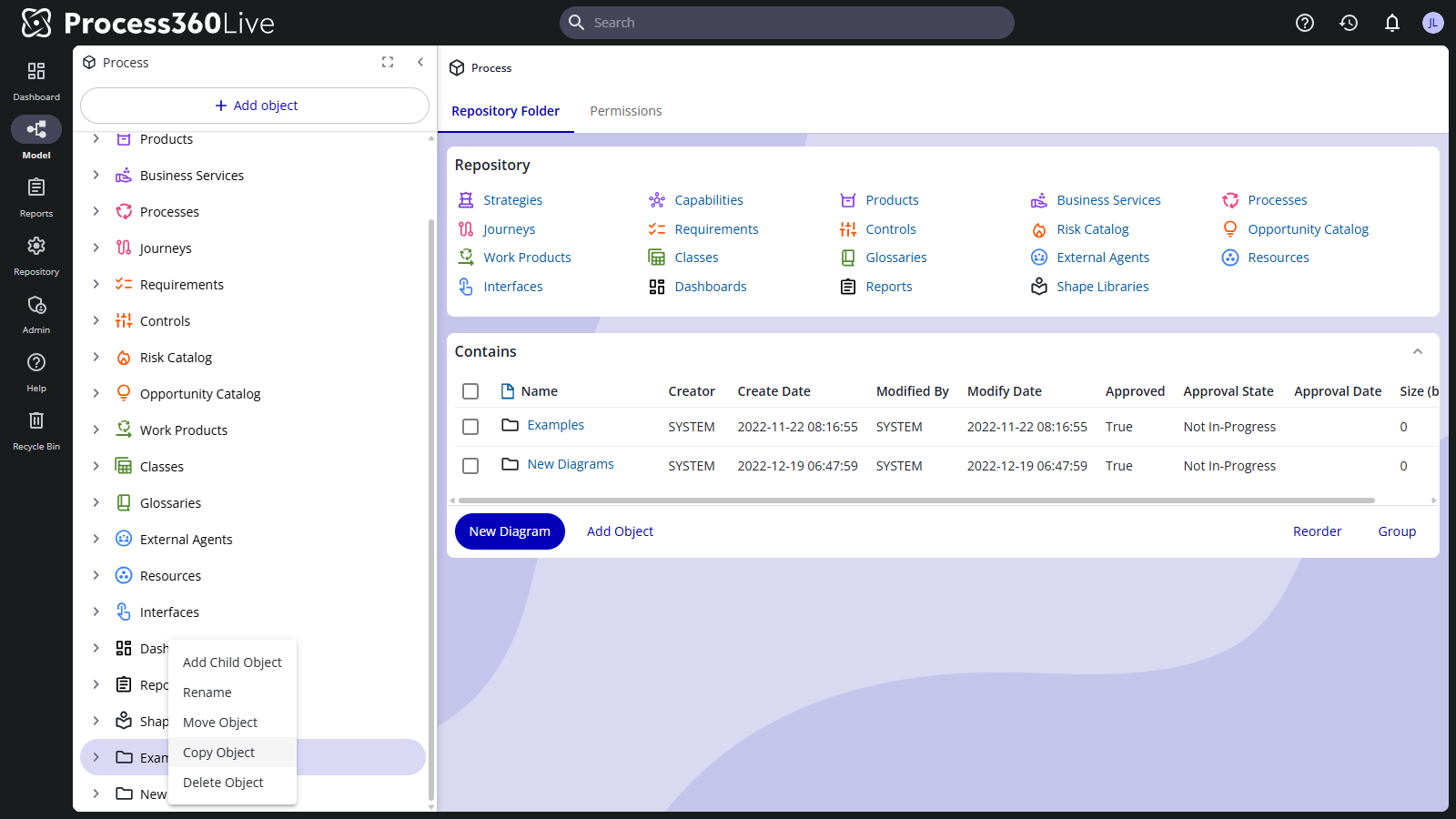
- Select the folder that should hold the new item, then select Add Object — on the folder's page, at the top of the tree, or via right-click → Add Child Object.
- Under Select Type, pick the type. The list depends on where you are: a Process folder offers processes, the repository root offers diagrams, files, and other location-independent types — see the Enterprise object catalog.
- Click Continue and fill in the Details — at least a Name, optionally a Summary and type-specific fields. Check Watch this object to watch it from the start, or Create Another to keep the dialog open for the next item.
- Click Finish.
Copy or move an item
Right-click the item in the tree:
- Copy Object, then paste into the destination. Copying includes the item's children and runs as a background job for large subtrees; the copies inherit the destination's permissions.
- Move Object to pick the new parent. An item cannot move into its own descendant or into another family's root folder. Moving runs as a background job, so you can keep working — a notice reports when the move completes, and the Object Moving job in the Status Log lists any objects that couldn't move.
Create a shortcut
A shortcut is a link to another item, so the same item can appear in more than one place in the tree without being copied. Create one in the folder where the link should live:
- Open the destination folder and select Add Object.
- Under Select Type, choose Shortcut, then click Continue.
- Search for and select the item the shortcut points to. Select more than one item to create a shortcut to each. Optionally check Watch this object.
- Click Finish.
The shortcut appears in the folder with a shortcut icon, and its page shows a Shortcut tab reading "This item is a shortcut to" the target.
Disband a shortcut
Disbanding replaces a shortcut with an independent copy of the original — a quick way to start new work from an existing item, such as branching an As-Is process into a To-Be design (see Enterprise object catalog).
- Open the shortcut and select Disband.
- If the original has children, choose whether to Create shortcuts to children of the original item or Create copies of children of the original item.
- Confirm. Disbanding is permanent and can't be undone.
Rename an item
Right-click the item, select Rename, and enter the new name. Renaming works on one item at a time.
Work with several items at once
- Click the Expand button above the repository tree to enter expand mode: check several items, then drag them to move (hold Ctrl to copy), or use the Move, Copy, and Delete buttons. Items you lack permission to move show no move handle. Click Collapse to leave expand mode.
- A folder's Contains table offers the same: check several rows, then Move, Copy, or Delete.
Relate items
- Open the item and select its Relationships tab. Relationship types are grouped into RACI and Supports, Performance, Risks, Opportunities and Controls, and Other relationships; turn on Show empty relationship types to see types without entries.
- Add a relationship with the row's Add button, or drag an item from the tree onto the relationship row. In the picker's search, type part of a name — or type an object's numeric ID to jump to it, and the exact ID match is listed first, even when the name doesn't contain those digits.
Which types connect which objects is in the Object relationships reference. You can also edit RACI (Responsible, Accountable, Consulted, Informed) assignments in the RACI section of the item's primary tab.
Delete an item
Right-click the item and select Delete Object, then confirm. Optionally enter a deletion comment — the Recycle Bin shows it beside the item, so anyone reviewing the bin can see why it was deleted.
The item and its children go to the Recycle Bin — nothing is destroyed yet. Deleting also cancels any cycle running on the item, deactivates its relationships, and permanently deletes any shortcut pointing into it.
Deleting runs as a background job, so large deletions don't block your work — the Object Deletion job in the Status Log reports each object's result. To delete many objects a search can find, use bulk operations.
Restore or permanently delete
Deleted items stay in the Recycle Bin until someone restores them or clears it — see Restore items from the Recycle Bin.
Control the tree in a shared link
When you link to an item from an external page — or from a Web Address object in the repository — append ?tree=show or ?tree=hide to the item's URL to decide whether the link opens with the repository tree expanded or collapsed:
https://your-instance.igrafxcloud.com/Process/GC/obj/6051?tree=hide
The parameter overrides the reader's saved tree preference for that visit; if they have no saved preference yet, it becomes their setting.
Export a diagram
Diagrams export from the diagram itself: open it, select the main menu, then Export to File — to IGXW (the native web format), Business Process Model and Notation (BPMNBPMN An ISO/OMG standard graphical notation for modeling business processes. Process360 Live uses BPMN 2.0 for design and simulation artifacts.) XML, an image, or translatable text as Excel XML.
A BPMNBPMN An ISO/OMG standard graphical notation for modeling business processes. Process360 Live uses BPMN 2.0 for design and simulation artifacts. XML export is a standard BPMNBPMN An ISO/OMG standard graphical notation for modeling business processes. Process360 Live uses BPMN 2.0 for design and simulation artifacts. 2.0 file with iGrafx extensions. Other BPMNBPMN An ISO/OMG standard graphical notation for modeling business processes. Process360 Live uses BPMN 2.0 for design and simulation artifacts. tools read the standard parts and ignore the extensions, so what they show depends on the tool. The file includes:
- The process structure: pools and lanes, every task and sub-process type, call activities, gateways, events and their triggers, data objects and data stores, groups, text annotations, and sequence, message, and data flows.
- The text of every shape, label, and note, in every repository language. Notes become BPMNBPMN An ISO/OMG standard graphical notation for modeling business processes. Process360 Live uses BPMN 2.0 for design and simulation artifacts. documentation.
- Custom properties set on shapes, connectors, pools, and lanes.
- Positions, sizes, and connector routes, plus fill colors, text colors, and font sizes.
- Phases, describes relationships, the repository name, and the diagram's version and approval state, as iGrafx extensions.
The file leaves out:
- Shapes with no BPMNBPMN An ISO/OMG standard graphical notation for modeling business processes. Process360 Live uses BPMN 2.0 for design and simulation artifacts. equivalent, such as shapes from other libraries or images. The export drops them without a warning.
- Data that lives on the repository object rather than in the drawing: RACI, shape links, attachments, process metrics, simulation settings, comments, and version history.
- Header and footer content, and shape numbers.
To move a diagram between iGrafx repositories without losing any of this, export to IGXW instead: it's the native format and keeps the whole diagram. The REST API serves both formats for any saved version of a diagram, including the approved one, through Download BPMNBPMN An ISO/OMG standard graphical notation for modeling business processes. Process360 Live uses BPMN 2.0 for design and simulation artifacts. XML for an existing web diagram and Download IGXW data for an existing web diagram, listed under BPMNBPMN An ISO/OMG standard graphical notation for modeling business processes. Process360 Live uses BPMN 2.0 for design and simulation artifacts. Diagrams in the iGrafx REST API portal.
Other object types have no export command in the UI. To retrieve object data, use the REST API; an item's history downloads as Excel from its History tab.
Limitations
- Deleted shortcuts aren't recoverable — deleting a shortcut is permanent.
- Any cycle running on a deleted item is permanently deleted, even if the item is later restored.