Translate diagram content
A diagram's text — shape textShape text The text displayed on a diagram shape. Type while a shape is selected to add or edit it. Part of the shape feature family alongside Shape Links and Shape Properties., notes, headers and footers, and paths — can exist in every language the repository supports. Edit the translations directly in the diagram's Languages grid, let Pia fill in the missing ones, or round-trip the text through Excel for an external translator.
Prerequisites
- The repository supports more than one language — see Configure languages. With one language, the Languages grid isn't offered.
- Editing translations — in the grid, with Pia, or by importing — needs the diagram checked out to you. You can open the grid read-only to review translations without checking out.
Steps
Translate in the Languages grid
- Open the diagram and select Languages Grid from the view bar's menu (lower right). The Languages panel opens at the bottom, with one row per text element and one column per repository language.
- Double-click a cell and type the translation. You can translate shape textShape text The text displayed on a diagram shape. Type while a shape is selected to add or edit it. Part of the shape feature family alongside Shape Links and Shape Properties., notes, headers and footers, and path names this way. Text without a translation falls back to the repository's main language, then to the language it was written in.
You can also translate one piece of text as you edit it, through the flag beside the field — see the language flag on a text field.
Fill in translations with Pia
In the Languages grid header, select Translate all to have Pia fill in the missing translations across the diagram's languages — text that's already translated is left unchanged. See Translate a diagram with Pia for the full steps; an administrator enables this under AI Settings.
Export and import for external translation
Round-trip the text through Excel when a translator works outside the platform.
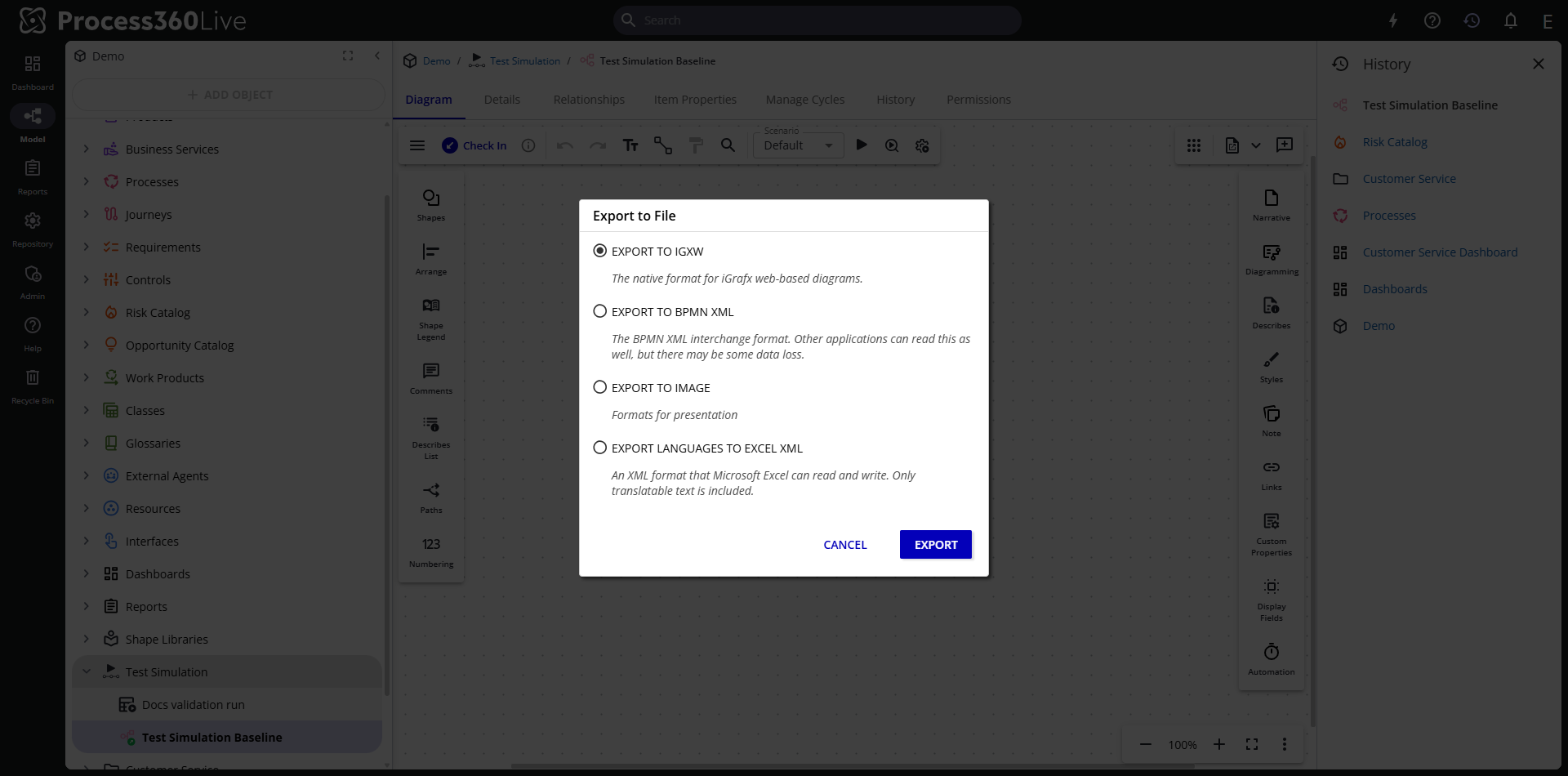
- Open the diagram, select the main menu, then Export to File.
- Select Export Languages to Excel XML and click Export. The file has one row per text element and one column per repository language; elements without text don't create rows.
To bring the translations back, keep the file in Excel 2003 XML format and don't restructure it — rows are matched to diagram elements by their ID. Check the diagram out, then select Import from File in the main menu and choose the translated file.
Translate IGX diagrams
Client-authored IGX documents translate through the iGrafx desktop client: the File menu's Languages dialog offers the same Excel export and import. Check the document out before importing.
Limitations
- Excel doesn't support bullets, so bulleted text isn't covered by the round trip.
- IGX diagram exports don't include inline images or images in headers and footers.
- A link's label isn't separately translatable. A link in a shape's Links always shows the target object's name in the active language, even if you renamed the link — to make it read differently per language, translate the target object's name (see Translate objects).