Shape libraries
Shape libraries hold the shapes offered in the diagram editor's Shapes panel. Besides the built-in BPMNBPMN An ISO/OMG standard graphical notation for modeling business processes. Process360 Live uses BPMN 2.0 for design and simulation artifacts., ArchiMate, VSM, and Journey Map libraries, your repository can hold custom libraries — company icons, system symbols, anything your diagrams need.
The built-in BPMNBPMN An ISO/OMG standard graphical notation for modeling business processes. Process360 Live uses BPMN 2.0 for design and simulation artifacts. Core library offers a focused set of the BPMNBPMN An ISO/OMG standard graphical notation for modeling business processes. Process360 Live uses BPMN 2.0 for design and simulation artifacts. shapes most processes need — pools, an abstract task, a call activityActivity A named step in a process (e.g. "Approve Invoice"). Each event in an event log records one activity occurrence for one case., the common gateways and events, and the data object — rather than the full BPMNBPMN An ISO/OMG standard graphical notation for modeling business processes. Process360 Live uses BPMN 2.0 for design and simulation artifacts. palette. It deliberately leaves out shapes that aren't core to BPMNBPMN An ISO/OMG standard graphical notation for modeling business processes. Process360 Live uses BPMN 2.0 for design and simulation artifacts., so new BPMNBPMN An ISO/OMG standard graphical notation for modeling business processes. Process360 Live uses BPMN 2.0 for design and simulation artifacts. diagrams start from a clean, recommended set.
Prerequisites
- Creating and editing shape libraries requires the Create item permission in the Shape Libraries branch (and Modify on the library), plus a license that includes shape library editing — see the License capability matrix.
- Anyone who can view a library can use its shapes in diagrams.
Steps
Create a shape library
- Select the Shape Libraries root folder (or a folder inside it), click Add Object, and choose the type Shape Library.
- Pick how to start:
- Empty Library — add items one by one.
- Copy of Existing Library / Copy of Built-in Library — start from another library's items.
- Import from File — load a previously exported library file.
- Import from Repository Web Diagram — turn an existing diagram's shapes into a library; every shape becomes an item.
- Enter a Name and click Finish.
Add and edit items
The library's page lists its Shape Library Items with Add, Edit, Remove, Export, and Reorder.
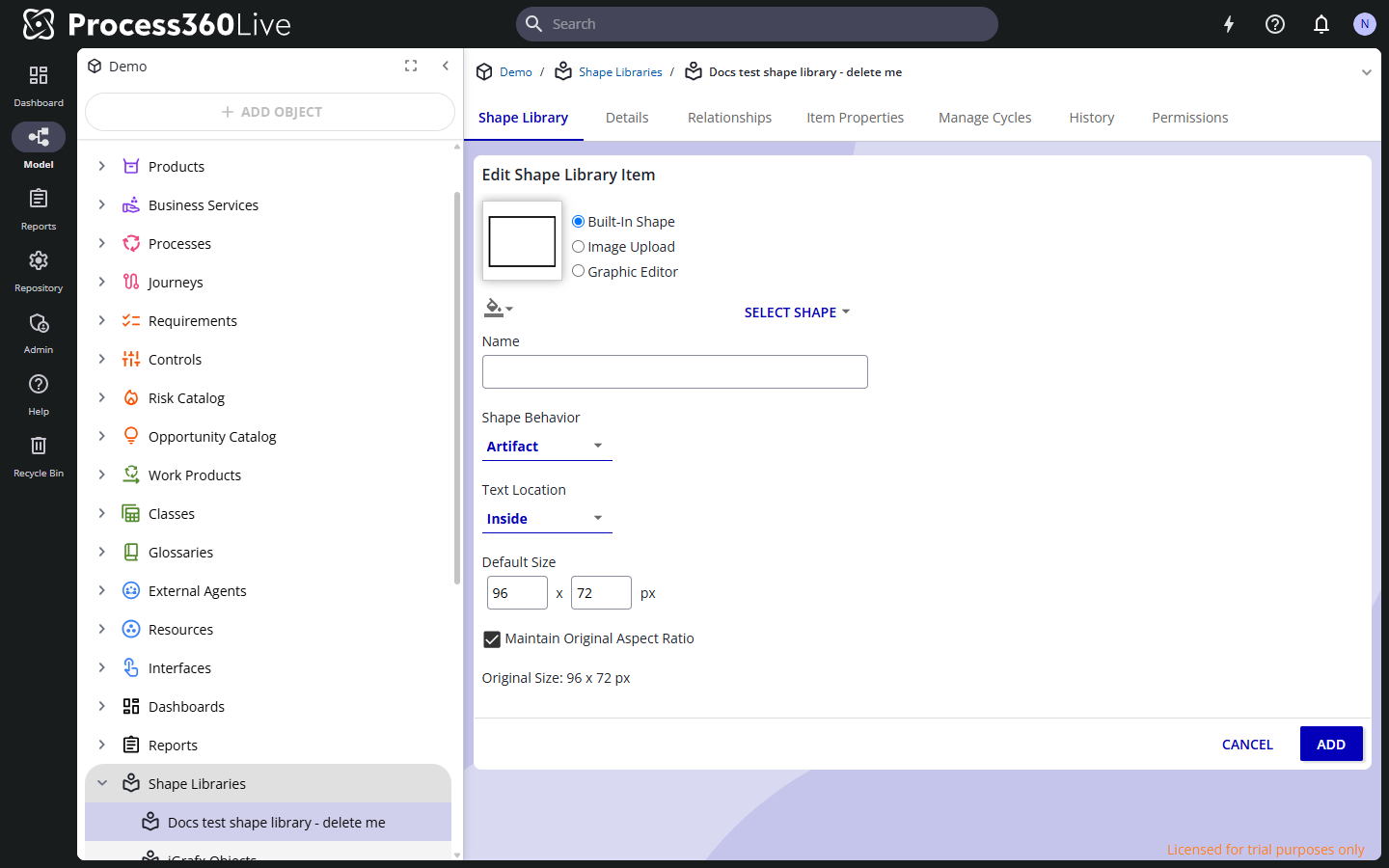
- Click Add. The Edit Shape Library Item editor offers three ways to define the graphic:
- Built-In Shape — click Select Shape and pick one of the product's shapes.
- Image Upload — upload a .PNG, .GIF, .SVG, or .JPEG file.
- Graphic Editor — draw the shape yourself; see Draw a shape in the Graphic Editor.
- Name the item and set its behavior:
- Shape Behavior — which BPMNBPMN An ISO/OMG standard graphical notation for modeling business processes. Process360 Live uses BPMN 2.0 for design and simulation artifacts. behavior the shape takes on the canvas: an artifact, a task or sub-process variantVariant A unique trace pattern in an event log. Variant analysis ranks how often each path is taken and is the fastest way to spot process deviation., a gateway, an event, or a data object.
- Text Location — where the shape textShape text The text displayed on a diagram shape. Type while a shape is selected to add or edit it. Part of the shape feature family alongside Shape Links and Shape Properties. sits (for example Inside).
- Default Size in pixels (between 12×12 and 1000×1000), with Maintain Original Aspect Ratio.
- Click Add (or Save when editing).
Draw a shape in the Graphic Editor
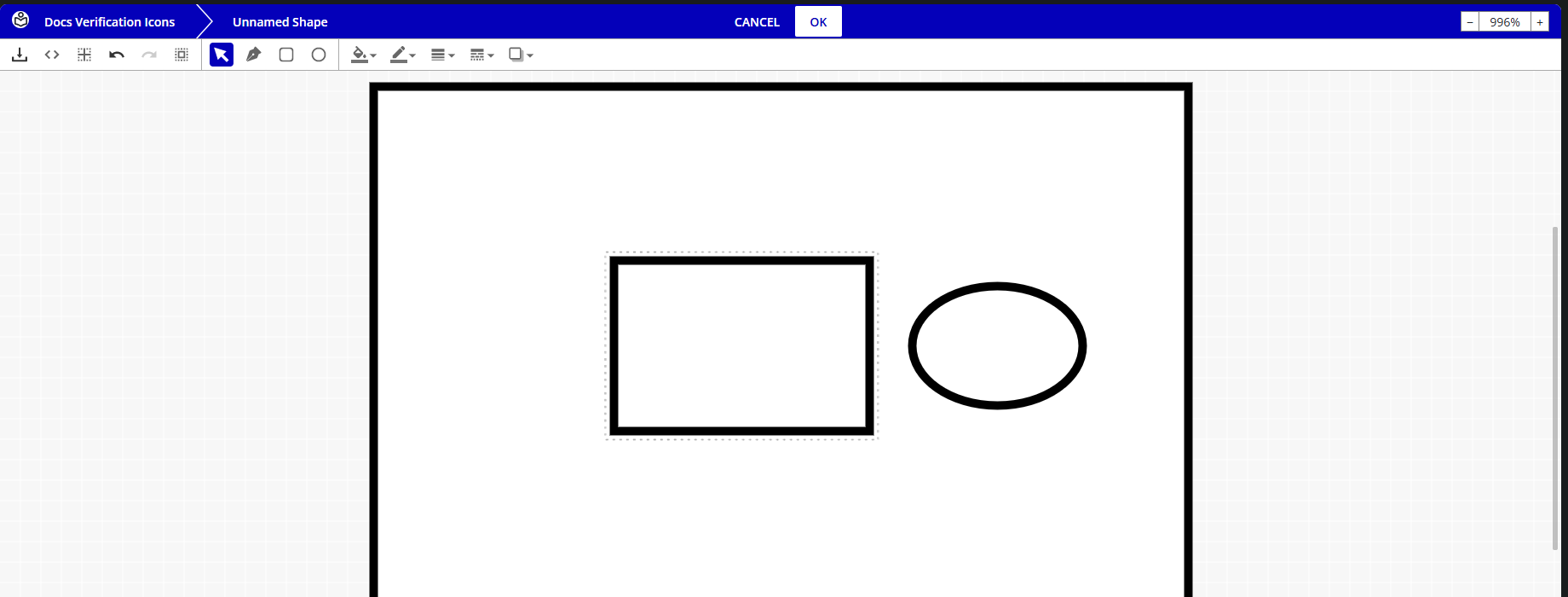
Choose Graphic Editor as the graphic mode and click Edit Graphic. The editor fills the screen; OK keeps the drawing, Cancel discards it.
- Draw with the tools. Rectangle and Ellipse are drag-to-draw. Draw places an outline point by point: each click adds a point; click the starting point to close the outline into a shape, or click the last point again to end an open line. Select moves and edits what you drew. Grid Snapping in the toolbar snaps points to the canvas grid.
- Style a selection. Selecting elements reveals style controls in the toolbar — Line Style, Line Width, and Line Dash for any element, plus Fill Style and Shadow for closed outlines. The Use Shape Width and Use Shape Style defaults leave those aspects to the shape's styling in the diagram.
- Start from an SVG. Import SVG loads an SVG file into the editor as editable drawing elements. Edit Source shows the drawing's underlying JSON definition for direct editing.
- Undo (Ctrl+Z), Redo (Ctrl+Y), and Select all (Ctrl+A) work inside the editor.
Export and import a library
- Export on the items list downloads the library as an
.igxlfile. - Import it elsewhere by creating a new Shape Library with Import from File — for example to move a library to another repository.
Use a library in a diagram
- In the diagram editor, open the Shapes panel. The dropdown at the top switches between the libraries selected for this diagram.
- Click Manage to open Manage Shape Libraries: search, check the libraries to offer (built-in and custom), and click Update.
Selecting a custom library for a diagram records a Uses Shape Library relationship, so the library's where-used view shows the diagrams that depend on it (Shape Library Used By).