Set up pages and print to PDF
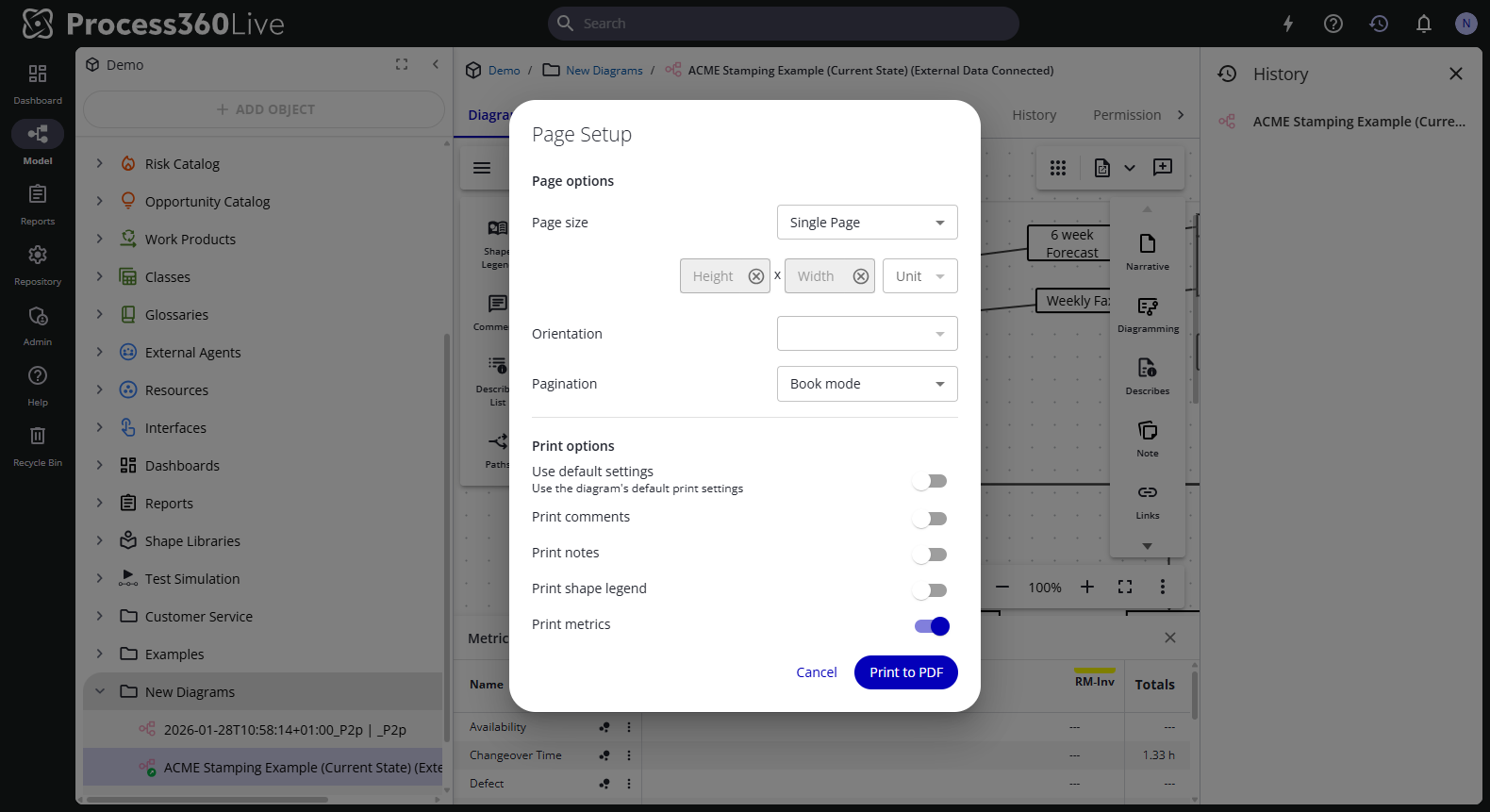
Page Setup decides how a diagram breaks into printed pages and what prints alongside it. The choices are stored in the diagram, and Print to PDF uses them. With the Early Access print options on, the same dialog opens at print time, so a single print can differ from what the diagram saves — without a check-out.
Prerequisites
- To change what the diagram saves: the diagram checked out to you. Page Setup is in the app menu only while you hold the check-out.
- To print: the Print item permission on the diagram. No check-out is needed — you can print a diagram someone else has checked out.
- To choose settings per print: the Diagram Print to PDF Options Early Access feature, enabled by an administrator under Admin → Server Settings → Early Access. Without it, Print to PDF goes straight to the PDF using the diagram's saved page setup.
Steps
Set the page setup the diagram saves
- Check the diagram out and select Page Setup in the app menu.
- Under Page options, set the layout:
- Page size — Single Page fits the whole diagram onto one page. The standard sizes follow, each listed with its dimensions (for example A4 (210x297 mm)). For any other size, enter a Width and Height and choose in or mm.
- Orientation — Portrait or Landscape. Single Page has no orientation, so the list is unavailable while it's selected.
- Pagination — Book mode applies headers and footers per printed page, Poster mode to the whole diagram.
- Under Print options, turn on what should print with the diagram: Print comments, Print notes, Print shape legend, and Print metrics.
- Click OK, then check the diagram in. The settings travel with the diagram, so everyone who prints it gets them. Until you check in, Ctrl+Z undoes the change like any other edit.
For a very wide diagram, increase the Page size or switch to Poster mode so it fits before printing.
Print to PDF
- Open the diagram and select Print to PDF in the app menu.
- The PDF downloads, built from the page size, orientation, pagination, and print options saved in the diagram.
Choose settings for a single print (Early Access)
With the Diagram Print to PDF Options feature on, Print to PDF opens the Page Setup dialog first and leaves the diagram untouched.
- Select Print to PDF. The dialog opens with Print to PDF as its finish button.
- Under Page options, set the Page size, Orientation, and Pagination for this print.
- Under Print options, turn on Use default settings to print with the diagram's own choices, or leave it off and set Print comments, Print notes, Print shape legend, and Print metrics yourself.
- Click Print to PDF. The PDF downloads; the diagram's saved page setup stays unchanged.
The dialog remembers the choices from your last print in this browser and starts from them next time — on any diagram. The first time, it starts from the diagram's saved page setup.
Related
- Create and edit a diagram — the app menu, and the diagram's Header and Footer
- View a diagram — viewing without a check-out
- Diagram templates — a template carries its page setup into new diagrams