Described-object changes in diagrams (header/footer cycle data)
A diagram can either always show the live data of its described objects, or release those changes only through check-in and approval. You choose between the two with a repository modeling policy. This page explains both behaviors and how the header/footer cycle data follows each.
Prerequisites
- A repository administrator sets the policy. Switching to the controlled-release behavior requires changing Repository → Policies → Modeling.
Always show live data (default)
The Always show live policy is on by default. Anyone viewing the diagram or the Describes panel sees every change made to described objects since the diagram was checked in and approved. The review, approval, and endorsement data (and their dates) in the header and footer reflect the latest cycle.
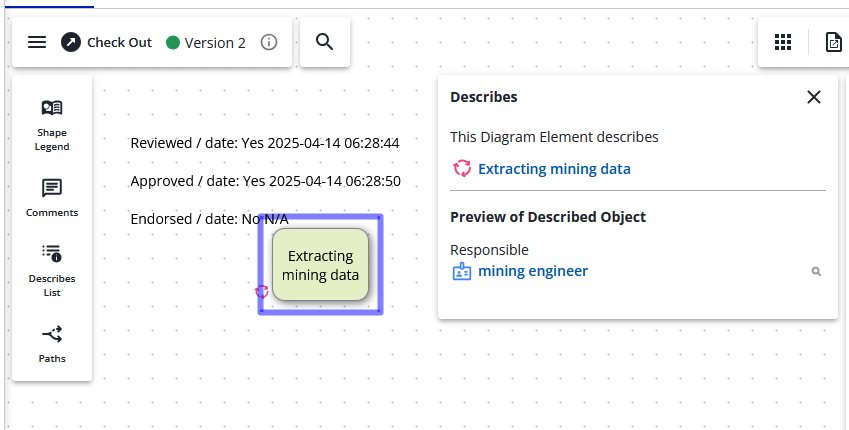
Steps
Switch to cycle-controlled release (the Changes toggle)
Highly regulated organizations often want viewers to see only content released through an approval cycle.
- Go to Repository → Policies → Modeling and clear Always show live described object data for latest visible versions of Diagrams.
When viewing the latest version of the diagram:
- Users with the See Unapproved permission can switch between the approved (or checked-in) version and the Changes version of the described-object data using the changes toggle.
- Users without See Unapproved, or with a Viewer license, always see the data as of the last check-in and successful approval.
With the toggle set to the orange CHANGES, the diagram shows live described-object data — but the header/footer won't show the latest cycle information, because that version isn't yet checked in and approved, so you see No or N/A.
When the toggle is set to the green approved version, available cycle information is shown. In this example the diagram went through review and approval but not endorsement, so the header shows review and approval dates but not endorsement:
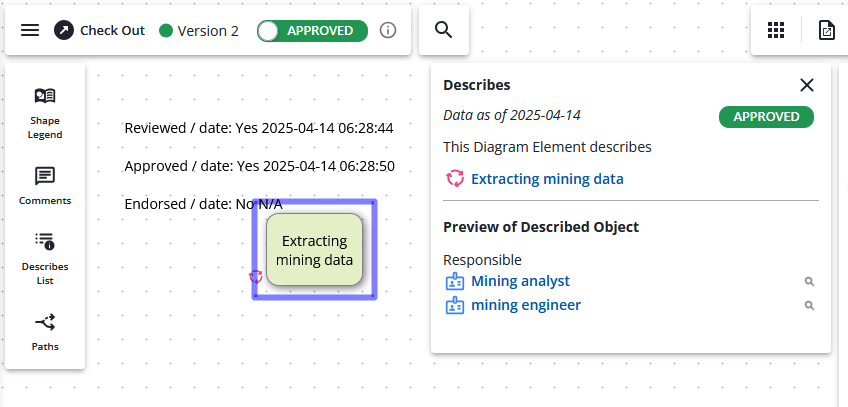
With the toggle set to CHANGES, cycle information isn't shown — the cycle state reads No and the completion date N/A:
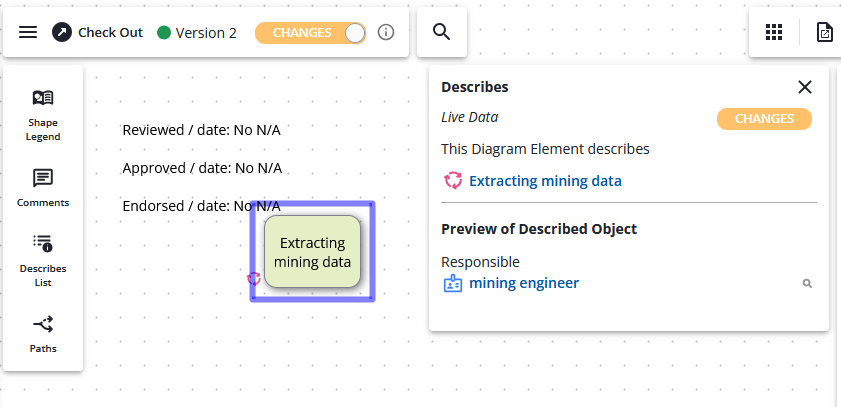
For what triggers the toggle to appear, see What makes the Changes toggle appear.
Promote the changes
- Check the diagram out and check it back in (no further edits needed) to save the changes. Users with See Unapproved now see the diagram without a changes toggle.
- When you're ready to release to everyone, run and complete another approval cycle after the check-in. The changes then become visible to users without See Unapproved.