Compare diagram versions
See exactly what changed between two versions of a diagram — graphically on the canvas and as a change-by-change table.
Prerequisites
- View access to the versions you compare; versions that aren't approved follow the See Unapproved permission. Comparing needs at least two versions.
- Both web-authored and client-authored (IGX) diagrams can be compared — always through the web interface. For IGX content, compare the diagram object, not the .igx document that contains it.
Steps
- Open the diagram and select Compare Versions in the diagram's main menu. (The diagram's History tab also offers comparing from a version's entry.)
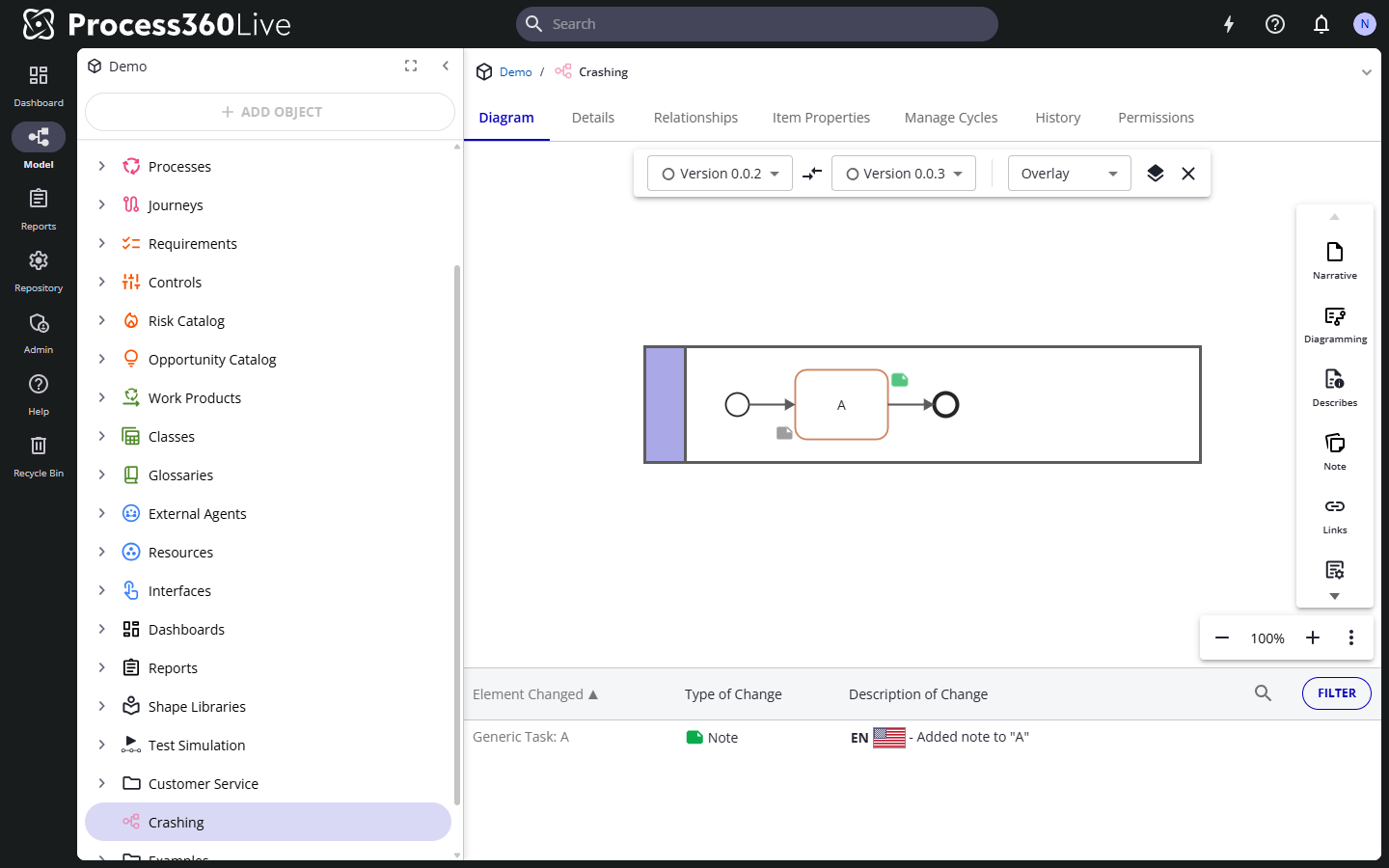
- Pick the version to compare against and select Compare Versions. The comparison opens with both versions and a table of changes underneath.
Read the comparison
- The table lists each change with the element, the type of change, and a description. Select a row to highlight that change in the diagram. The Filter button narrows the table to selected change types — additions only, for example — and the search box filters by text.
- The dropdown at the top switches between Overlay (the new version on top of the old) and Side-By-Side. In overlay mode, the blending control slides between the old and new state.
- Change the compared versions any time with the two version dropdowns.
- Click Close Comparison when done.
Limitations
- Comparing shows the diagram's versioned content. Information that isn't versioned — relationships, permissions, checkout information, and some standard properties — always reflects the current state; when you view a historic version elsewhere, those parts display grayed as non-versioned.
Related
- View an item's history
- View a diagram
- Cycles — approved versions