Setting up SSO via a Microsoft Entra ID enterprise application
Configure SAMLSAML Ein XML-basierter Standard für den Austausch von Authentifizierungs- und Autorisierungsdaten zwischen einem Identitätsanbieter und einem Dienstanbieter. Process360 Live unterstützt SAML 2.0 für SSO. SSOSSO Ein Authentifizierungsverfahren, bei dem sich Benutzer einmal bei einem Identitätsanbieter anmelden und dann auf Process360 Live zugreifen, ohne ihre Anmeldedaten erneut einzugeben. for an on-premises iGrafx platform using a Microsoft Entra ID (formerly Azure AD) enterprise application.
These steps apply to the iGrafx platform Datacenter Edition (on-premises) only. For the cloud solution, follow the Legacy SAML setup guide instead.
Prerequisites
- A SAML keystore set up, with the keystore details in
igrafx.properties. - Access to Enterprise applications in the Azure portal.
Steps
-
In the Azure portal, go to Enterprise applications and select New application.
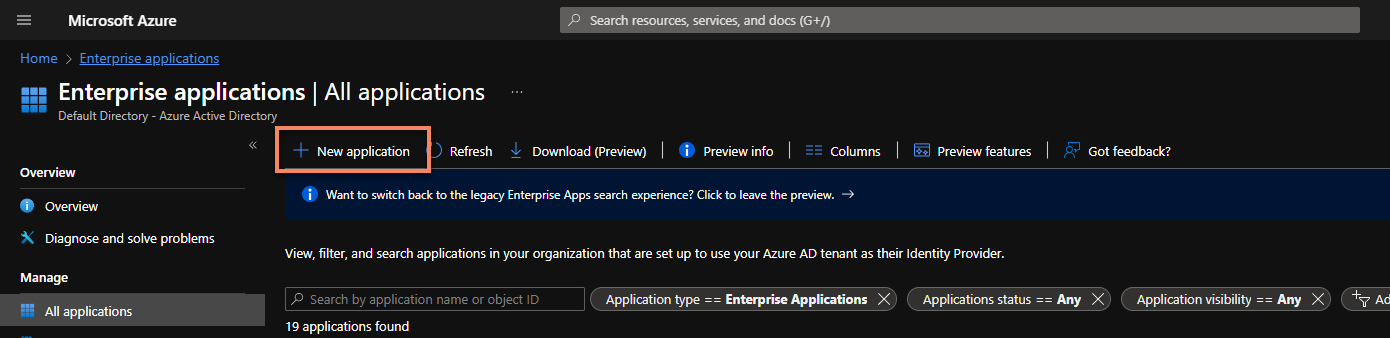
-
Click Create your own application, enter a name, and click Create.
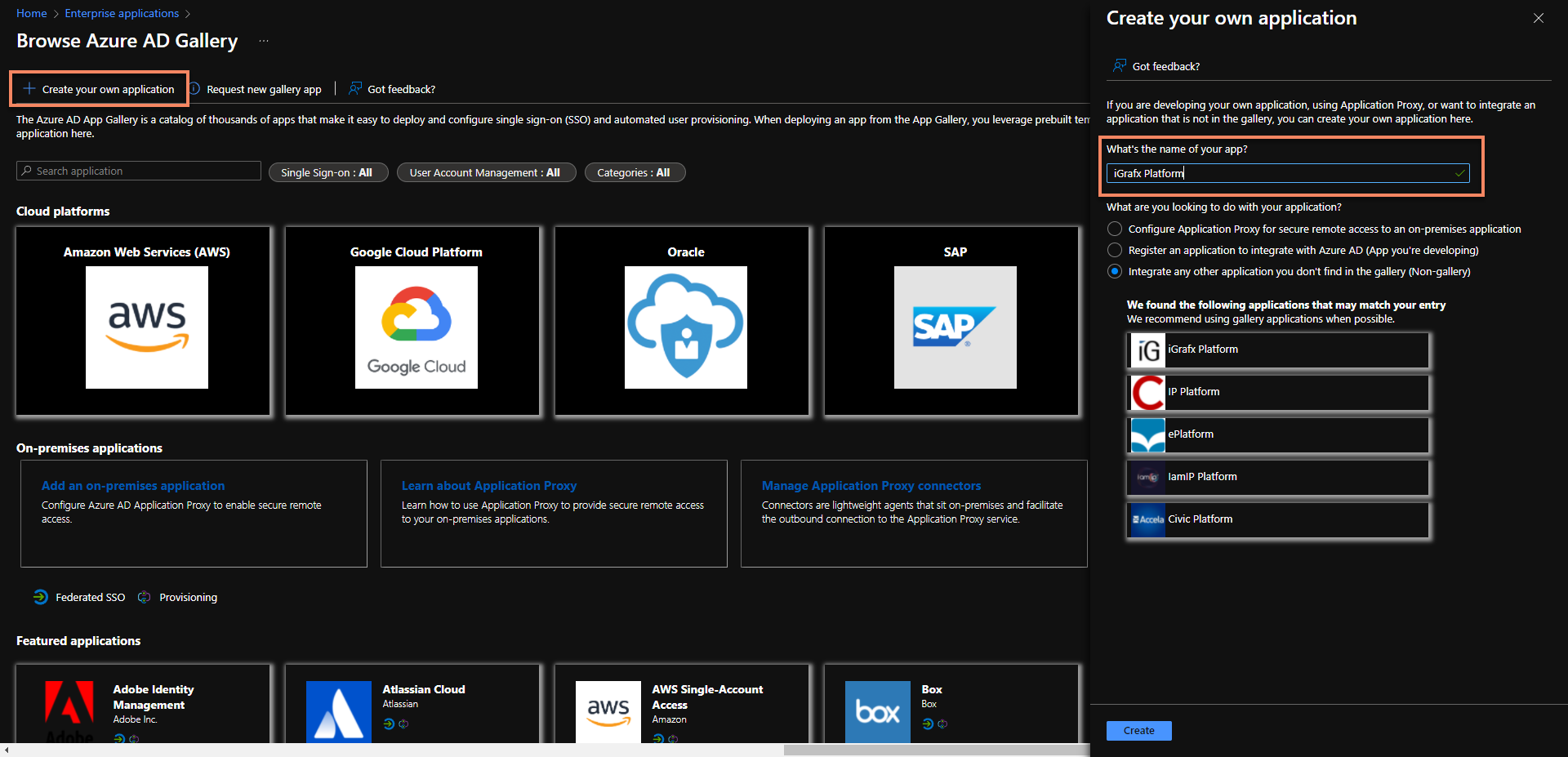
-
Select Get started.
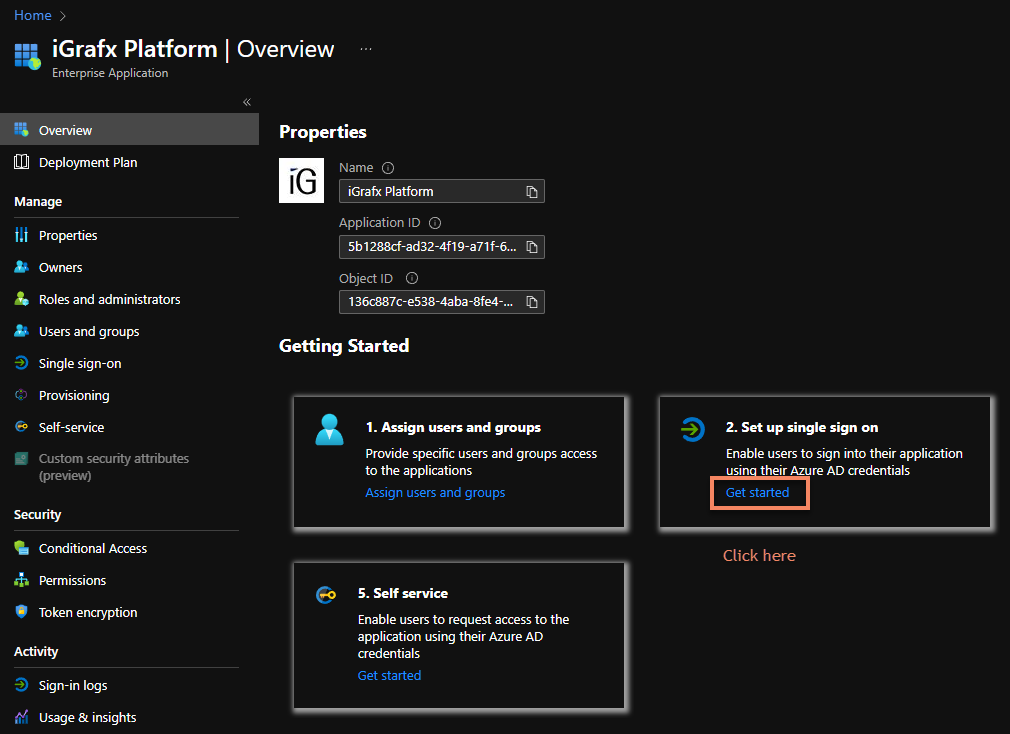
-
Select SAMLSAML Ein XML-basierter Standard für den Austausch von Authentifizierungs- und Autorisierungsdaten zwischen einem Identitätsanbieter und einem Dienstanbieter. Process360 Live unterstützt SAML 2.0 für SSO..
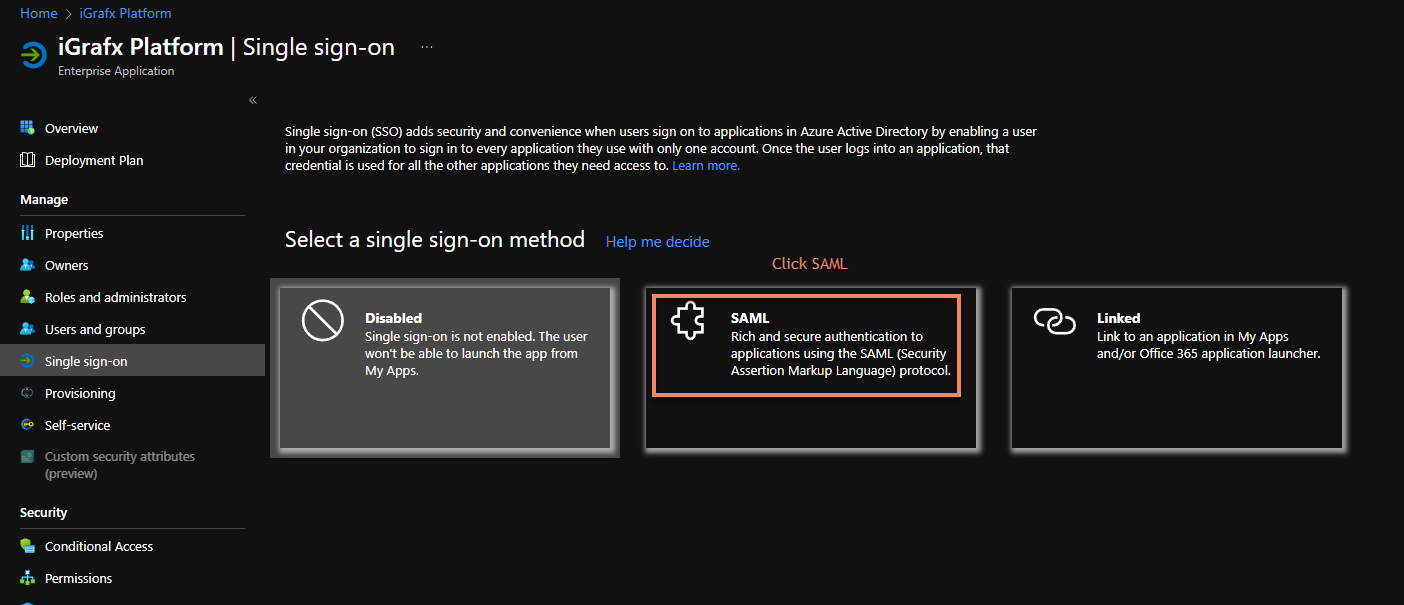
-
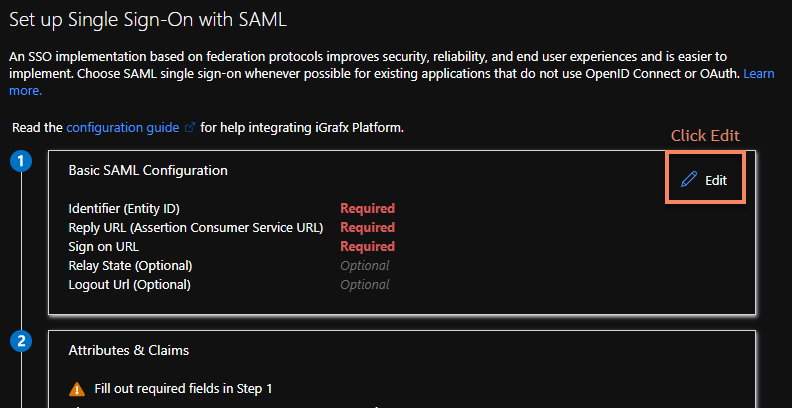
Select Edit on the basic SAMLSAML Ein XML-basierter Standard für den Austausch von Authentifizierungs- und Autorisierungsdaten zwischen einem Identitätsanbieter und einem Dienstanbieter. Process360 Live unterstützt SAML 2.0 für SSO. configuration.
-
Select Add identifier and enter your platform URL with
/saml/metadataappended. Add the Reply URL as your platform URL with/saml/SSO, and add the Sign on URL.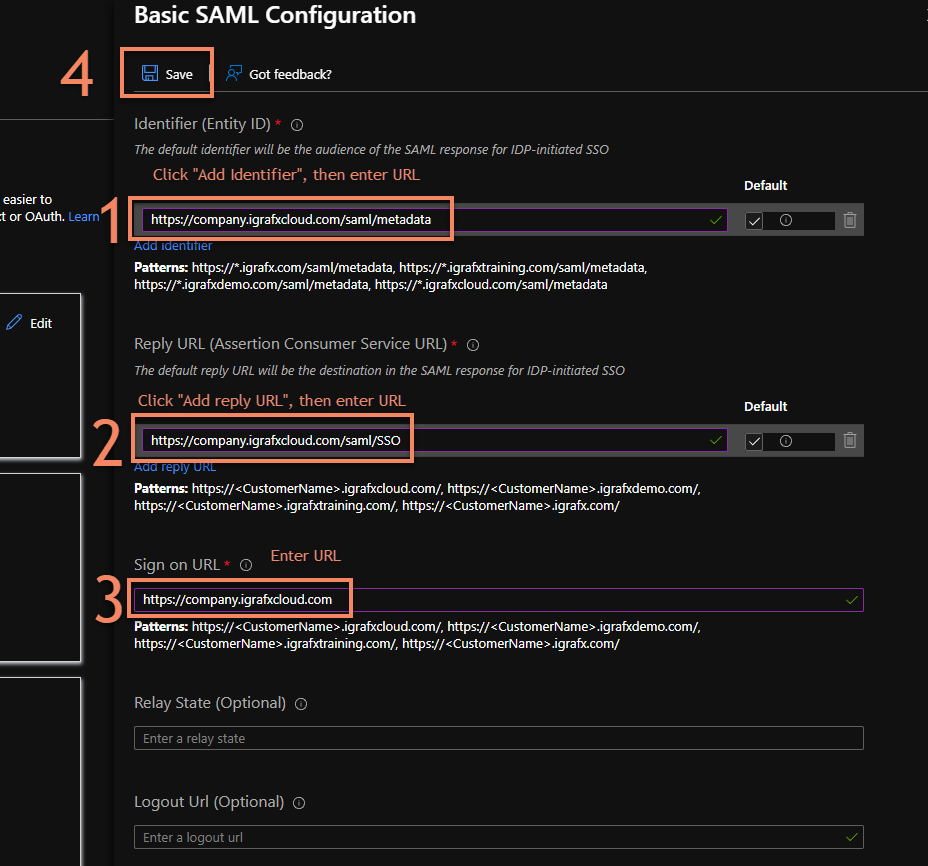
-
Click Save.
-
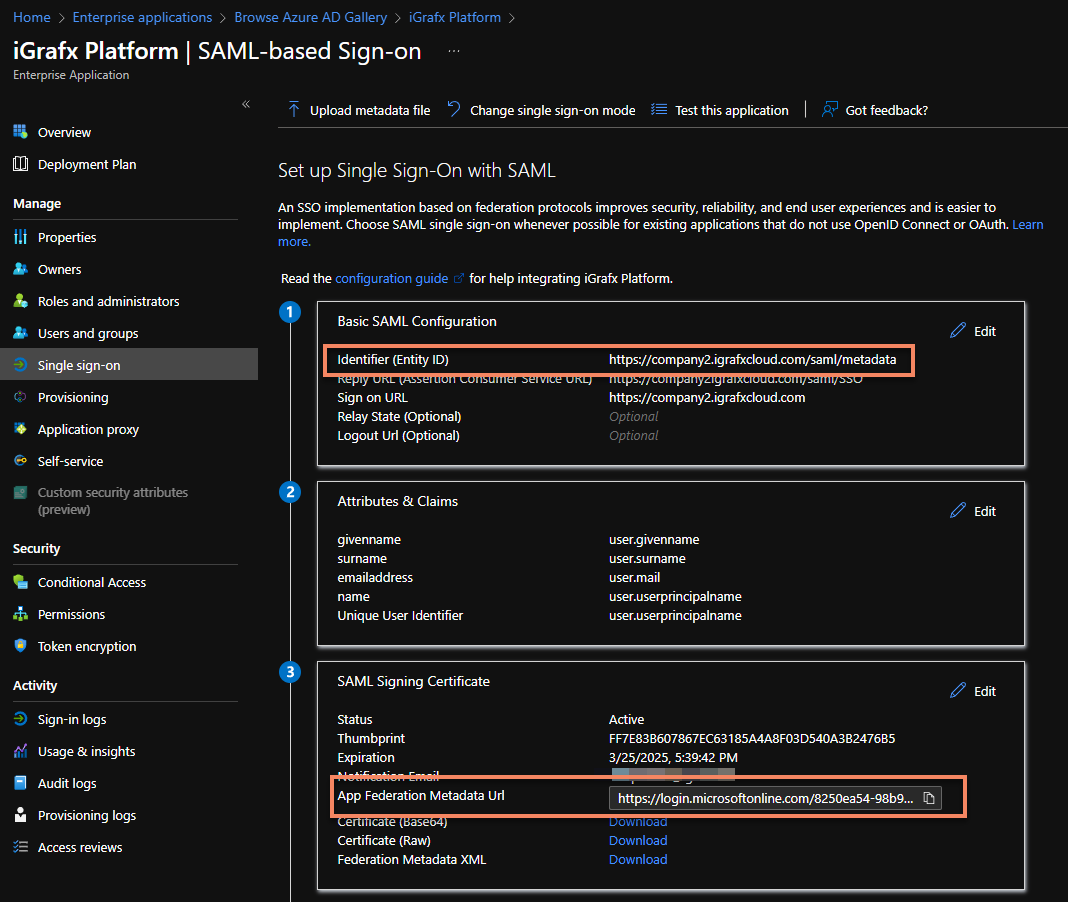
Copy the App Federation Metadata URL.
-
On the Users and groups tab, assign the users and groups who sign in to iGrafx.
-
In the platform, go to Administration → User Management → SAMLSAML Ein XML-basierter Standard für den Austausch von Authentifizierungs- und Autorisierungsdaten zwischen einem Identitätsanbieter und einem Dienstanbieter. Process360 Live unterstützt SAML 2.0 für SSO., select Update Identity Provider Metadata, and add the metadata URL.
-
Activate the
samlsecurityprofile — see Configuring authentication. -
Confirm
samlKeystore.jksis set up and its access details are inigrafx.properties— see Set up a SAML2 keystore. -
Restart the platform.
-
Make sure your NameID (in the Attributes & Claims section) matches the login name of your users in the platform.
-
If issues arise, follow the debugging steps.